
The WordPress admin login at `/wp-login.php` is the front door every automated attack tries first. Securing it means making password-only access insufficient, limiting how many guesses an attacker gets, and ensuring credentials never travel in plain text. You do not need to hide the door — you need a lock that actually works.
This guide covers the measures that stop real attacks, in priority order. Pair it with WordPress two-factor authentication setup for the full authentication stack.
Why the login page matters
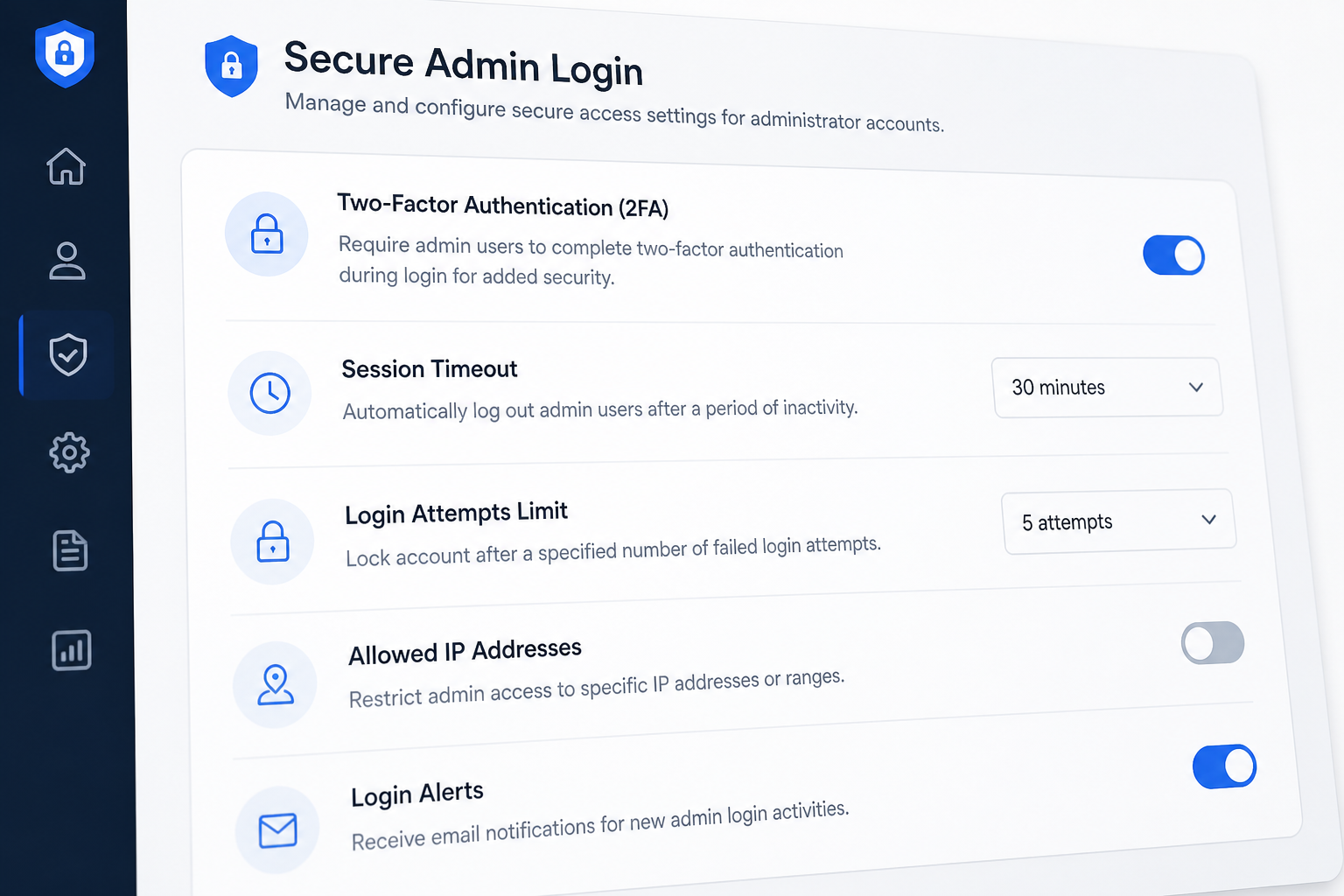
WordPress exposes a standard login endpoint. Attackers do not need to discover yours — they already know the URL. Automated bots send thousands of username and password combinations daily against `/wp-login.php` and `/wp-admin/`.
Most of these attempts fail because the passwords are wrong. The ones that succeed usually involve:
- A reused password from another breached service
- An `admin` account with a weak password
- No rate limiting, so brute force runs indefinitely
- Credentials sent over HTTP instead of HTTPS
Each of these has a direct fix. None require hiding the login URL.
Step 1: Force HTTPS on login
Before anything else, ensure every login request uses HTTPS. Without it, credentials travel in plain text across the network — readable by anyone on the same Wi-Fi, ISP, or compromised router.
Check: Visit your login page. The padlock should show in the browser. If HTTP redirects to HTTPS, confirm the redirect is a 301 and covers `/wp-admin/` and `/wp-login.php`.
In wp-config.php, add if not already present:
“`php
define('FORCE_SSL_ADMIN', true);
“`
Most managed hosts enforce HTTPS at the server level. Verify rather than assume — mixed-content sites sometimes serve login over HTTP while the front end uses HTTPS.
See WordPress SSL HTTPS security basics for certificate and redirect setup.
Step 2: Enable two-factor authentication
2FA is the single highest-value login control after HTTPS. It defeats brute force, credential stuffing, and leaked passwords because the attacker needs a second factor they do not have.
Enable 2FA for every account with Editor role or higher, not just administrators. An editor can inject malicious scripts into published content — that is sufficient for a full site takeover.
App-based TOTP (Google Authenticator, Authy, 1Password) is the practical standard. SMS works but is weaker due to SIM-swapping. Full setup walkthrough: WordPress two-factor authentication setup.
Step 3: Limit login attempts
Unlimited login attempts make brute force viable. Rate limiting makes it uneconomical.
Options:
| Method | Where it runs | Notes |
|---|---|---|
| Security plugin (Wordfence, Solid Security) | WordPress | Easy to configure; adds plugin overhead |
| Cloud WAF (Cloudflare) | Edge | Blocks before traffic hits server |
| Host-level (Kinsta, WP Engine) | Server | Often included; check your panel |
| fail2ban | Server | Requires server access |
A modest limit works: 5 attempts, 15-minute lockout. You are not stopping a determined human with a correct password — you are stopping bots running millions of combinations.
Step 4: Use strong, unique credentials
Usernames: Do not use `admin`. Do not use your public display name. Pick a distinct login name and set the display name separately in your profile.
Passwords: Generate 20+ character passwords in a password manager. Every account gets its own. Credential stuffing succeeds because people reuse passwords — a breach on an unrelated service becomes a breach on your site.
Audit existing accounts: Remove contractors, former employees, and anyone who no longer needs access. Check for unrecognized administrators — a common post-compromise indicator. Role guidance: least privilege WordPress user roles.
Step 5: Harden session cookies
WordPress session cookies should only transmit over HTTPS and should not be accessible to JavaScript.
Add to `wp-config.php`:
“`php
define('COOKIE_DOMAIN', false);
@ini_set('session.cookie_httponly', 1);
@ini_set('session.cookie_secure', 1);
@ini_set('session.use_only_cookies', 1);
“`
Also verify `DISALLOW_FILE_EDIT` is true — a compromised admin session combined with the theme editor equals arbitrary code execution:
“`php
define('DISALLOW_FILE_EDIT', true);
“`
Step 6: Block user enumeration
WordPress exposes usernames via the REST API at `/wp-json/wp/v2/users`. Attackers use this to get half of every credential pair for free.
Restrict the endpoint to authenticated requests using your security plugin or a small code snippet in a must-use plugin. Combined with non-obvious usernames, this removes an easy reconnaissance step.
Step 7: Consider a custom login URL (optional)
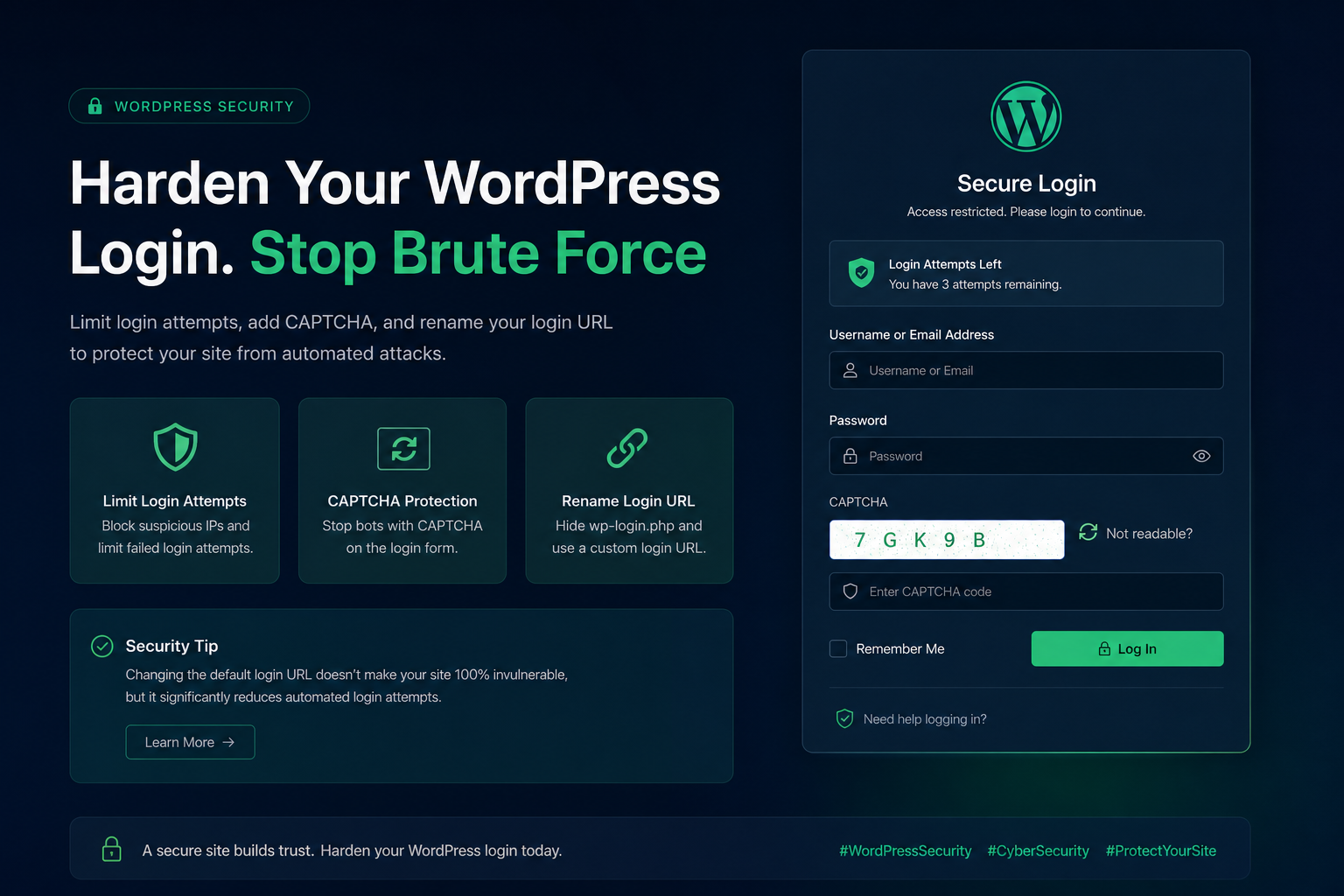
Renaming `/wp-login.php` to something custom reduces noise in your logs from automated bots. It is not security by itself — anyone who knows WordPress can find alternate routes to authenticate.
Treat this as quality-of-life, not protection. If you do it, pair it with 2FA and rate limiting. Plugins like Solid Security and WPS Hide Login handle the redirect. Document the custom URL for your team — lockouts from forgotten URLs are common.
Step 8: Disable XML-RPC authentication
XML-RPC allows multiple authentication attempts in a single HTTP request, making brute force far more efficient than against the standard login form. If you do not use the WordPress mobile app, Jetpack, or pingbacks, disable it.
See disable XML-RPC WordPress guide for server-level and plugin-level methods.
Login security checklist
| Control | Status |
|---|---|
| HTTPS enforced on login and admin | ☐ |
| 2FA enabled for Editor+ accounts | ☐ |
| Login rate limiting configured | ☐ |
| No `admin` username; strong unique passwords | ☐ |
| Stale accounts removed | ☐ |
| `DISALLOW_FILE_EDIT` enabled | ☐ |
| REST API user enumeration blocked | ☐ |
| XML-RPC disabled if unused | ☐ |
What does not help much
- CAPTCHA alone. Bots solve basic CAPTCHAs. CAPTCHA plus rate limiting is fine; CAPTCHA instead of 2FA is not.
- Hiding the login URL without other controls. Security through obscurity buys minutes, not protection.
- IP whitelisting for admin. Breaks remote work and mobile access unless you maintain a VPN. Useful for high-security environments; impractical for most small businesses.
Frequently asked questions
Should I change the default login URL?
Optional. It reduces bot noise in logs but is not a substitute for 2FA and rate limiting. Do it if your team will remember the custom URL.
How many failed logins should I allow before lockout?
Five attempts with a 15-minute lockout is a reasonable default. Stricter settings lock out legitimate users who mistype passwords; looser settings let bots run longer.
Does my host protect the login page?
Some managed hosts rate-limit login attempts at the server level. Check your host documentation. Even with host protection, 2FA at the application level is still necessary.
Can I require 2FA only for administrators?
You can, but it is weaker. Editor accounts can modify published content and upload files. Require 2FA for anyone who can change what visitors see.
What if someone is locked out?
Keep backup codes from your 2FA plugin in a secure location. Maintain a secondary administrator account with 2FA for recovery. Your host may offer emergency access via SFTP or database user meta edits — know the procedure before you need it.
Get a free 15-minute security check
Send your URL. I will check whether your login is HTTPS-only, whether user enumeration is exposed, and whether anything in the public footprint suggests weak authentication.
For hands-on login hardening as part of a full project, see WordPress security hardening — typical projects run $300–$1,200.
August 30, 2026
How to Disable XML-RPC in WordPress
August 30, 2026