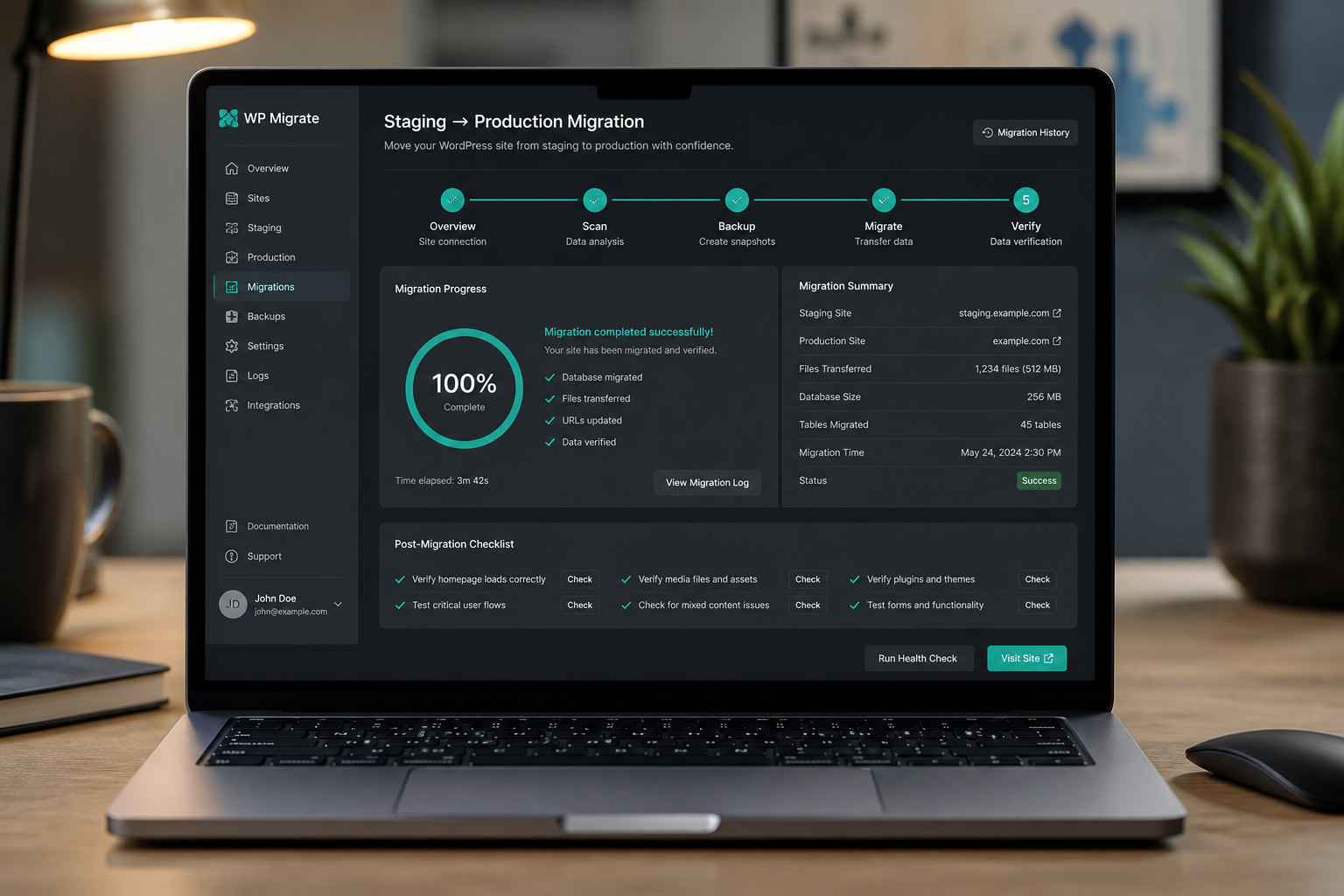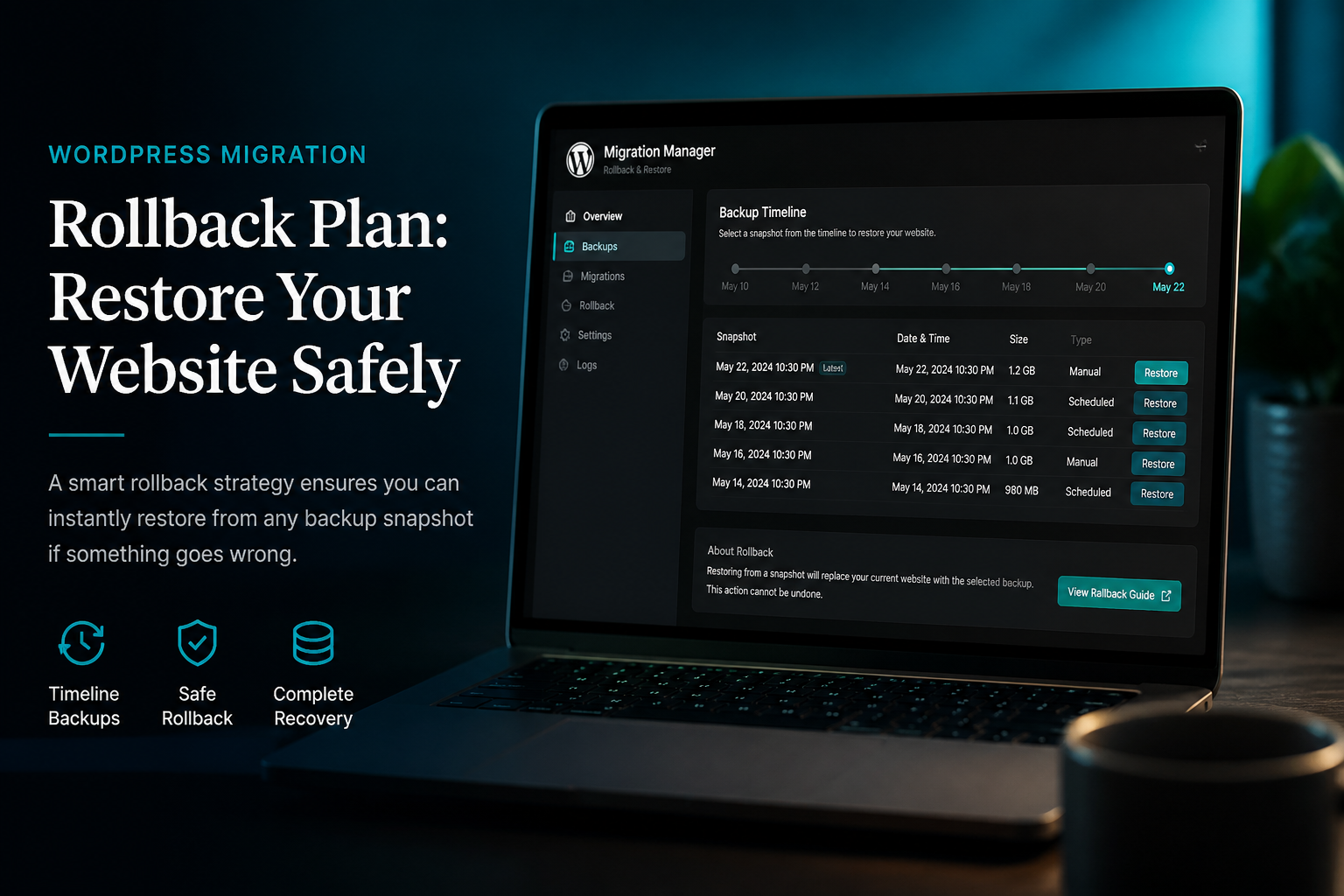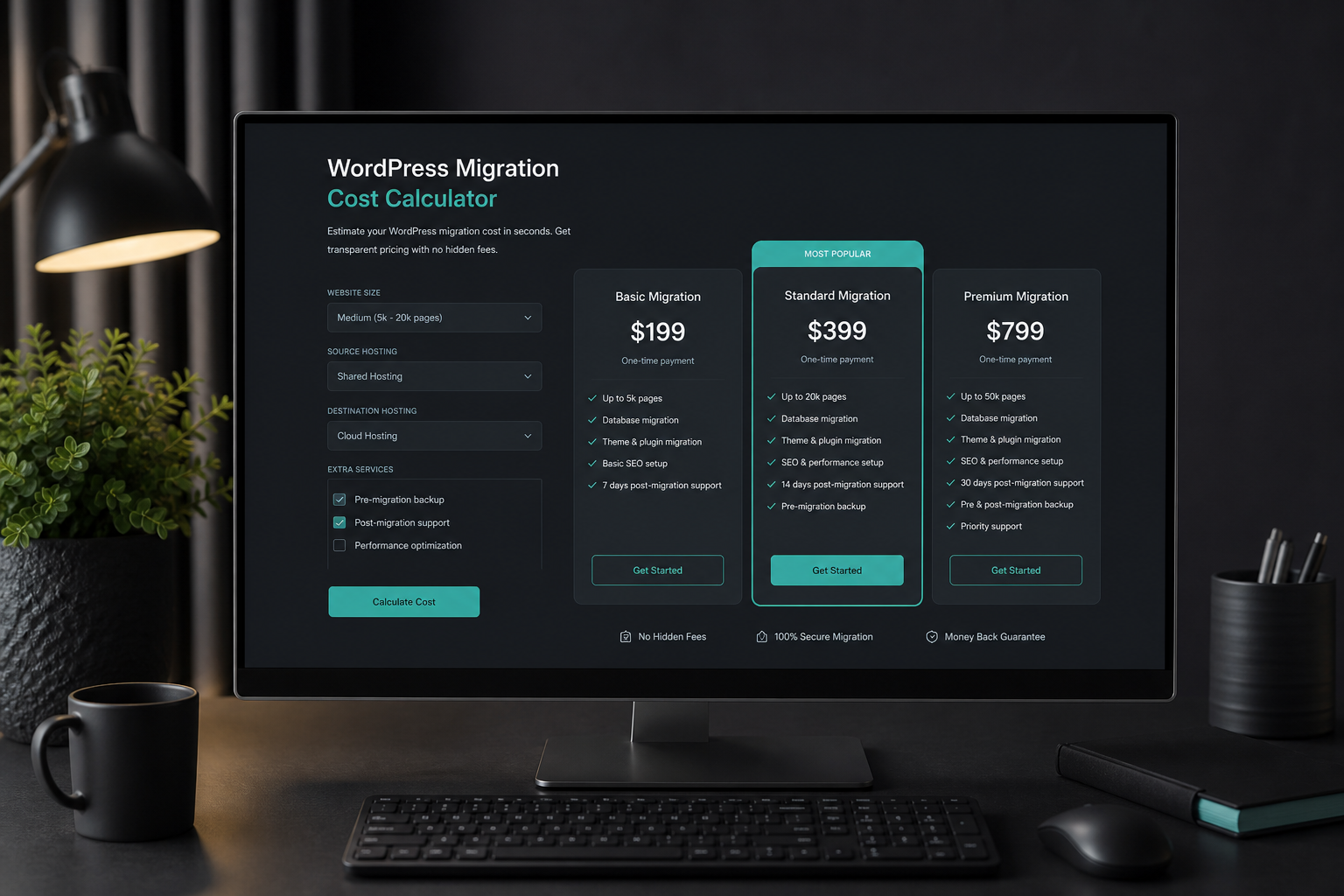

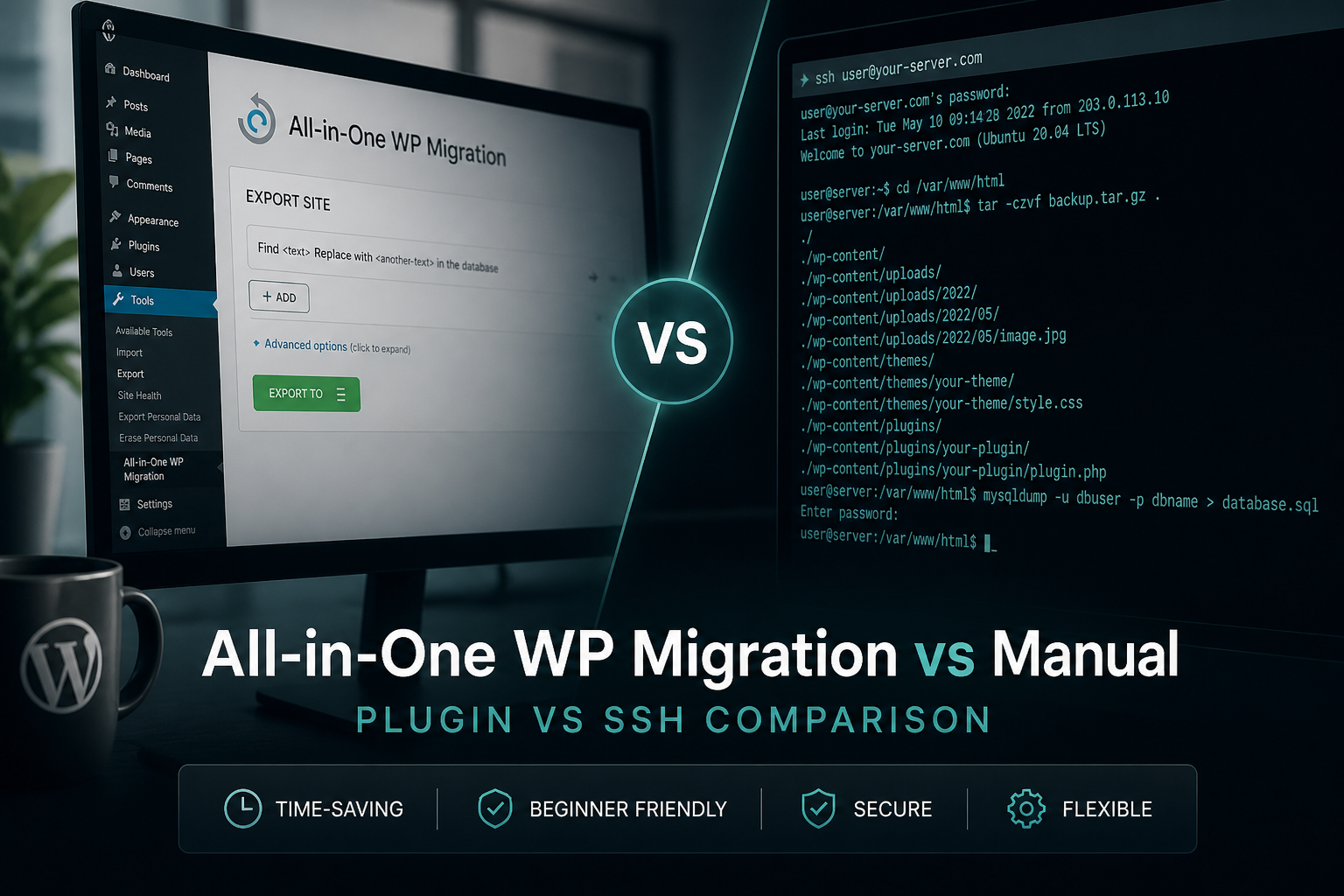
All-in-One WP Migration vs manual migration comes down to site size, host limits, and tolerance for risk. Plugins automate export, transfer, and import for small sites on compatible hosts. Manual migration via SFTP and WP-CLI handles any size, supports multisite and WooCommerce reliably, and gives you control over every step — at the cost of more time and technical skill.
Neither method fixes bad sequencing. Both fail when you skip backups, skip testing, or switch DNS before verification. The WordPress migration checklist applies regardless of method.
Quick comparison
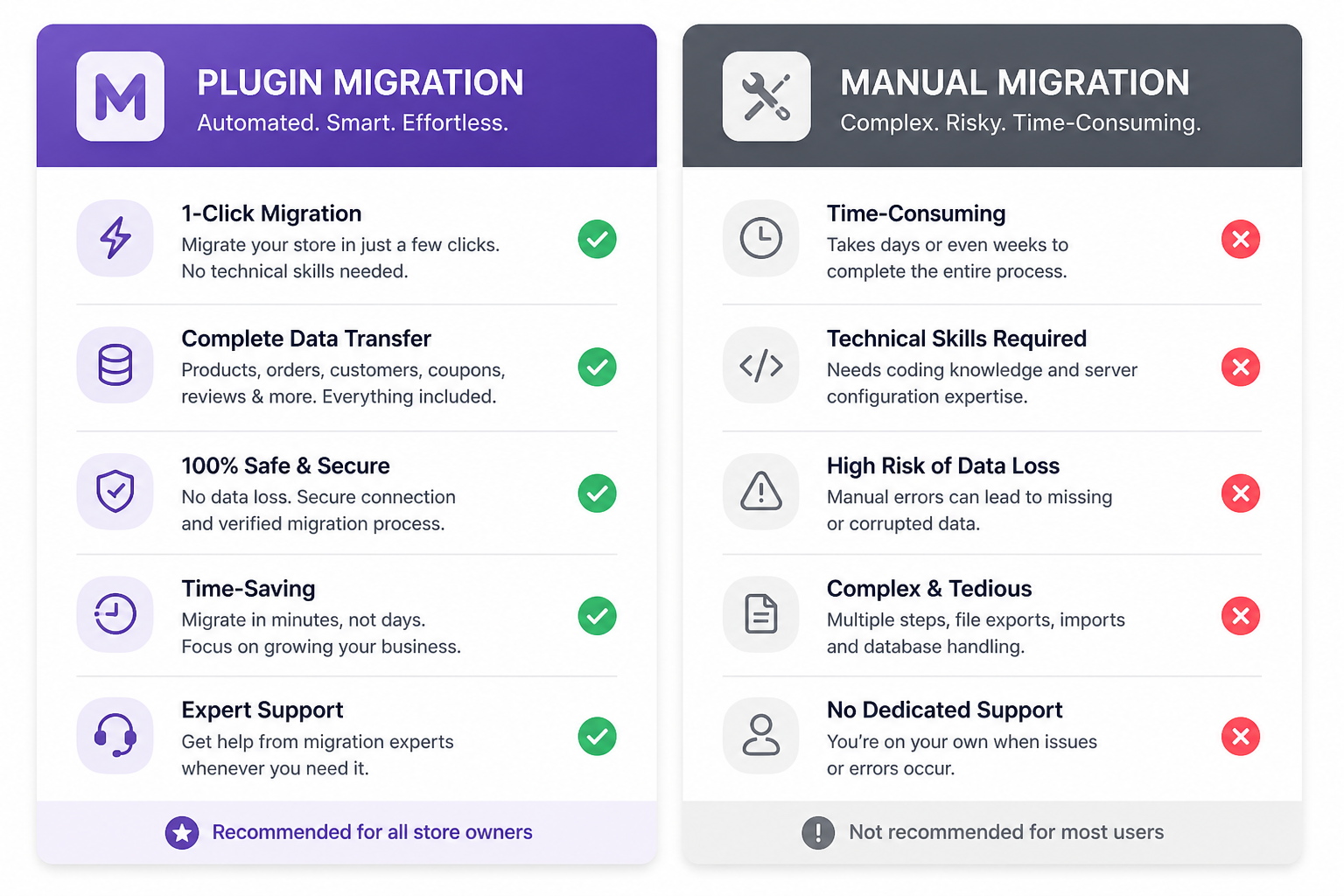
| Factor | All-in-One WP Migration | Manual (SFTP + WP-CLI) |
|---|---|---|
| Skill level | Beginner-friendly | Intermediate–advanced |
| Site size limit | 512MB free; unlimited with paid extension (~$69) | No practical limit |
| Time (small site) | 30–90 minutes | 2–4 hours |
| Time (large site) | Often fails — must upgrade or split | 4–8 hours |
| WooCommerce | Works for small stores | Preferred for production stores |
| Multisite | Requires separate extension | Full control with `–network` |
| Serialized URL replace | Handled on import | WP-CLI search-replace |
| Host compatibility | Upload/import size limits vary | Works anywhere with SSH/SFTP |
| Cost (DIY) | $0–$69 + optional $169 multisite | $0 (your time) |
| Rollback clarity | Single archive file | Separate file + DB backups |
| Failure recovery | Re-import archive | Restore from mysqldump + files |
All-in-One WP Migration: how it works
- Install plugin on source and destination.
- Export on source → generates `.wpress` archive file.
- Import on destination → upload archive or use browser-to-browser transfer (paid).
- Plugin runs find-replace for URL changes during import.
- Log in, re-save permalinks, test.
Strengths:
- Simple UI — no command line
- Browser-to-browser transfer skips manual upload on paid tier
- Handles serialization during import
- Good for blog and brochure sites under size limits
Weaknesses:
- Import size capped by host `upload_max_filesize` and `post_max_size` — often 64–128MB on shared hosting even if plugin allows 512MB
- Large WooCommerce databases (orders, Action Scheduler) exceed limits quickly
- Timeout on slow hosts during import
- Multisite requires paid Multisite Extension
- No selective table sync — full database replace only
- Debugging failed imports is opaque compared to step-by-step manual process
Manual migration: how it works
- Export database via WP-CLI, mysqldump, or phpMyAdmin.
- Transfer files via SFTP or rsync.
- Import database on destination.
- Update wp-config.php.
- Run `wp search-replace` for URL changes.
- Test, flush permalinks, cutover DNS.
Detailed steps: how to migrate WordPress to new host and database migration guide.
Strengths:
- No size limits with SSH/rsync
- Selective table export/import possible
- Full visibility into each step — easier to diagnose failures
- Industry standard for agencies and managed migrations
- Multisite with `–network` flag
Weaknesses:
- Requires SSH/SFTP access and comfort with CLI or database tools
- More steps — more opportunities for human error without a checklist
- Longer clock time for small sites where a plugin would suffice
Other migration plugins (brief)
| Plugin | Best for | Limitation |
|---|---|---|
| Duplicator Pro | Full site packages with installer script | Installer script security risk if left on server; size limits |
| Migrate Guru | Host-to-host live migration | Requires plugin on both ends; large site timeouts |
| WP Migrate DB Pro | Database sync, staging push/pull | Files separate; subscription cost |
| BackupBuddy | Backup + migration combo | Legacy; less common on new projects |
Duplicator and Migrate Guru follow the same pattern as All-in-One: great until site size or host limits intervene.
Decision framework
Use All-in-One WP Migration when:
- Site under ~300MB total (files + database compressed)
- Shared hosting with modest upload limits — verify `php.ini` limits first
- Simple blog or business site, no WooCommerce
- Single site (not multisite)
- Same or similar PHP version on both hosts
- You have a verified backup independent of the plugin
Use manual migration when:
- Site over 500MB or database over 100MB
- WooCommerce with order history
- Multisite network
- Managed hosting with SSH and WP-CLI (Kinsta, WP Engine, Cloudways)
- Previous plugin migration failed or timed out
- Staging-to-production selective sync needed
- Zero-downtime cutover planned
- Client site where failure cost exceeds $250–$400 (estimate for professional help)
Hire a developer when:
- Any of the manual triggers above AND no CLI access or comfort
- Revenue-critical ecommerce
- Migration repair needed after failed plugin attempt
Guide: when to hire WordPress migration help.
Real-world failure patterns
All-in-One failures I see in repair jobs:
- Import stalled at 100% — PHP timeout. Fix: manual import or increase limits.
- Site loads but widgets empty — rare serialization miss on custom options. Fix: WP-CLI search-replace or restore.
- "Import file is invalid" — corrupted download or host killed upload. Fix: re-export or switch to manual.
- WooCommerce checkout broken after import — session/cookie domain mismatch. Fix: URL constants, cache exclusions.
Manual failures:
- Raw SQL replace corrupted wp_options. Fix: restore DB backup, re-run with WP-CLI.
- Incomplete file transfer — uploads folder missing year/month subdirs. Fix: rsync resume.
- Wrong DB_HOST on managed host (`localhost` vs remote hostname). Fix: wp-config correction.
Troubleshooting: fix WordPress migration errors.
Cost comparison (DIY vs professional)
| Approach | Direct cost | Hidden cost |
|---|---|---|
| All-in-One free | $0 | Failed import → repair job $300+ |
| All-in-One unlimited | ~$69 | Your time + limit surprises |
| Manual DIY | $0 | 4–8 hours; error risk |
| Professional manual migration | $250–$2,500 (estimate) | Low — includes testing and rollback |
Hybrid approach (often the best DIY path)
- Use All-in-One or Duplicator for initial staging copy to destination temp URL.
- Verify and test on staging.
- For final cutover on large sites: manual database delta sync via WP Migrate DB Pro or WP-CLI.
- DNS cutover only after checklist passes.
Gets speed of plugin for bulk copy with manual precision for go-live.
Security notes
- Delete installer scripts (`installer.php`, `dup-installer/`) after Duplicator migrations.
- Remove migration plugin from production if not needed ongoing.
- `.wpress` and Duplicator archives contain full database including password hashes — store encrypted, delete after successful import.
- Do not leave migration archives in public web directories.
FAQs
Is All-in-One WP Migration safe?
Yes when used on appropriate site sizes with independent backups. The archive contains your full database — treat it like credentials.
Can I increase All-in-One upload limits?
Filter `ai1wm_max_file_size` in functions.php or use unlimited extension — but host `upload_max_filesize` may still block below plugin limit. Check both.
Is manual migration better for SEO?
Method does not affect SEO. Execution does — redirects, URL consistency, and HTTPS matter. See migration SEO checklist.
Should agencies use plugins or manual?
Most agencies use WP Migrate DB Pro for DB sync plus SFTP/Git for files. All-in-One acceptable for small client sites with tight budgets.
What if All-in-One import succeeds but site is broken?
Do not switch DNS. Restore destination, diagnose with debug log, run WP-CLI search-replace, or restore source backup and go manual.
—
Pick the method that matches your site size and risk tolerance — not the one with the simplest UI. WordPress migration services use manual workflow with plugin assist where appropriate.
Book a free 15-minute migration consult.
September 9, 2026
WooCommerce vs Shopify for Small Business: An Honest...
September 9, 2026