
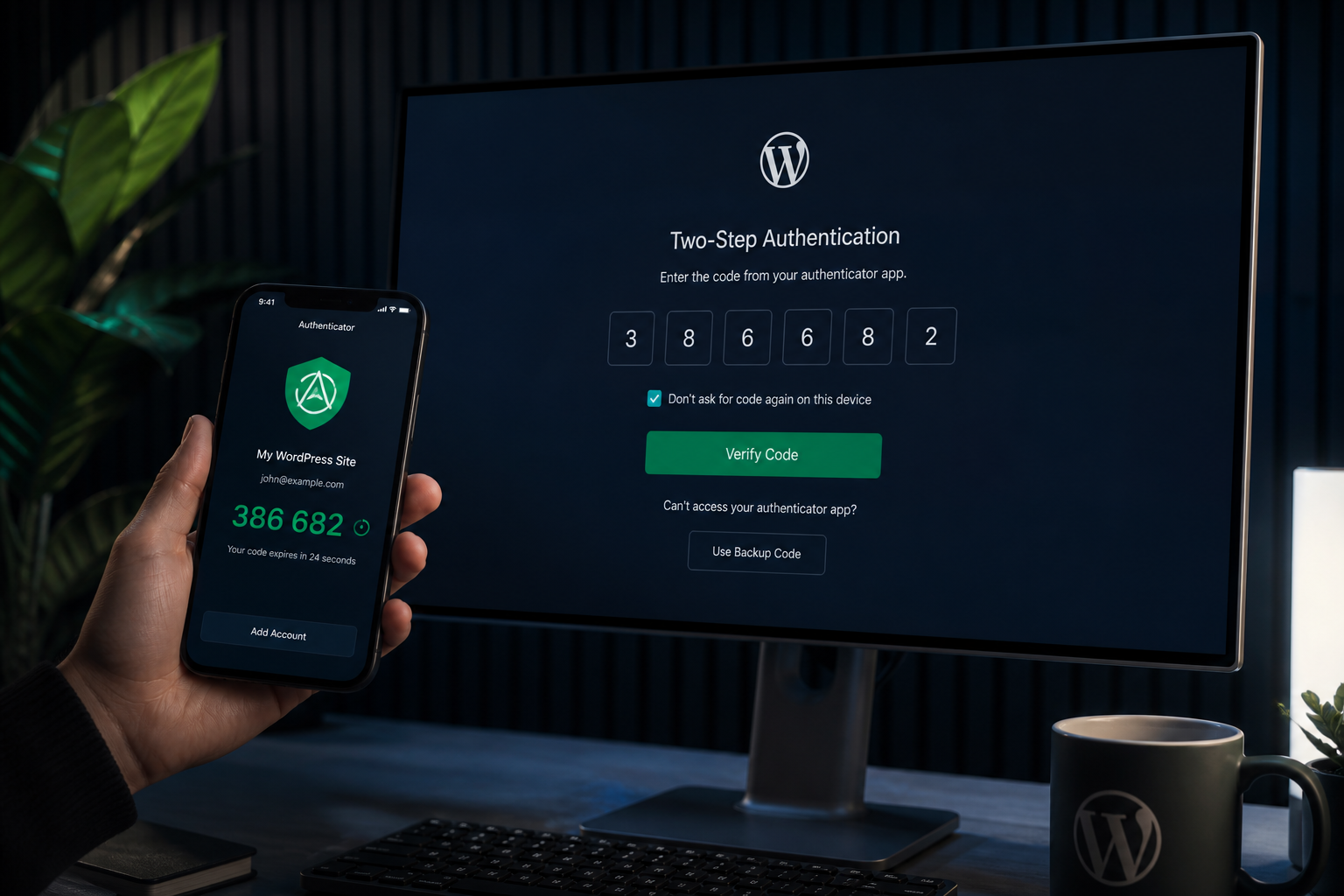
WordPress two-factor authentication adds a second verification step after the password — typically a time-based code from an authenticator app. It is the most effective single control against password-based attacks: brute force, credential stuffing, and leaked passwords from other services.
WordPress does not include 2FA natively. You add it with a plugin. This guide covers plugin selection, setup steps, role-based enforcement, and the rollout mistakes that lock people out.
Why 2FA matters for WordPress
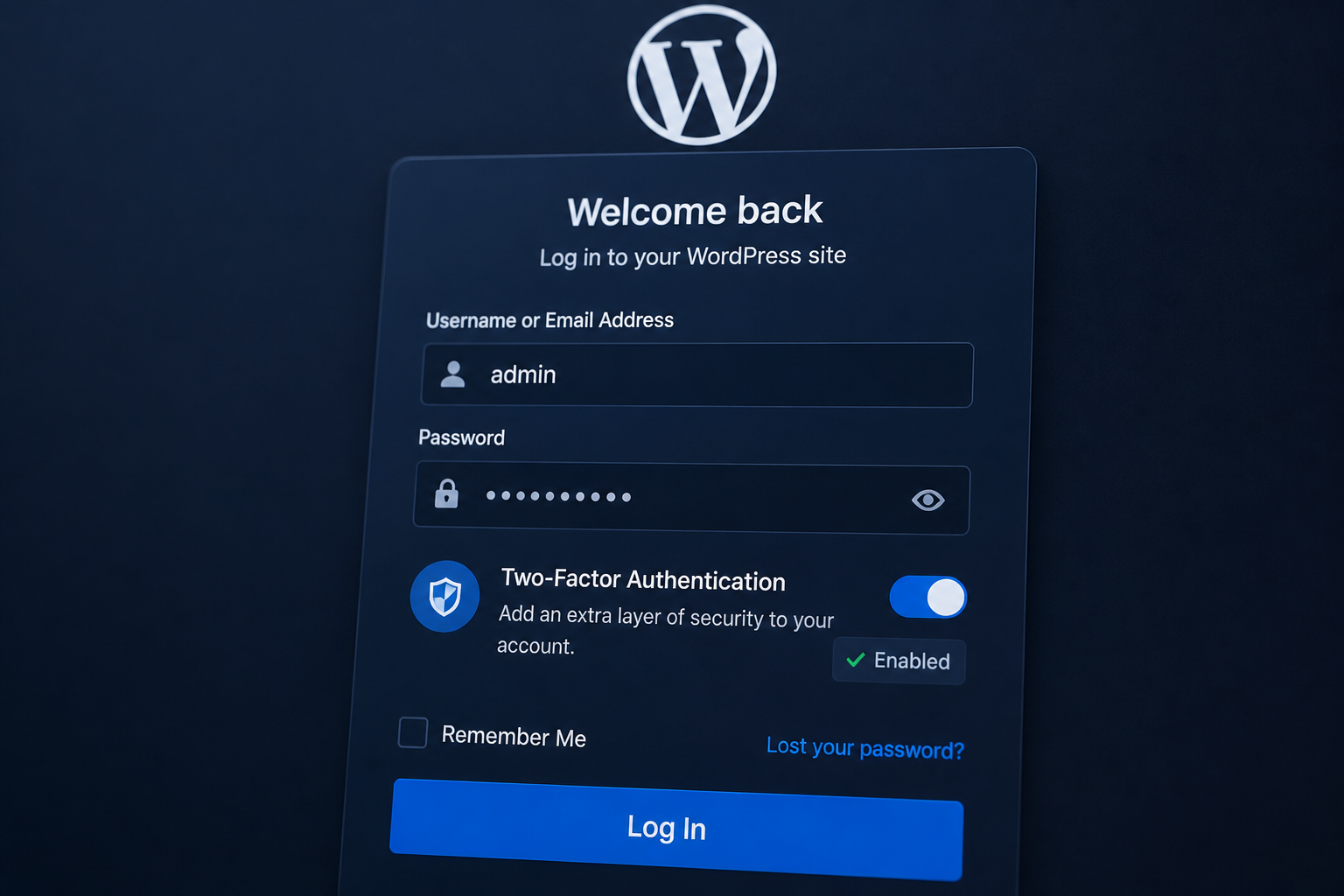
Password-only authentication fails in predictable ways:
- Users reuse passwords across services
- Contractors share credentials instead of creating individual accounts
- Breached databases from unrelated sites contain passwords that work on yours
- Brute force bots test millions of combinations against `/wp-login.php`
2FA breaks every one of these paths. Even with a correct password, the attacker needs a time-limited code from a device they do not possess.
Enable 2FA for every account with Editor role or higher. An editor can publish content containing malicious scripts — that is enough for a full compromise. Shop Manager accounts on WooCommerce stores need it too.
Choose a 2FA method
| Method | Security | Usability | Recommendation |
|---|---|---|---|
| TOTP app (Google Authenticator, Authy, 1Password) | Strong | Good once set up | Default choice |
| Hardware key (YubiKey, passkeys) | Strongest | Requires key purchase and enrollment | High-security environments |
| Email codes | Moderate | Easy | Better than nothing; email can be compromised |
| SMS codes | Moderate | Easy | Vulnerable to SIM-swapping; use if team refuses apps |
TOTP via an authenticator app is the practical standard for most WordPress sites.
Plugin options
WordPress has several maintained 2FA plugins. These are the ones I see on client sites most often:
| Plugin | 2FA methods | Role enforcement | Notes |
|---|---|---|---|
| Two Factor Authentication (miniOrange or similar) | TOTP, email, SMS | Yes | Lightweight; good for simple setups |
| Solid Security (formerly iThemes) | TOTP, backup codes | Yes | Part of broader security suite |
| Wordfence Login Security | TOTP, CAPTCHA | Yes | Free module from Wordfence |
| WP 2FA (Melapress) | TOTP, email | Yes | Focused 2FA plugin; clean UI |
Pick one. Do not run multiple 2FA plugins — they conflict on the login form.
If you already run a security plugin with 2FA built in (Wordfence, Solid Security), use that rather than adding another plugin. See best WordPress security plugins compared for the full comparison.
Setup steps
1. Install and activate your chosen plugin
Install from the WordPress plugin directory or upload manually. Activate on staging first if you have one.
2. Configure global settings
Set these before enrolling users:
- Grace period: Give users 7–14 days to set up 2FA before enforcing it. Immediate enforcement causes lockouts and support tickets.
- Required roles: Administrator, Editor, Author (if they publish directly). At minimum: Administrator and Editor.
- Backup codes: Enable generation of one-time backup codes. Require users to save them.
- Recovery method: Define who can reset 2FA for locked-out users — usually a second admin with 2FA already configured.
3. Enroll your own account first
Before enforcing anything site-wide:
- Log in as administrator
- Go to your profile or the plugin's 2FA settings page
- Scan the QR code with your authenticator app
- Enter the generated code to confirm
- Save your backup codes in your password manager
Verify you can log out and log back in with the code before proceeding.
4. Notify your team
Send instructions before enforcement:
- Which app to install
- Link to the setup page in WordPress
- Deadline for enrollment
- Who to contact if locked out
- Where to store backup codes
Keep the instructions short. A screenshot of the QR code scan step prevents most support requests.
5. Enforce 2FA by role
After the grace period, enable mandatory 2FA for the roles you selected. Users without 2FA configured will be redirected to setup on their next login.
6. Test the login flow
From a private browser window:
- Log in with password + TOTP code — should succeed
- Log in with password only — should fail or redirect to 2FA prompt
- Log in with backup code — should succeed once, then invalidate that code
- Attempt login as a subscriber — should work with password only (if subscribers exist)
Also test on mobile. Some authenticator apps sync codes across devices; confirm your team knows which app to use.
Backup codes and recovery
Backup codes are one-time passwords for when someone loses their phone or gets a new device without transferring their authenticator.
Rules for backup codes:
- Generate them during initial 2FA setup
- Store in a password manager, not a sticky note
- Each code works once — regenerate the set after using one
- Keep a secure copy accessible to a second administrator for emergencies
If someone is locked out:
- Another administrator with 2FA can reset their 2FA via the plugin admin panel
- Via database: delete the user's 2FA meta keys (know the key names for your plugin before you need them)
- Via SFTP: temporarily deactivate the 2FA plugin, log in, reactivate, re-enroll
Document the recovery procedure before you need it at 9 PM on a Friday.
2FA with WooCommerce customer accounts
Customer-facing WooCommerce accounts are a different threat model. Customers reuse passwords widely, but they typically cannot install plugins or edit site files.
Recommendation:
- Require 2FA for Shop Manager, Administrator, and any staff accounts
- Offer optional 2FA for customer accounts if your plugin supports WooCommerce login
- Do not force 2FA on customers unless your compliance requirements demand it — it adds checkout friction
Store-specific hardening: secure WooCommerce store checklist.
Common rollout mistakes
| Mistake | Consequence | Fix |
|---|---|---|
| Enforcing immediately with no grace period | Mass lockouts | Set 7–14 day grace period |
| No backup codes saved | Cannot recover from lost phone | Require backup code download during setup |
| 2FA only on admin, not editors | Editor account becomes the weak point | Enforce Editor+ |
| Two 2FA plugins active | Login form breaks | Use one plugin only |
| No documented recovery process | Emergency database edits under pressure | Write the procedure now |
Frequently asked questions
Does 2FA slow down the login experience?
Adding a code entry adds five to ten seconds per login. That is negligible compared to the hours spent on malware cleanup after a credential compromise.
What happens if I lose my phone?
Use a backup code to log in, then re-enroll 2FA on your new device. This is why backup codes matter — set them up during initial enrollment, not after a lockout.
Can I use 1Password or Bitwarden instead of Google Authenticator?
Yes. Any TOTP-compatible app works. Password managers with built-in authenticators are convenient because codes sync across your devices.
Is 2FA enough on its own?
No. 2FA protects authentication. You still need updates, backups, firewall rules, and least-privilege user roles. It is the highest-value single login control, not a complete security program. See the full WordPress security hardening checklist.
Should I use email-based 2FA?
Only if your team refuses authenticator apps. Email 2FA is better than no 2FA, but an attacker who compromises the email account bypasses both factors. TOTP is stronger.
Get a free 15-minute security check
Send your URL. I will check whether your login surface exposes user enumeration, whether HTTPS is enforced, and whether your current plugin stack supports 2FA without conflicts.
For full authentication hardening as part of a broader project, see WordPress security hardening — and secure WordPress admin login for the complete login stack.
September 3, 2026
WordPress SSL and HTTPS Security Basics
September 3, 2026