
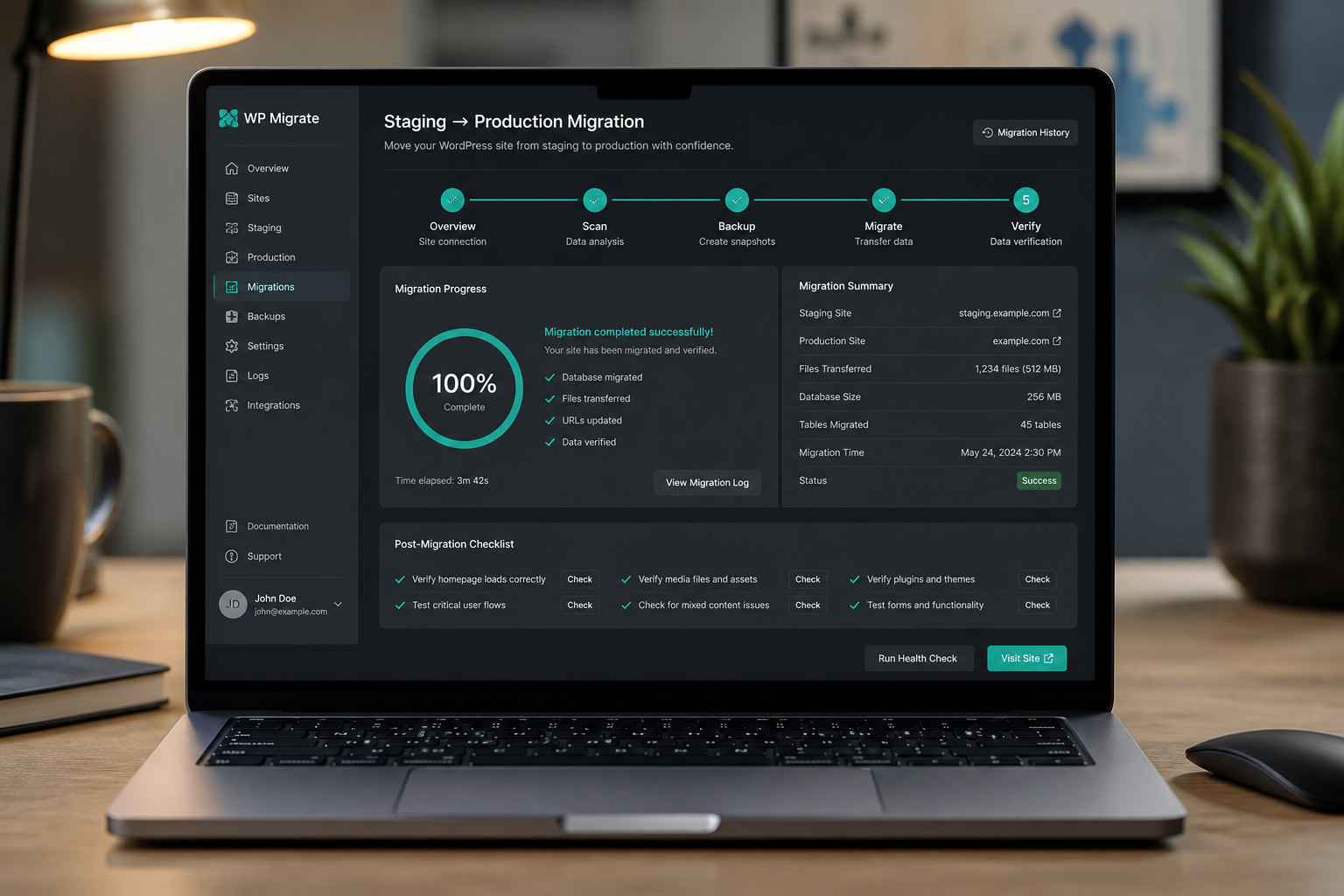
WordPress staging to production migration means pushing tested changes from a staging environment to the live site without overwriting live orders, form entries, user registrations, or content published on production during the staging cycle. This is not the same as a host migration — the domain usually stays the same, but the direction of data flow and what you exclude matters more than what you copy.
Get it wrong and you replace this week's WooCommerce orders with last month's staging snapshot. Get it right and you deploy theme updates, plugin changes, and content batches with confidence.
Staging vs full migration: know the difference
| Aspect | Staging → production | Full host migration |
|---|---|---|
| Domain | Usually same | May change |
| Direction | Staging wins for scoped changes | Source → destination one-time |
| Live data | Must preserve (orders, users, entries) | Moves entirely |
| Frequency | Repeated (weekly, per release) | Once |
| Risk | Overwriting live transactional data | DNS, URLs, SEO |
Host migrations: how to migrate WordPress to new host. This guide covers deploy workflows.
Staging environment types
Host-provided staging
Kinsta, WP Engine, SiteGround, Cloudways offer one-click staging. Push-to-live buttons exist — use with caution on WooCommerce sites. One-click push often overwrites the entire production database.
Plugin-based staging
WP Staging, Duplicator, BlogVault create staging copies on subdirectory or subdomain (`staging.site.com`). Push-back features vary in selectivity.
Manual staging
Separate subdomain or `/staging/` directory on same server. Full control, manual sync. Common on VPS and custom setups.
Local → staging → production
Developers work in Local WP or Docker, push to staging for QA, then production. Three-environment pipeline.
What to push vs what to keep
Safe to push from staging to production
- Theme files (parent and child theme updates)
- Custom plugin code (if not storing live data in plugin tables)
- Static content pages edited and approved on staging
- New blog posts drafted on staging (if not yet on production)
- Plugin configuration that does not affect user data (SEO settings, cache config)
- CSS/JS/asset changes
- New plugins (install same version on production, activate, configure)
Never blindly overwrite from staging
| Data type | Why |
|---|---|
| WooCommerce orders | Live orders exist only on production |
| User accounts | Registrations happened on production since staging was created |
| Form entries (Gravity Forms, WPForms) | Live submissions on production |
| Comments posted on live site | New since staging snapshot |
| Action Scheduler queue | Live cron jobs and pending tasks |
| Subscription data (WooCommerce Subscriptions) | Billing state is live-only |
| Analytics plugin data | Production traffic stats |
Rule: If data was created on production after staging was last synced, do not overwrite those database tables from staging.
Deployment methods
Method 1: File-only deploy (safest for theme/plugin updates)
- Back up production (files + database).
- Deploy changed files via SFTP, Git, or host deploy tool:
– Theme directory changes only
– New plugin uploads
– Modified mu-plugins
- Do not touch production database.
- Activate new plugins on production if added.
- Run any required database migrations the plugin triggers on activation.
- Purge cache. Test.
Best for: design updates, custom code, new plugins without content changes.
Method 2: Selective database sync
Push specific tables or rows from staging to production:
Typical staging → production table sync (content sites, no ecommerce):
- `wp_posts` and `wp_postmeta` (new/changed posts and pages only — not full table replace)
- `wp_terms`, `wp_term_taxonomy`, `wp_term_relationships` (if categories changed)
Use WP-CLI for surgical sync:
“`bash
Export specific posts from staging
wp post list –post_type=page –format=ids –path=/staging
Import strategy varies — often manual export/import of specific post IDs
“`
WP Migrate (formerly WP Migrate DB Pro) supports push/pull with table exclusions — industry standard for selective sync.
Exclude always on WooCommerce pushes:
- `wp_wc_orders` / `wp_posts` where post_type = shop_order
- `wp_woocommerce_order_items`
- `wp_woocommerce_order_itemmeta`
- `wp_users` / `wp_usermeta` (unless intentional user sync)
- Action Scheduler tables
Method 3: Content freeze + full push
Acceptable when:
- Site has no ecommerce, forms, or user registration
- Staging is hours old, not weeks
- Stakeholders agree to content freeze during push
- Announce content freeze on production.
- Final backup of production.
- Push staging database and files to production (host one-click or migration plugin).
- Run search-replace if staging URL differs (`staging.site.com` → `site.com`).
- Purge cache. Verify. Lift content freeze.
Method 4: Git-based deployment (developer workflow)
- Theme/plugin code in Git repository.
- CI/CD pipeline (GitHub Actions, DeployHQ, Buddy) deploys to production on merge to main.
- Database changes handled separately via migrations or manual SQL.
- Production database never copied from staging wholesale.
Best for: agencies and dev teams with version control discipline.
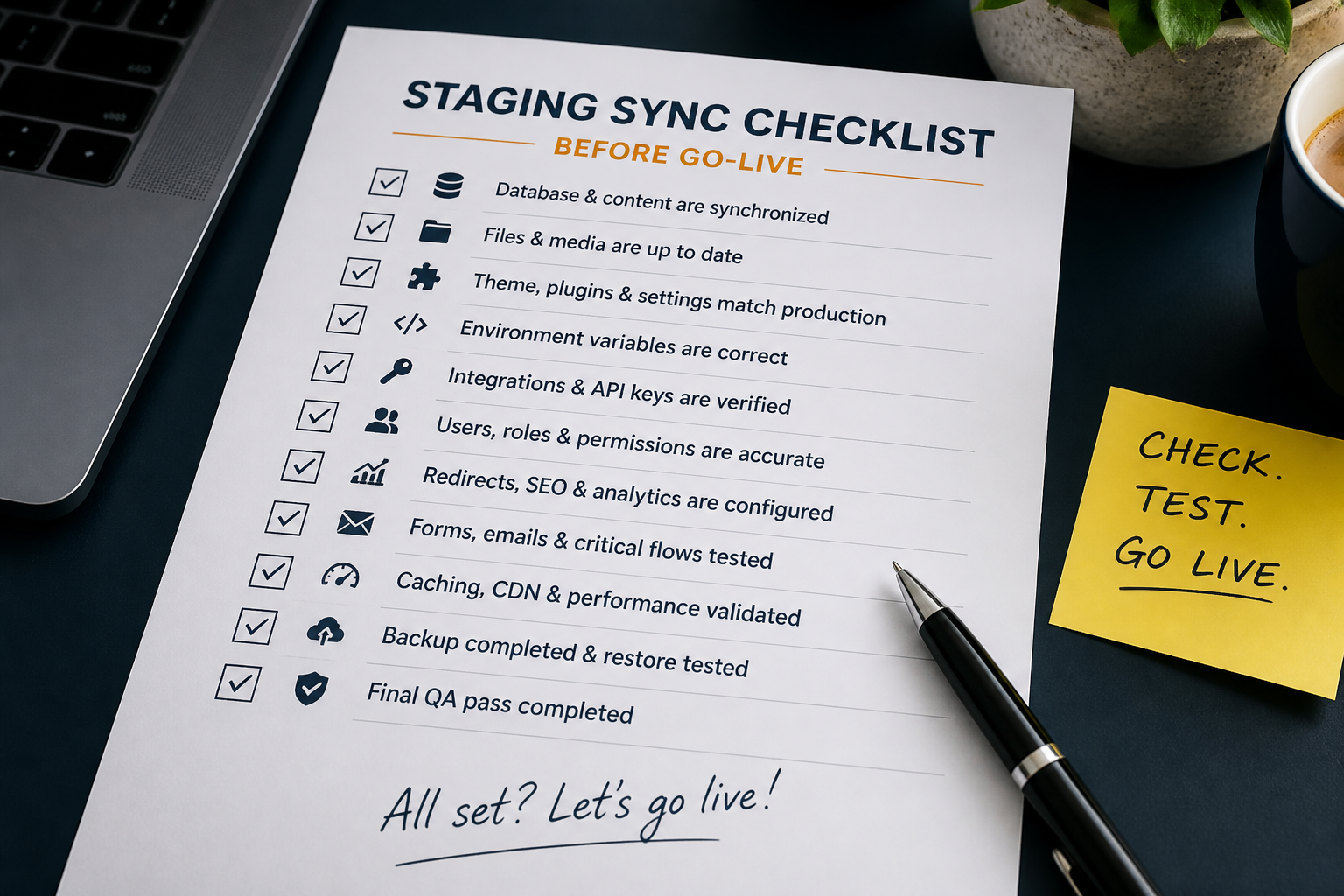
Staging-to-production checklist
Pre-deploy
- [ ] Staging tested — all changes QA'd on staging URL
- [ ] Production backup completed and verified
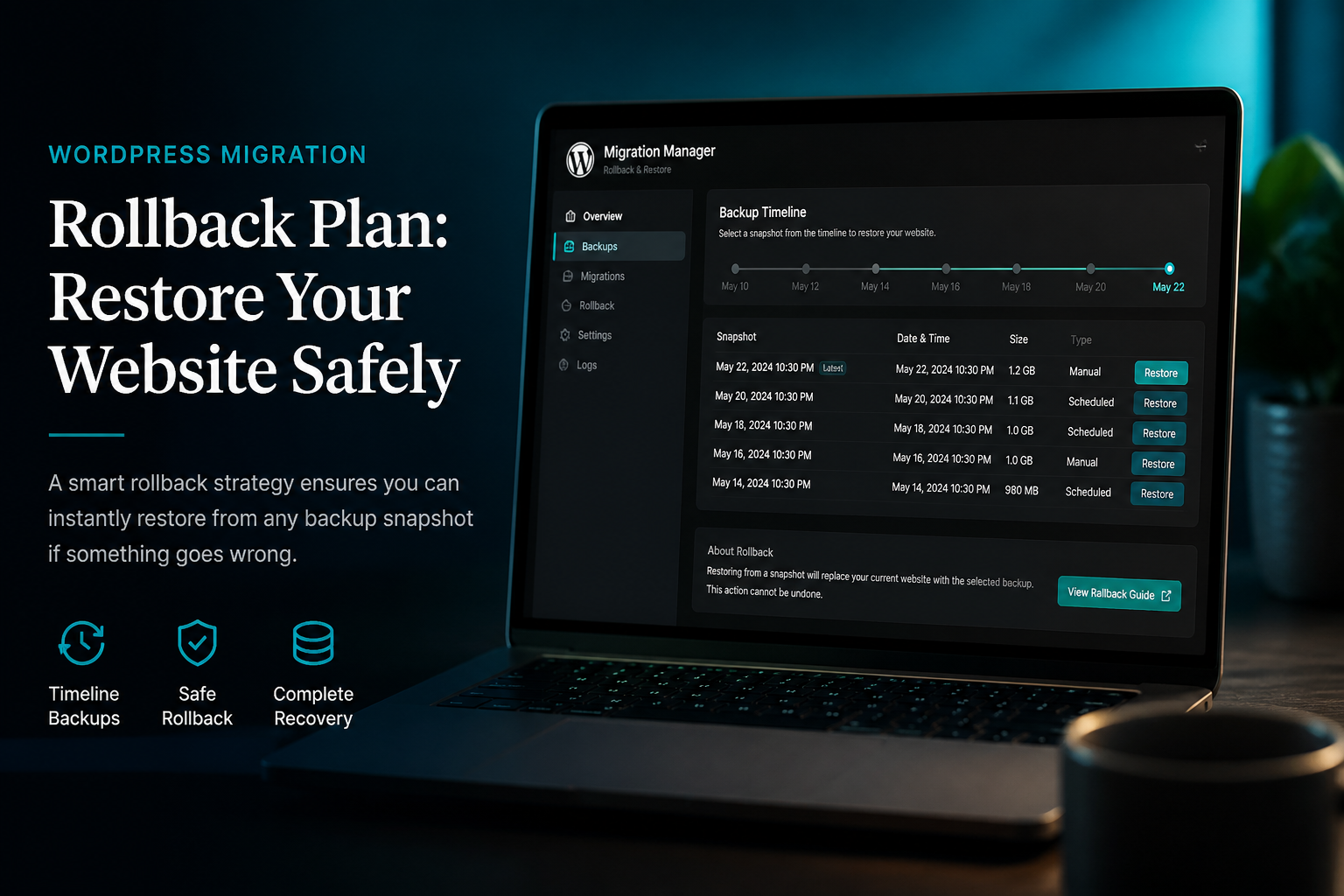
- ] [Rollback plan documented
- [ ] Deployment method chosen (file-only vs selective vs full)
- [ ] Tables to exclude listed (if database involved)
- [ ] Content freeze communicated (if full push)
- [ ] Low-traffic deploy window scheduled
Deploy
- [ ] Deploy files and/or database per chosen method
- [ ] Run URL search-replace if staging domain was in database
- [ ] Flush permalinks (Settings → Permalinks → Save)
- [ ] Purge all caches — WordPress, host, CDN
- [ ] Verify PHP version compatibility on production
Post-deploy verification
- [ ] Homepage and top 10 pages load
- [ ] Admin login works
- [ ] Changes from staging visible on production
- [ ] WooCommerce checkout tested (if applicable)
- [ ] Forms submit
- [ ] No new PHP errors in debug log
- [ ] Search Console — no new 404 spike (within 24 hours)
- [ ] Production orders/users intact (spot-check recent orders in WooCommerce)
Full checklist: WordPress migration checklist (adapt pre-cutover sections for staging deploy).
WooCommerce staging deploy rules
- Never one-click push staging → live on WP Engine/Kinsta without confirming exclusions — default push overwrites orders.
- Deploy theme/template changes via files only when possible.
- Product content changes: export/import specific products via WooCommerce export or sync plugins.
- Test payment gateway in staging with sandbox mode — switch to live keys only on production.
- After deploy: verify webhook URLs in Stripe/PayPal dashboard point to production domain.
Common staging deploy mistakes
- Staging URL in production database — `siteurl` still shows `staging.domain.com` after push. Run search-replace immediately.
- Robots noindex on production — staging often has `discourage search engines` checked. Uncheck Settings → Reading → Search engine visibility.
- Debug mode left on — `WP_DEBUG_DISPLAY true` on production exposes errors to visitors.
- Cache serving old production — purge everything after deploy.
- Overwriting live orders — the most expensive mistake on ecommerce sites.
Fix guide: WordPress migration errors.
When to hire for staging deploys
Hire when:
- WooCommerce store with active orders
- Membership or subscription plugin with live billing state
- Multisite network push
- No reliable backup/rollback process
- Team lacks WP Migrate or WP-CLI experience
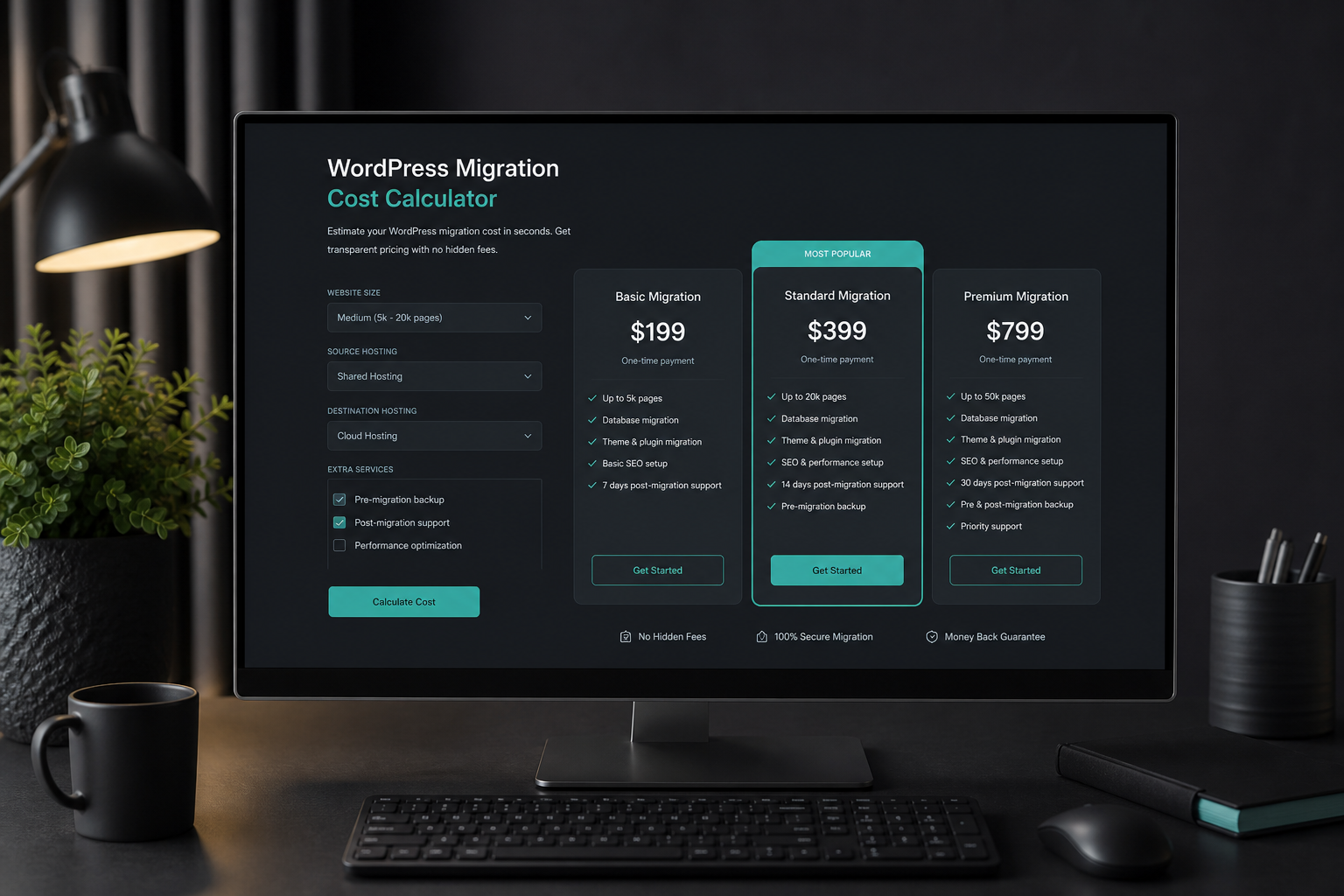
Scoped staging-to-production pushes typically run $200–$500 (estimate). See WordPress migration cost.
FAQs
Can I use All-in-One WP Migration to push staging to live?
Yes for small non-ecommerce sites with content freeze. Not recommended for WooCommerce — it moves the full database without selective exclusions. See All-in-One WP Migration vs manual.
How often should staging sync from production?
Before each development cycle, refresh staging from production (not the reverse) so staging reflects current live data. Then develop on staging, push selective changes back.
Should staging be noindexed?
Yes. Block staging from search engines via robots.txt, HTTP auth, or `noindex` meta. Verify production does not inherit staging noindex settings after push.
What is the safest deploy method for non-developers?
File-only deploy for theme/visual changes. For content changes, edit directly on production or use WordPress revision workflow — avoid database push entirely.
Does staging to production affect SEO?
Same domain, same URLs: minimal SEO impact if deploy succeeds without 404s or downtime. Accidental noindex or redirect misconfiguration hurts — run SEO checklist items post-deploy.
—
Staging deploys need exclusion discipline, not hope. WordPress migration services include scoped push workflows for WooCommerce and content sites.
Book a free 15-minute migration consult.

September 13, 2026