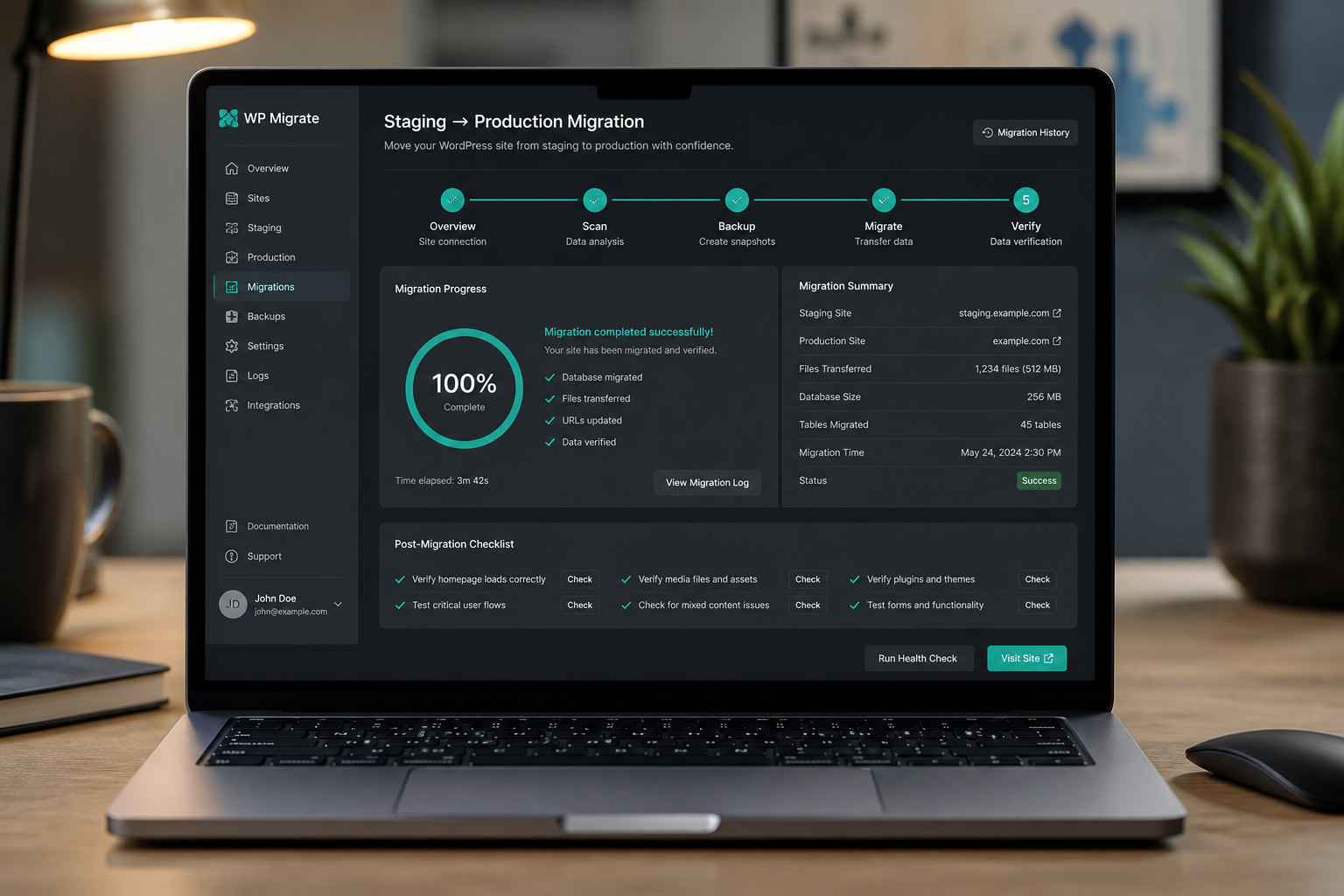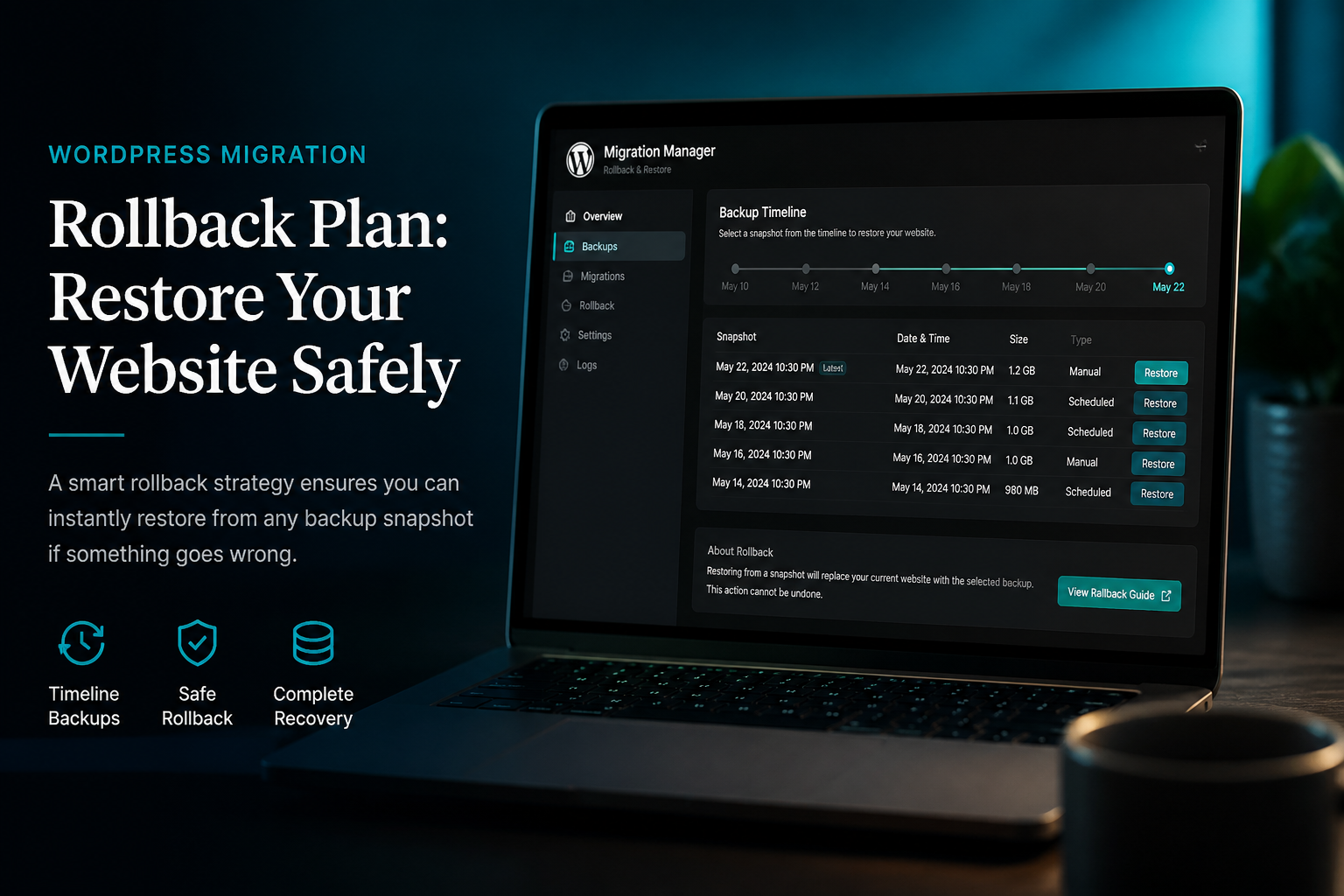

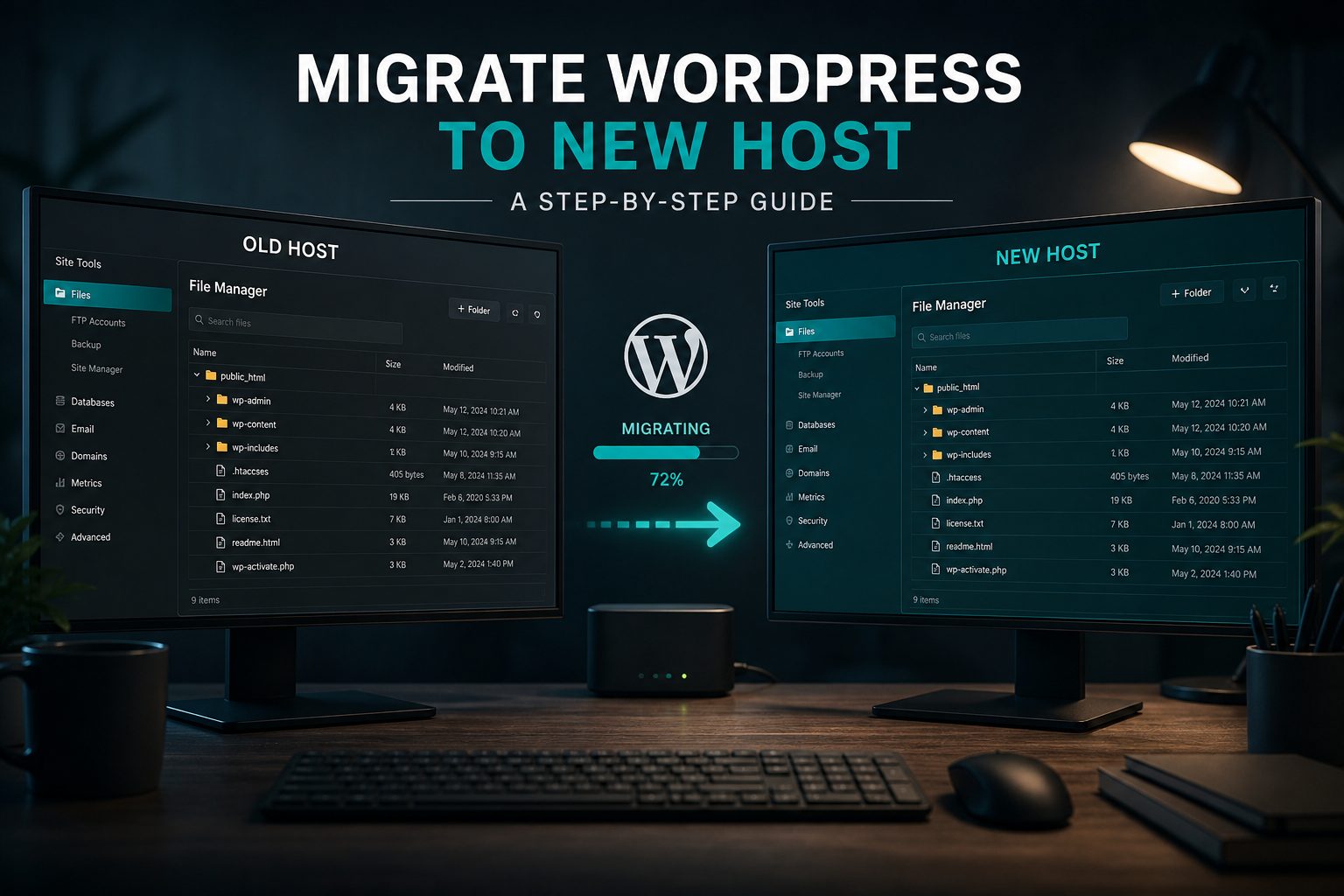
To migrate WordPress to a new host, back up files and database, copy them to the destination, update wp-config and URLs with serialization-safe tools, test on a temporary URL or hosts file, then switch DNS during a low-traffic window. Skip the testing step and you will find out what broke from angry users, not from your checklist.
This guide covers host-to-host moves where WordPress stays WordPress — same domain, same content, new server. For platform switches (Wix, Squarespace, Webflow), see the platform-specific guides linked from the WordPress migration services hub.
Before you start: inventory
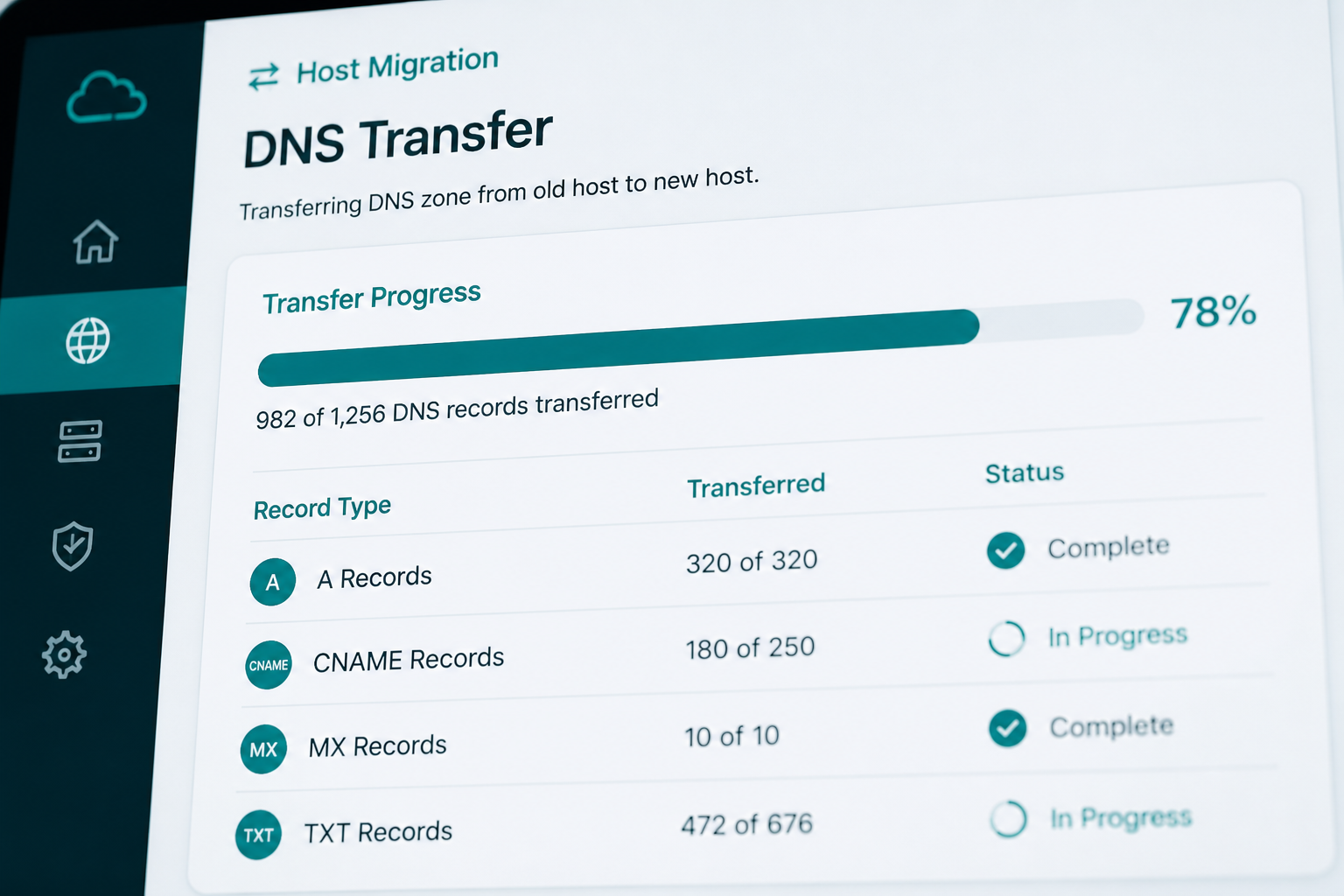
Document these before touching anything:
- WordPress version, PHP version, and MySQL/MariaDB version on both hosts
- Active theme and child theme (if any)
- Full plugin list — note caching, security, SMTP, backup, and page builder plugins
- WooCommerce, membership, or LMS plugins (these add migration risk)
- Cron jobs outside WordPress (server-level)
- Email delivery method (host mail, SMTP plugin, SendGrid, etc.)
- DNS provider and current TTL values
- CDN configuration (Cloudflare, etc.)
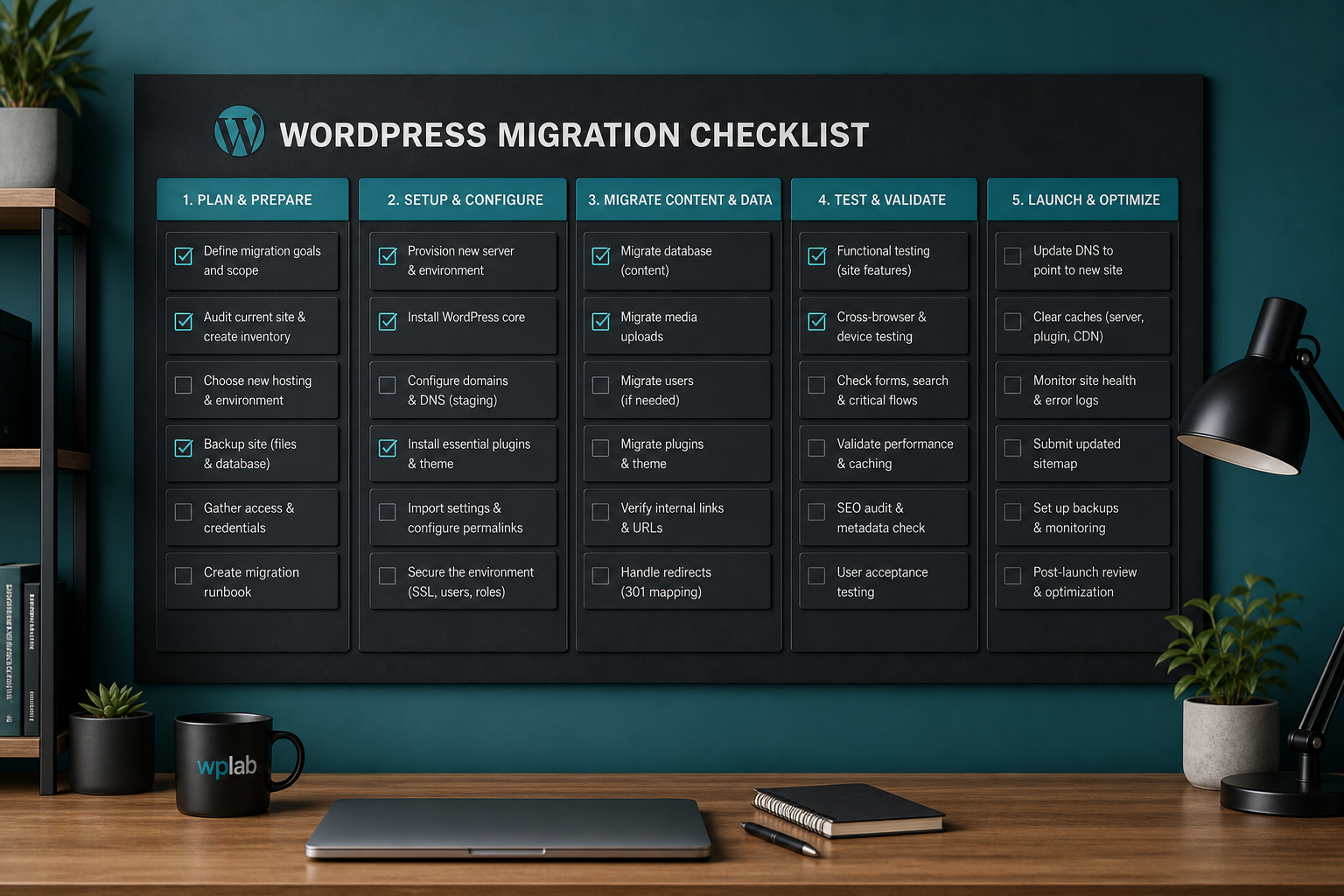
Use the full WordPress migration checklist as your working document.
Step 1: Set up the destination
- Create the hosting account and add the domain (do not point DNS yet).
- Match or exceed PHP version on the source. WordPress 6.x runs on PHP 7.4+, but PHP 8.1 or 8.2 is preferred.
- Create a MySQL database and user. Note hostname (often `localhost`, sometimes a remote host on managed platforms).
- Install SSL on the destination. Most managed hosts do this automatically once the domain is added.
- Optionally install a temporary access method — staging URL, hosts file entry, or reverse proxy.
Step 2: Back up the source site
Take two backups, stored off-server:
Files: entire `public_html` or site root via SFTP, or a compressed archive via SSH (`tar -czf backup.tar.gz public_html/`).
Database: export via phpMyAdmin, WP-CLI (`wp db export`), or your host's backup tool.
Verify the backup opens. A zip you never tested is not a backup.
Step 3: Transfer files to the new host
Upload via SFTP, rsync, or your host's migration tool. Preserve file permissions — `wp-content` directories should be writable (typically 755 for directories, 644 for files).
If the site is large (over 2GB), use rsync over SSH or your new host's import tool rather than SFTP through a desktop client.
Exclude from manual copies if your host handles them separately:
- Cache folders (`wp-content/cache/`, `wp-content/w3tc-config/` if regeneratable)
- Backup plugin archives already stored off-site
- Log files
Step 4: Import the database
- Import the SQL file into the new database via phpMyAdmin or CLI.
- Update `wp-config.php` on the destination with new database name, user, password, and host.
- If the table prefix is non-standard, confirm it matches in wp-config.
Do not run raw find-and-replace in phpMyAdmin. WordPress stores serialized data in options, widgets, and some plugin settings. A naive replace of `olddomain.com` with `newdomain.com` breaks serialization when string lengths change. Use WP-CLI (`wp search-replace`) or Better Search Replace plugin with the serialization option enabled.
If you are moving to a temporary URL for testing (e.g., `staging.newhost.com`), replace the site URL in the database and set these in wp-config as a safety net:
“`php
define('WP_HOME', 'https://staging.newhost.com');
define('WP_SITEURL', 'https://staging.newhost.com');
“`
Remove those constants before DNS cutover to production.
Step 5: Test before DNS cutover
Test with a hosts file entry pointing your domain to the new server IP, or use the host's temporary URL.
Check every item on this list:
- [ ] Homepage loads over HTTPS without mixed content warnings
- [ ] Admin login works (`/wp-admin`)
- [ ] Permalinks work (visit a post and a page — no 404s)
- [ ] Media library images display
- [ ] Contact form submits and delivers email
- [ ] WooCommerce cart, checkout, and payment gateway (if applicable)
- [ ] Cron runs (check scheduled posts and Action Scheduler if WooCommerce)
- [ ] Search works
- [ ] XML sitemap loads (`/wp-sitemap.xml` or Yoast/Rank Math sitemap URL)
Fix issues on the destination while the live site still runs on the old host.
Step 6: Lower DNS TTL
24–48 hours before cutover, drop TTL to 300 seconds (5 minutes) at your DNS provider. This limits how long stale DNS records linger after you switch.
Step 7: Switch DNS
Point the A record (and AAAA if using IPv6) to the new host's IP. Update www CNAME if applicable. If using Cloudflare, confirm proxy (orange cloud) settings match your SSL mode.
Propagation takes minutes to 48 hours depending on TTL and resolvers. During propagation, some visitors hit the old host and some hit the new one. For revenue-critical sites, see migrate WordPress without downtime.
Step 8: Post-cutover tasks
- Flush permalinks: Settings → Permalinks → Save (no changes needed).
- Purge all caches — WordPress cache plugin, host cache, CDN.
- Regenerate SSL if the host requires it after DNS propagation.
- Test forms, checkout, and email again on the live domain.
- Update Google Search Console — no URL change needed for host-only moves, but verify crawl stats over the next week.
- Keep the old host active read-only for 48–72 hours minimum.
Step 9: Reconfigure host-specific settings
These do not transfer automatically:
| Item | Action |
|---|---|
| SMTP / email plugin | Re-enter credentials; test deliverability |
| CDN | Update origin IP; purge cache |
| Caching plugin | Reconfigure for new host (LiteSpeed vs NGINX vs Apache matters) |
| Security plugin | Whitelist new IP; re-run setup wizard |
| Backup plugin | Point to new storage; run test backup |
| Cron | Confirm server cron or WP-Cron still fires |
Common problems and fixes
White screen after import: Enable `WP_DEBUG` in wp-config, check PHP error log, confirm PHP version compatibility with theme/plugins.
Redirect loop: Mismatch between site URL in database and SSL forcing. Check `siteurl`/`home` in wp_options. Check Really Simple SSL or host force-HTTPS settings.
Broken images: Absolute URLs still pointing to old host, or wrong `upload_path` in wp_options. Run serialization-safe search-replace.
502/504 on admin: PHP memory limit too low, or a plugin incompatible with new PHP version. Increase memory; disable plugins via SFTP (rename plugin folder).
More troubleshooting: fix WordPress migration errors.
Plugin-assisted vs manual migration
Duplicator, All-in-One WP Migration, and Migrate Guru automate steps 2–4 for small sites. They hit limits on large databases, multisite, or hosts with strict upload caps. Comparison: All-in-One WP Migration vs manual.
When to hire help
Hire when the site runs WooCommerce, exceeds 2GB, uses multisite, or a previous DIY attempt broke production. Typical professional host-to-host moves run $250–$600 (estimate) for standard blogs and business sites. See WordPress migration cost and when to hire WordPress migration help.
FAQs
How long does a WordPress host migration take?
Work time is 2–4 hours for a standard site. Calendar time is 2–3 days to allow TTL lowering, testing, and DNS propagation.
Will migrating hosts affect SEO?
Not if the domain and URLs stay the same. Temporary crawl slowdown is normal. Rankings drop when HTTPS breaks, URLs change without redirects, or the new host is significantly slower.
Can my host migrate the site for me?
Some hosts offer free inbound migration. Quality varies. They often skip plugin reconfiguration, email testing, and SEO verification. Treat host migration as a file copy, not a finished job.
Should I update WordPress and plugins before or after migrating?
Update on staging first if PHP versions differ. Major PHP jumps (7.4 to 8.2) can break old plugins — test before cutover, not during.
What is the safest time to switch DNS?
Low-traffic window for your audience. For US sites, early morning ET on Tuesday–Thursday is common. Avoid Friday afternoons and holidays.
—
Need a host move without the guesswork? WordPress migration services include full backup, testing, and rollback planning.
Book a free 15-minute migration consult.
August 31, 2026