
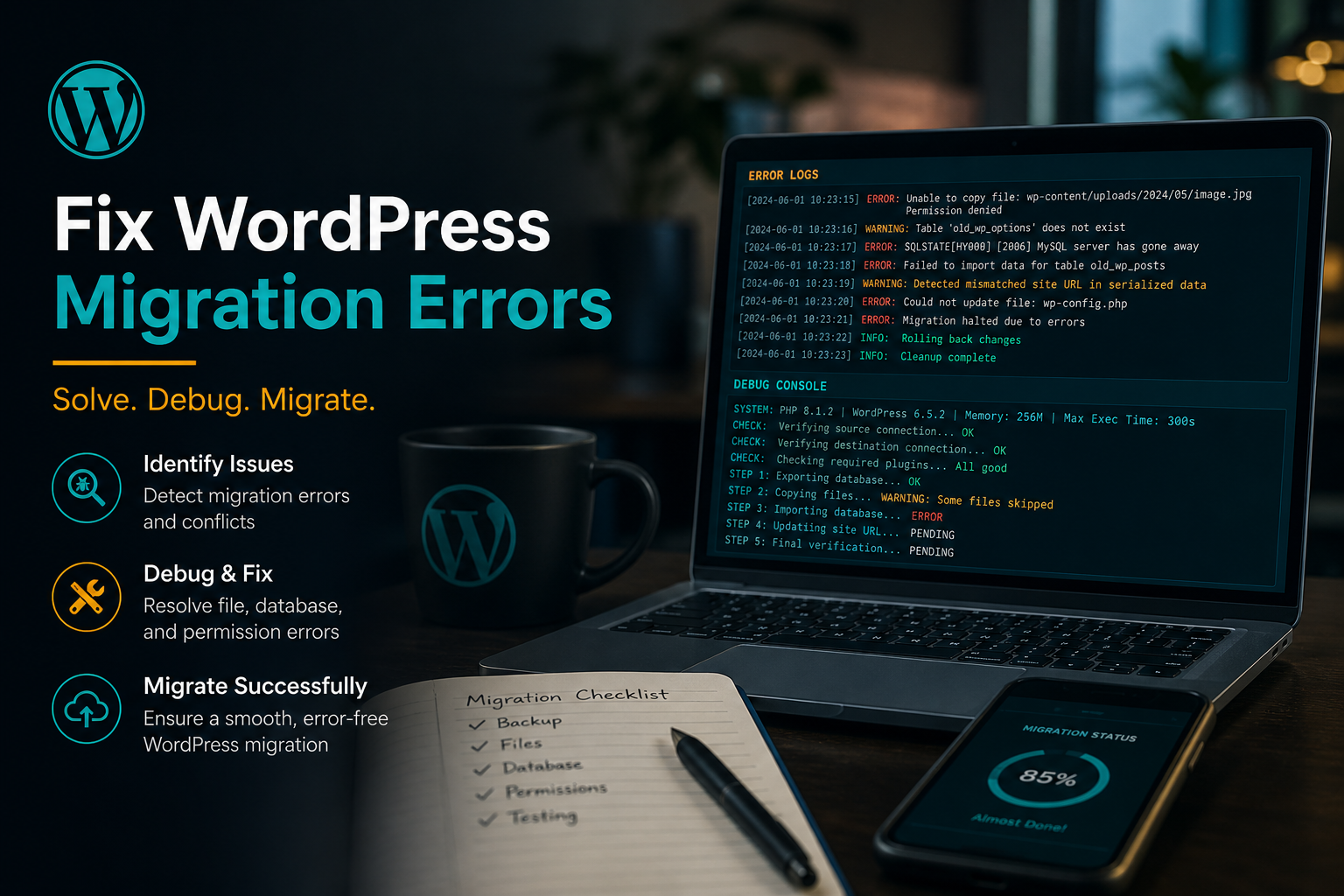
WordPress migration errors usually come from four places: corrupted database serialization, wrong URLs in wp_options, incompatible PHP versions, or incomplete file transfers. The fix is almost always diagnostic first — identify the symptom, check the log, apply the targeted fix — not reinstalling WordPress from scratch.
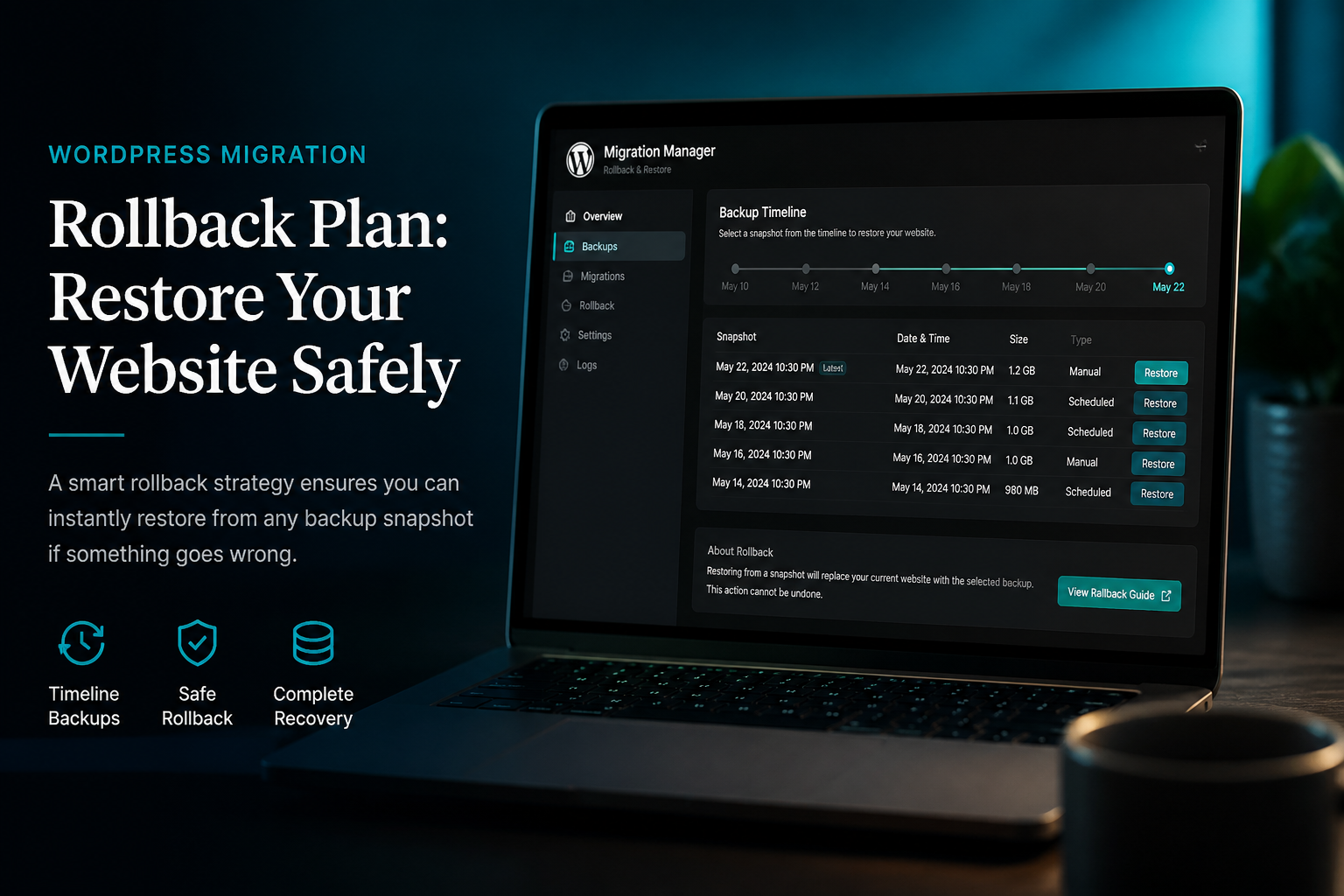
If the live site is broken right now and you have a pre-migration backup, consider rolling back first per your WordPress migration rollback plan, then fixing offline on staging.
Error: White screen of death (WSOD)
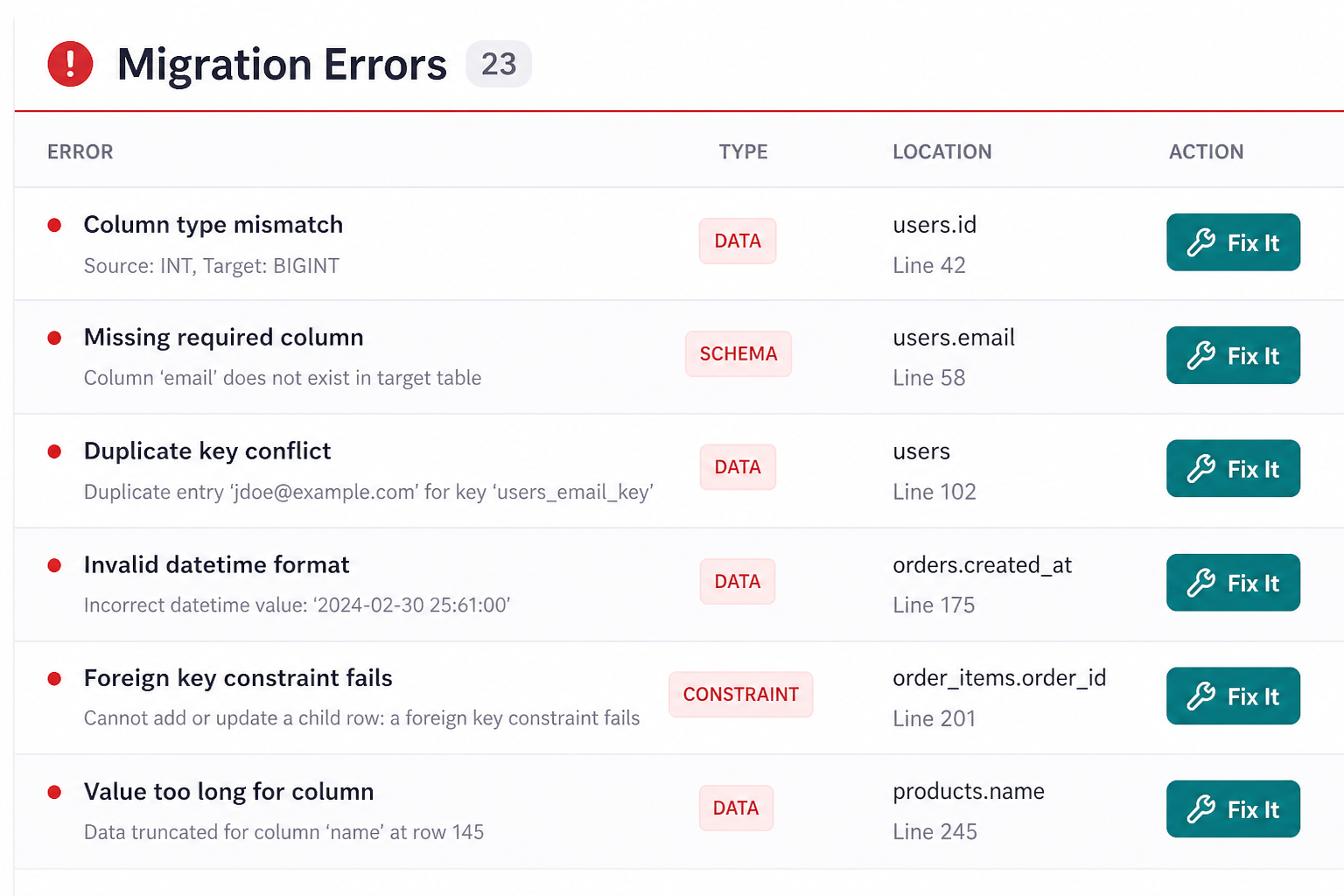
Symptoms: Blank white page on front-end and/or admin. HTTP 500 in browser dev tools.
Common causes:
- PHP fatal error from incompatible plugin or theme on new PHP version
- Memory limit too low on new host
- Corrupted wp-config.php during edit
- Missing or wrong database credentials
Fix steps:
- Enable debugging in `wp-config.php`:
“`php
define('WP_DEBUG', true);
define('WP_DEBUG_LOG', true);
define('WP_DEBUG_DISPLAY', false);
“`
- Check `wp-content/debug.log` and the server PHP error log (hosting panel → Error Logs).
- Increase memory: `define('WP_MEMORY_LIMIT', '256M');` in wp-config.
- Disable all plugins via SFTP: rename `wp-content/plugins` to `plugins_disabled`. If site loads, re-enable plugins one folder at a time.
- Switch to a default theme: rename active theme folder, WordPress falls back to Twenty Twenty-Four.
- Verify database credentials in wp-config match the new host's database.
PHP version mismatch: Source ran PHP 7.4, destination runs PHP 8.2. Old plugins throw fatal errors. Fix: temporarily set PHP 7.4 on destination if available, update plugins, then upgrade PHP.
Error: Redirect loop (ERR_TOO_MANY_REDIRECTS)
Symptoms: Browser shows "too many redirects." Often after enabling SSL on new host.
Common causes:
- `siteurl` and `home` in wp_options mismatch with actual URL
- Really Simple SSL or host force-HTTPS conflicts with Cloudflare SSL mode
- wp-config `WP_HOME` / `WP_SITEURL` constants conflict with database values
- .htaccess rewrite rules duplicated
Fix steps:
- Check wp_options via phpMyAdmin:
“`sql
SELECT option_name, option_value FROM wp_options WHERE option_name IN ('siteurl', 'home');
“`
Both must match your live URL exactly (including `https://` and no trailing slash unless intentional).
- Remove temporary wp-config URL constants if DNS cutover is complete:
“`php
// Remove these if present:
// define('WP_HOME', '…');
// define('WP_SITEURL', '…');
“`
- Cloudflare SSL: set mode to Full (strict) if origin has valid SSL. "Flexible" with origin force-HTTPS causes loops.
- Reset .htaccess to WordPress default:
“`apache
# BEGIN WordPress
<IfModule mod_rewrite.c>
RewriteEngine On
RewriteRule .* – [E=HTTP_AUTHORIZATION:%{HTTP:Authorization}]
RewriteBase /
RewriteRule ^index.php$ – [L]
RewriteCond %{REQUEST_FILENAME} !-f
RewriteCond %{REQUEST_FILENAME} !-d
RewriteRule . /index.php [L]
</IfModule>
# END WordPress
“`
Re-save permalinks in admin after restoring.
Error: Broken images and media
Symptoms: Image placeholders, 404 on uploads, correct paths in editor but broken on front-end.
Common causes:
- Absolute URLs in post content still pointing to old domain
- `upload_url_path` or `upload_path` in wp_options set incorrectly
- wp-content/uploads folder not transferred completely
- Wrong file permissions on uploads directory
Fix steps:
- Verify `wp-content/uploads/` exists on new host with full year/month folder structure.
- Run serialization-safe search-replace: old domain → new domain (WP-CLI: `wp search-replace 'https://old.com' 'https://new.com' –all-tables`).
- Check wp_options:
“`sql
SELECT * FROM wp_options WHERE option_name IN ('upload_path', 'upload_url_path');
“`
Both should typically be empty (WordPress uses defaults). If set to old paths, clear them:
“`sql
UPDATE wp_options SET option_value = '' WHERE option_name IN ('upload_path', 'upload_url_path');
“`
- Set uploads directory permissions to 755 (directories) and 644 (files).
Error: Cannot log in to wp-admin
Symptoms: Login page loads but credentials fail, or login redirects back to login, or cookies not sticking.
Common causes:
- `siteurl` points to old domain (cookie domain mismatch)
- HTTPS mismatch (cookie secure flag)
- Security plugin blocking new IP
- Full disk on new host
Fix steps:
- Fix siteurl/home in database (see redirect loop section).
- Clear browser cookies for the domain.
- Define cookie domain in wp-config if using subdomains:
“`php
define('COOKIE_DOMAIN', '.yourdomain.com');
“`
- Reset password via WP-CLI: `wp user update admin –user_pass=NewPassword123`
- Or reset via phpMyAdmin: use MD5 hash temporarily or WordPress password reset function in functions.php (remove after use).
- Disable security plugin via SFTP rename if it blocks login from new IP.
Error: Broken layout / missing CSS
Symptoms: Unstyled HTML, default browser fonts, layout collapsed.
Common causes:
- Mixed content — CSS loaded over HTTP on HTTPS page (browser blocks)
- CDN still pointing to old host
- Page builder CSS not regenerated (Elementor, Divi)
- Cache plugin serving stale paths
Fix steps:
- Run serialization-safe search-replace for `http://` → `https://` on site URL.
- Regenerate page builder assets: Elementor → Tools → Regenerate CSS; Divi → Theme Options → Builder → Clear cache.
- Purge all caches: plugin, host, CDN, browser.
- Check browser console for blocked mixed-content requests.
Error: Serialized data corruption
Symptoms: Widgets disappeared, theme customizer reset, plugin settings blank, random data loss.
Cause: Raw SQL find-and-replace on the database changed string lengths inside PHP serialized arrays without updating the length prefix. WordPress cannot unserialize the data.
Fix steps:
- Restore database from pre-search-replace backup — fastest fix if available.
- Re-run replace with a serialization-aware tool:
– WP-CLI: `wp search-replace 'olddomain.com' 'newdomain.com' –all-tables`
– Better Search Replace plugin with "Run as dry run" first, then live with serialization handling
- For corrupted options, delete the broken row and reconfigure the plugin/theme (last resort):
“`sql
DELETE FROM wp_options WHERE option_name = 'widget_text';
“`
Then re-add widgets manually.
Deep reference: WordPress database migration guide.
Error: 404 on all pages except homepage
Symptoms: Homepage works; every other page 404.
Cause: Permalink rewrite rules not flushed; .htaccess missing or nginx config incomplete.
Fix:
- Settings → Permalinks → Save Changes (no edits needed).
- Verify .htaccess exists in site root with WordPress rewrite block.
- On nginx hosts: confirm `try_files` directive includes WordPress pretty permalink rules (host support can verify).
Error: Contact forms and email not working
Symptoms: Forms submit but no email arrives; WooCommerce order emails missing.
Cause: SMTP credentials not migrated, host mail() function disabled, SPF/DKIM not updated for new IP.
Fix:
- Re-enter SMTP plugin credentials (WP Mail SMTP, FluentSMTP, etc.).
- Send test email from SMTP plugin dashboard.
- Check spam folder.
- If using host mail(): many managed hosts disable it — switch to SMTP or transactional service (SendGrid, Mailgun, Amazon SES).
- Update SPF record if sending from new server IP.
Error: WooCommerce checkout broken
Symptoms: Cart empty after add, checkout infinite spinner, payment fails.
Fix:
- Purge all caches with WooCommerce cache exclusions verified.
- Re-authenticate payment gateway (Stripe, PayPal) on new domain — update webhook URLs in gateway dashboard.
- Confirm SSL valid on checkout page.
- Check Action Scheduler for failed jobs: WooCommerce → Status → Scheduled Actions.
- Re-save permalinks and WooCommerce → Settings → Advanced → page setup.
When to stop DIY and hire a repair
Call for help when:
- No clean backup exists
- Database serialization is corrupted across multiple tables
- Live ecommerce site is losing orders
- You have spent 4+ hours without resolution
- Multisite or custom table prefix involved
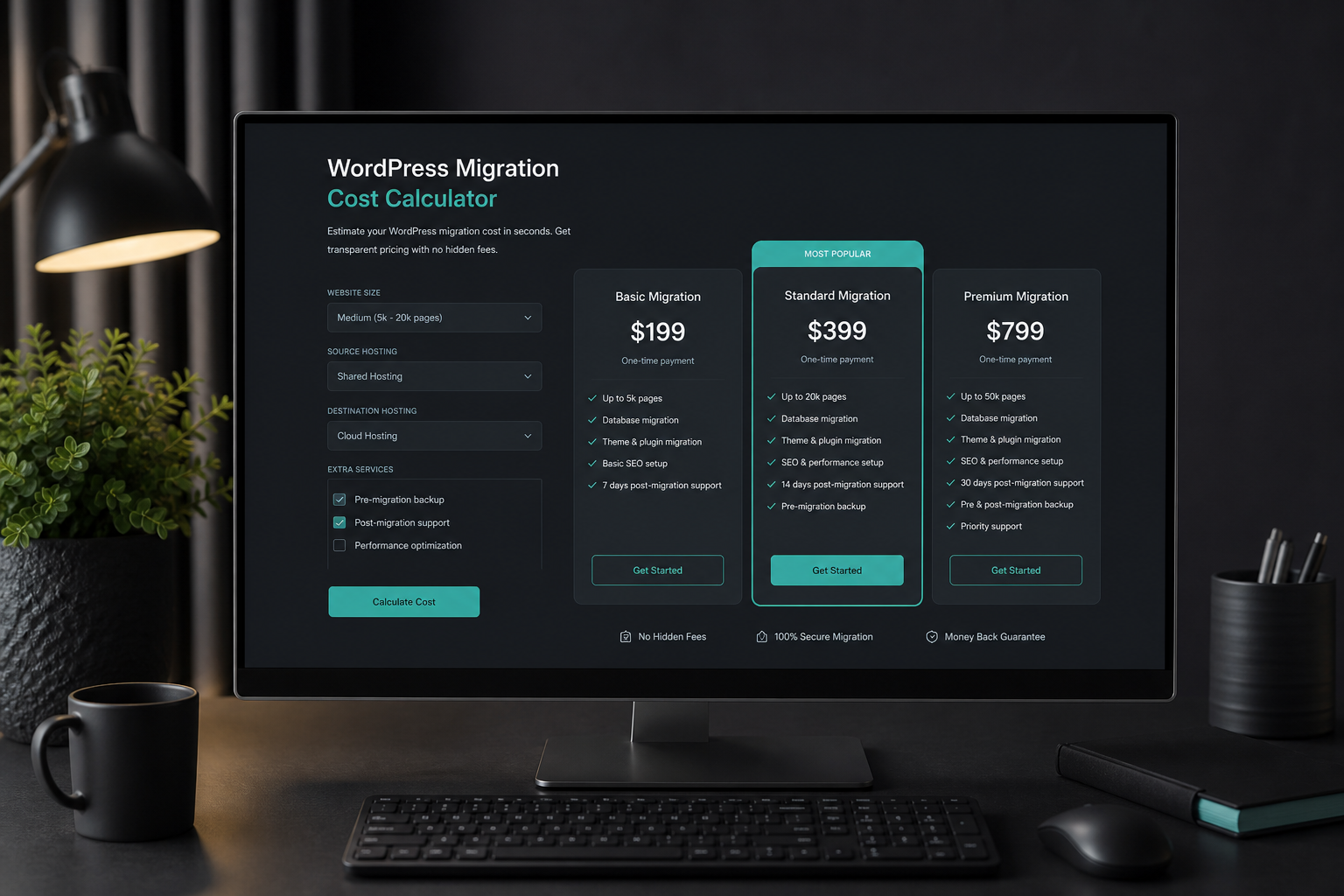
Migration repair typically runs $300–$1,200 (estimate). See WordPress migration cost and when to hire WordPress migration help.
Prevention: avoid these errors next time
Follow the WordPress migration checklist:
- Verified backup before any changes
- Serialization-safe search-replace only
- Test on destination before DNS cutover
- Full SEO checklist if URLs change
FAQs
Can I fix migration errors without losing content?
Yes, if the database is intact. Most fixes are configuration — URLs, permissions, SSL, permalinks — not content deletion.
Should I restore backup or try to fix forward?
If live site is broken and backup exists: rollback first, fix on staging. If no backup: fix forward carefully with debug logging enabled.
Why did my migration plugin cause errors?
Plugins hit upload size limits, timeout on large tables, or run non-serialization-safe replaces internally. See All-in-One WP Migration vs manual.
How do I know if serialization is corrupted?
Widgets missing, customizer blank, specific plugin settings reset while posts intact. Check `wp_options` for values starting with `a:` or `s:` that look truncated.
Will fixing errors hurt SEO?
Fixing errors helps SEO. Leaving redirect loops or 404s hurts SEO. Implement 301 redirects if URLs changed during a botched migration.
—
Broken migration recovery is a common repair job. WordPress migration services include forensic diagnosis and clean re-migration.
Book a free 15-minute migration consult.
September 9, 2026
Change WordPress Domain Without Losing SEO
September 9, 2026