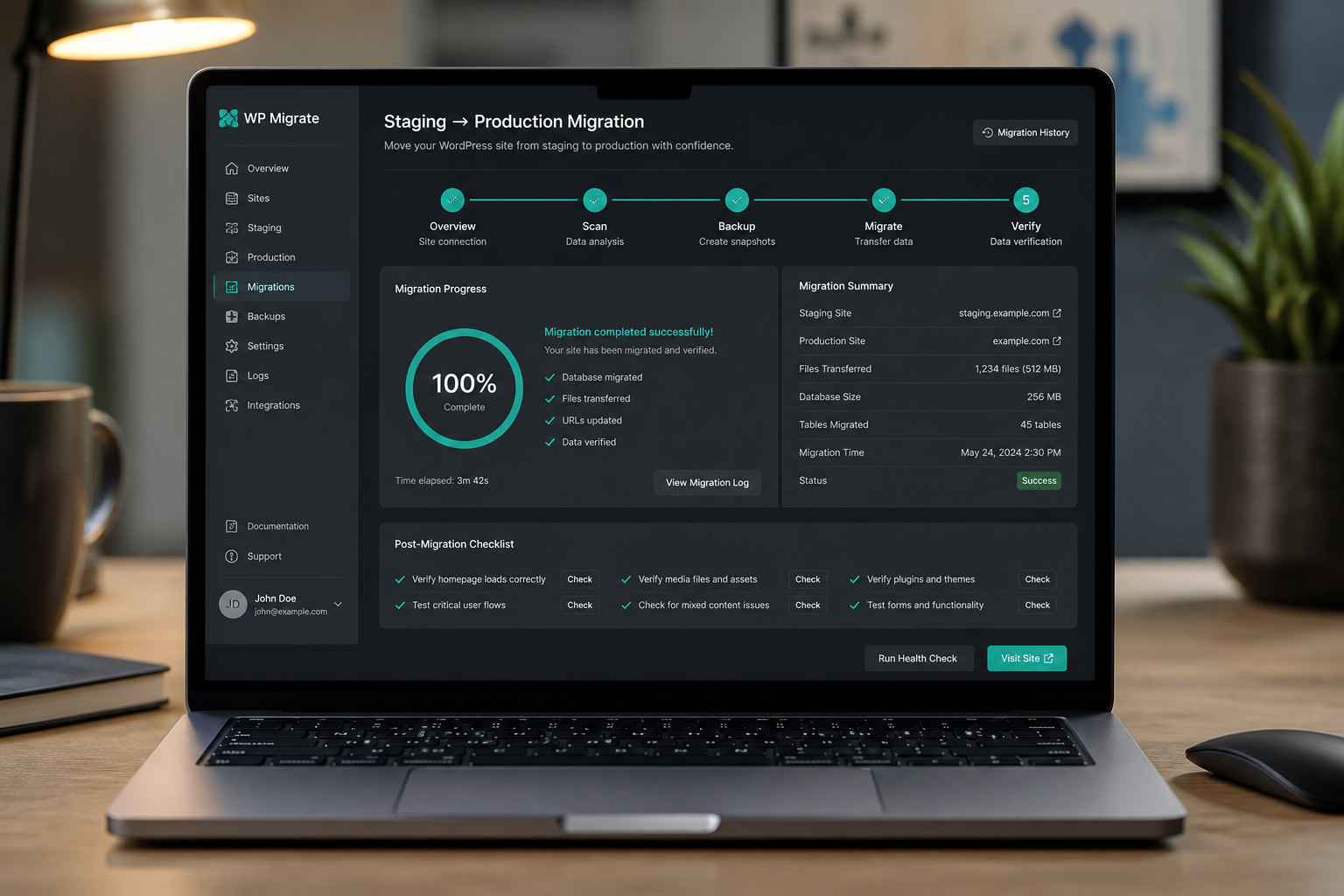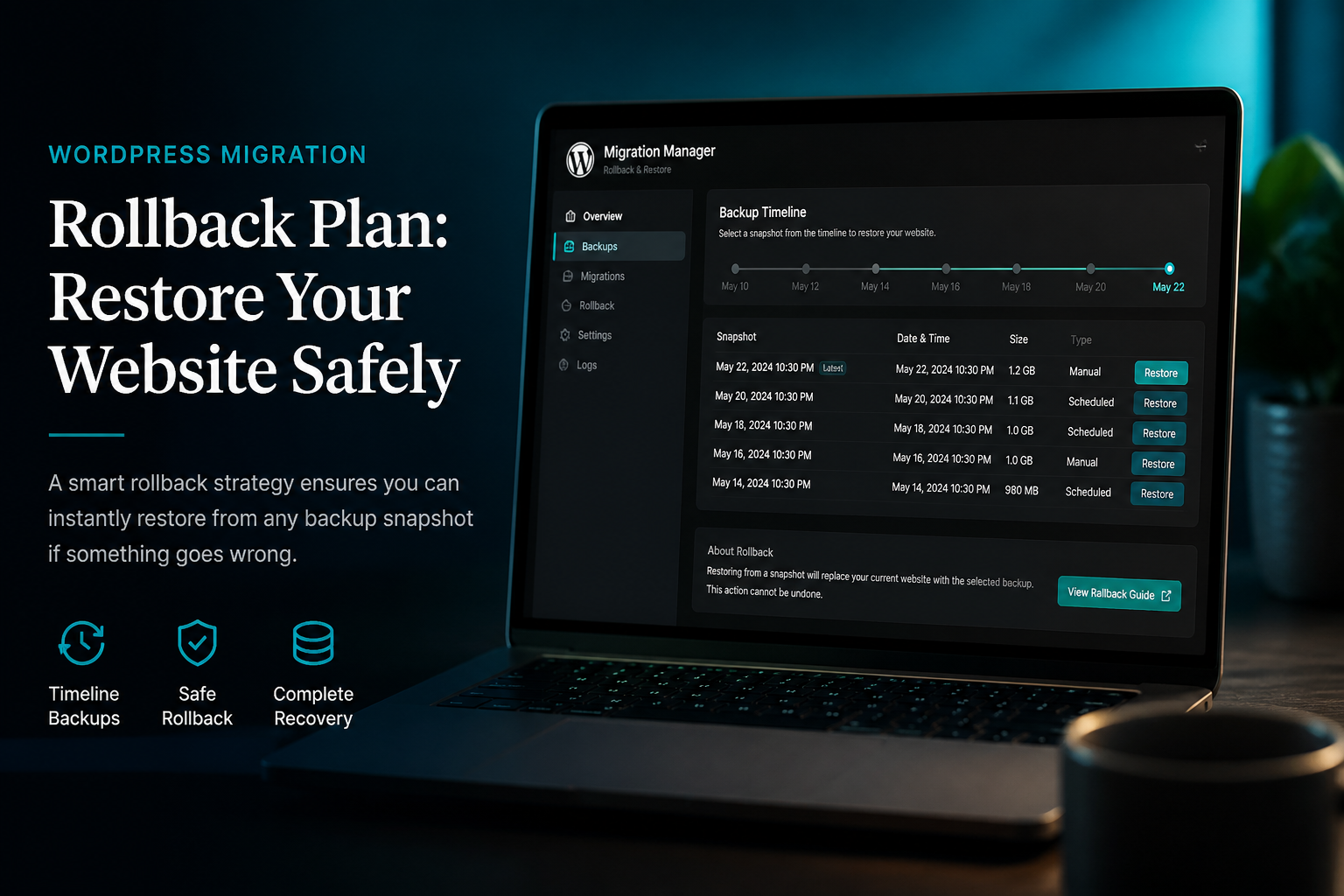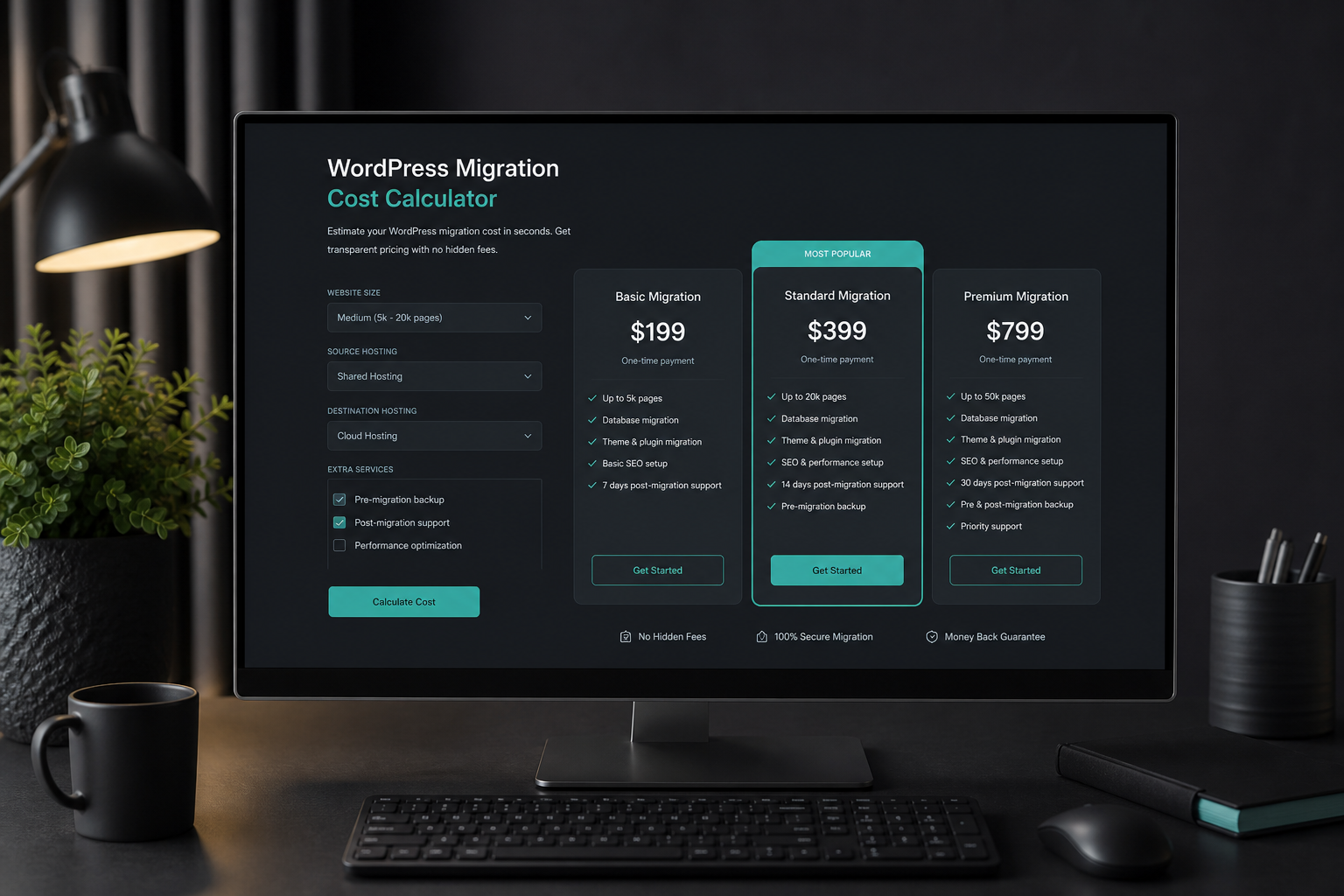

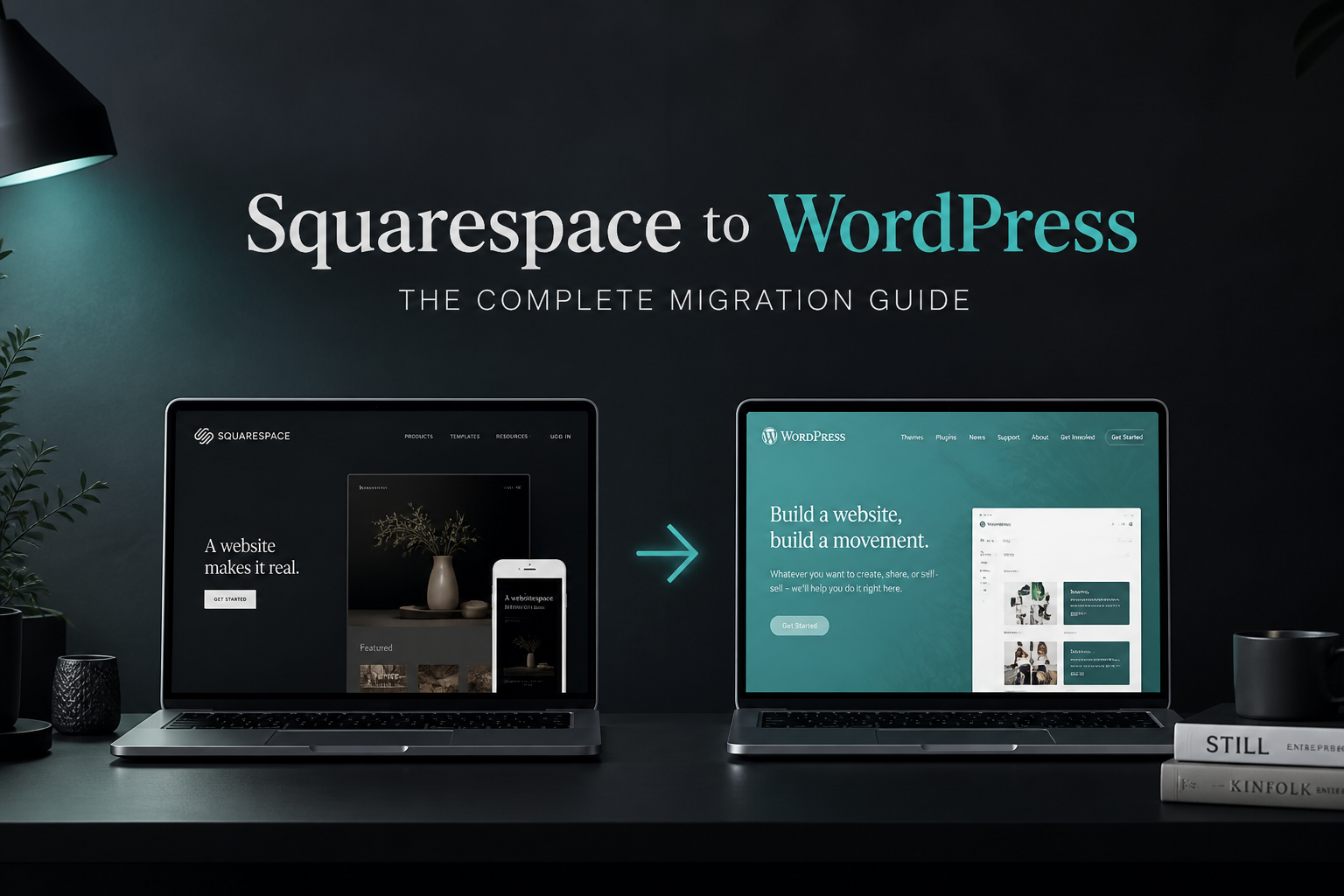
To migrate from Squarespace to WordPress, export blog content via Squarespace XML, rebuild pages and design in WordPress, map every old URL to a new URL with 301 redirects, and verify Search Console after DNS cutover. Squarespace exports more blog content than Wix but still requires manual page recreation and commerce reconfiguration.
Professional Squarespace-to-WordPress migration typically costs $800–$2,000 (estimate) and takes 2–4 weeks depending on page count, Squarespace Commerce inventory, and design fidelity requirements.
Squarespace export capabilities
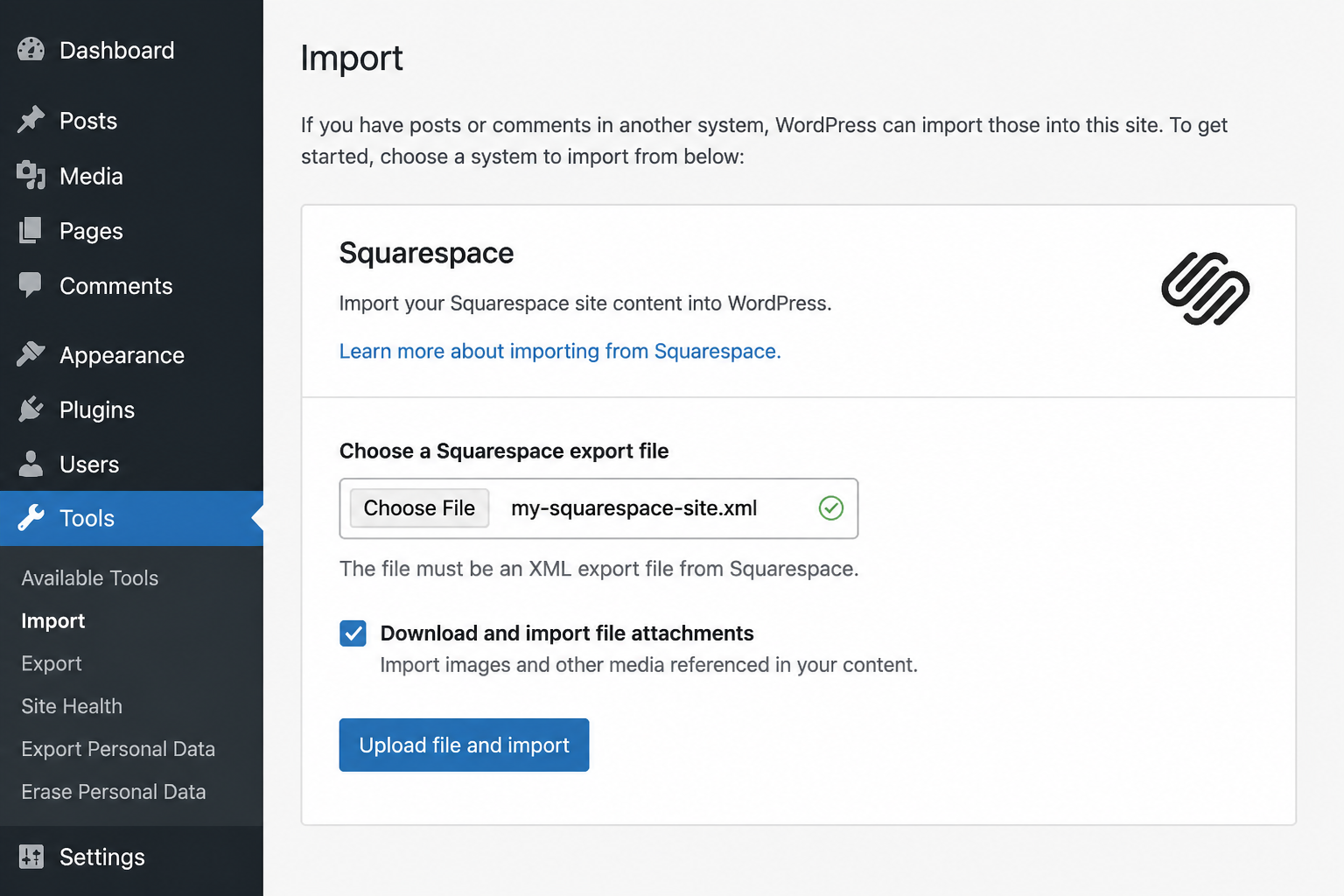
Squarespace provides a WordPress-compatible XML export for blog content. Everything else is manual.
| Content type | Export method | WordPress destination |
|---|---|---|
| Blog posts | Settings → Advanced → Import/Export → WordPress | Tools → Import → WordPress |
| Pages | No XML export — copy manually | Block editor or page builder |
| Images | Embedded in XML export (may need re-upload) | Media library |
| Products (Commerce) | CSV export in Commerce panel | WooCommerce product import |
| Navigation/menus | Manual rebuild | Appearance → Menus |
| Forms | Not exportable | WPForms, Gravity Forms, Fluent Forms |
| Custom CSS | Copy from Settings → Advanced | Child theme or Customizer |
| URL slugs | Visible in Squarespace page settings | Match in WordPress permalinks |
Download the XML export before canceling Squarespace. Exports are tied to an active subscription.
Migration process overview
1. Pre-migration audit
- Crawl all Squarespace URLs (Screaming Frog, Sitebulb, or Search Console export).
- Export blog XML from Squarespace.
- Export product CSV if using Squarespace Commerce.
- Screenshot every page for design reference.
- Document SEO titles and descriptions from Squarespace page settings.
- Note Squarespace URL patterns: `/post-slug`,/ `/about`, `/shop/product-name`.
Build redirect spreadsheet: old Squarespace URL → new WordPress URL. Every indexed page needs a 301. Use the WordPress migration SEO checklist.
2. WordPress environment setup
- Provision hosting with PHP 8.1+, SSL, and staging URL.
- Install WordPress and baseline plugins: SEO, cache, security, backup.
- Choose theme strategy:
– Premium theme (GeneratePress, Kadence) for speed and simplicity
– Page builder (Elementor, Bricks) for closer Squarespace visual parity
- Install WooCommerce if replacing Squarespace Commerce.
- Configure permalink structure to match planned URL map before importing content.
3. Import blog content
- WordPress admin → Tools → Import → WordPress (install importer plugin if prompted).
- Upload Squarespace XML file.
- Assign authors to WordPress users.
- Import attachments (check "Download and import file attachments").
- Review imported posts:
– Slug matches Squarespace slug (edit if WordPress added `-2` suffix)
– Featured images attached
– Categories and tags mapped
– Publish dates preserved
Squarespace XML sometimes produces extra `<div>` wrappers. Clean formatting in block editor or run HTML cleanup script on staging.
4. Rebuild pages
Squarespace pages do not export. For each page:
- Open Squarespace page and WordPress editor side by side.
- Recreate sections — hero, text blocks, galleries, CTAs.
- Set WordPress page slug to match Squarespace slug (Pages → Edit → Permalink).
- Enter SEO title and meta description in Rank Math or Yoast.
- Upload images to media library; do not leave Squarespace CDN hotlinks.
Priority order: Homepage → top traffic landing pages (check Analytics) → remaining pages → legal pages.
5. Squarespace Commerce to WooCommerce
If you run a store:
- Export products from Squarespace Commerce (Inventory → Export).
- Map CSV columns to WooCommerce importer fields.
- Configure WooCommerce settings: currency, tax, shipping zones, payment gateways.
- Reconnect Stripe or PayPal — new site URL requires gateway re-authentication.
- Test: add to cart, apply coupon, checkout, order confirmation email.
- Set up 301 redirects for every product URL (`/shop/old-slug` → `/product/new-slug` or match slugs to avoid redirects).
Commerce migration adds $400–$800 to base estimates.
6. Redirects and DNS cutover
Squarespace does not provide server-level 301 redirect configuration after you leave. Options:
Same domain (recommended):
- Build WordPress on staging with temporary URL.
- Complete all content and testing.
- Disconnect domain from Squarespace (Settings → Domains).
- Point domain A record to WordPress host.
- Implement 301 redirects via Redirection plugin, Rank Math, or .htaccess/nginx for any URL that changed.
URL slug parity strategy: Match Squarespace slugs exactly in WordPress to minimize redirects needed. Redirect only structural differences (e.g., `/post`/ → `/post` if you change permalink structure).
Domain change guide: change WordPress domain without losing SEO.
7. Post-launch verification
Run the full WordPress migration checklist post-launch section plus:
- [ ] Search Console property verified on new host
- [ ] Sitemap submitted
- [ ] Top 50 URLs return 200 or correct 301
- [ ] Analytics tracking confirmed
- [ ] Forms deliver email
- [ ] SSL grade A on SSL Labs
- [ ] Squarespace subscription canceled only after 2+ weeks stable traffic
Squarespace vs WordPress: what changes after migration
| Area | Squarespace | WordPress after migration |
|---|---|---|
| Hosting | Included in subscription | Separate host ($15–$100+/mo) |
| Updates | Automatic | You or maintenance plan |
| Security | Platform-managed | Plugin + host + your config |
| SEO tools | Built-in basics | Yoast/Rank Math + full control |
| Ecommerce fees | Platform transaction fees on some plans | Payment gateway fees only |
| Custom code | Limited injection points | Full theme/plugin access |
Budget for WordPress maintenance or handle updates yourself. Migration is day one of ownership.
Common Squarespace migration mistakes
- Importing XML without fixing slugs — WordPress adds `-2` suffix on conflicts; breaks redirect map.
- Changing permalink structure without redirects — `/post-name`/ to `/post-name` needs 301 for every post.
- Leaving Squarespace images hotlinked — Squarespace CDN URLs die when subscription ends.
- Canceling Squarespace before DNS propagates — domain disconnect timing matters; coordinate cutover window.
- Skipping mobile QA — Squarespace responsive behavior does not transfer; test every template on mobile.
DIY timeline and cost
| Item | Estimate |
|---|---|
| Hosting (year 1) | $180–$600 |
| Premium theme (optional) | $0–$100 |
| Page builder Pro (optional) | $0–$200/year |
| Migration plugins (WP All Import) | $0–$100 |
| Your time (40–60 hours) | — |
| Professional migration | $800–$2,000 (estimate) |
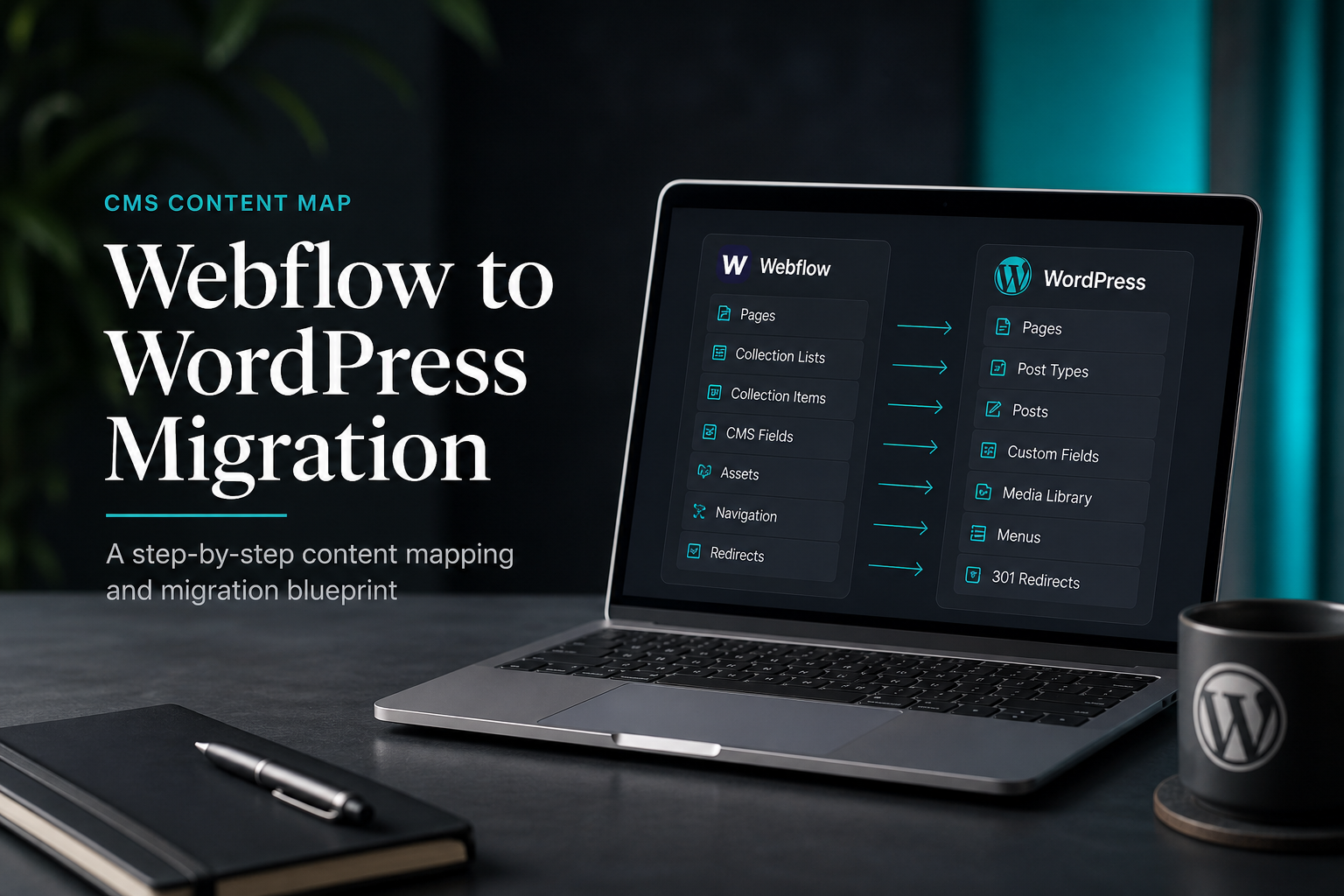
Compare: migrate Wix to WordPress, migrate Webflow to WordPress.
FAQs
Does Squarespace export work directly into WordPress?
Blog posts yes, via XML import. Pages, navigation, commerce settings, and design do not export. Expect significant manual rebuild.
How do I redirect Squarespace URLs after leaving?
Implement 301s on WordPress host via redirect plugin or server config. You cannot configure redirects on Squarespace after pointing DNS away — plan the redirect map before cutover.
Will my Squarespace SEO settings transfer?
No. Meta titles and descriptions must be re-entered in WordPress SEO plugin. Squarespace SEO settings do not export in XML.
Can I keep my Squarespace domain email?
Squarespace Email Campaigns is separate from site hosting. Google Workspace or Microsoft 365 email on your domain continues independently if MX records stay unchanged during web migration.
How long until Google re-indexes my WordPress site?
Same domain with correct redirects: 1–3 weeks for most pages. Submit sitemap in Search Console to accelerate. Monitor indexing report weekly.
—
Squarespace migration is part export, part rebuild. WordPress migration services handle content import, URL mapping, and SEO-safe launch.
Book a free 15-minute migration consult.
September 10, 2026
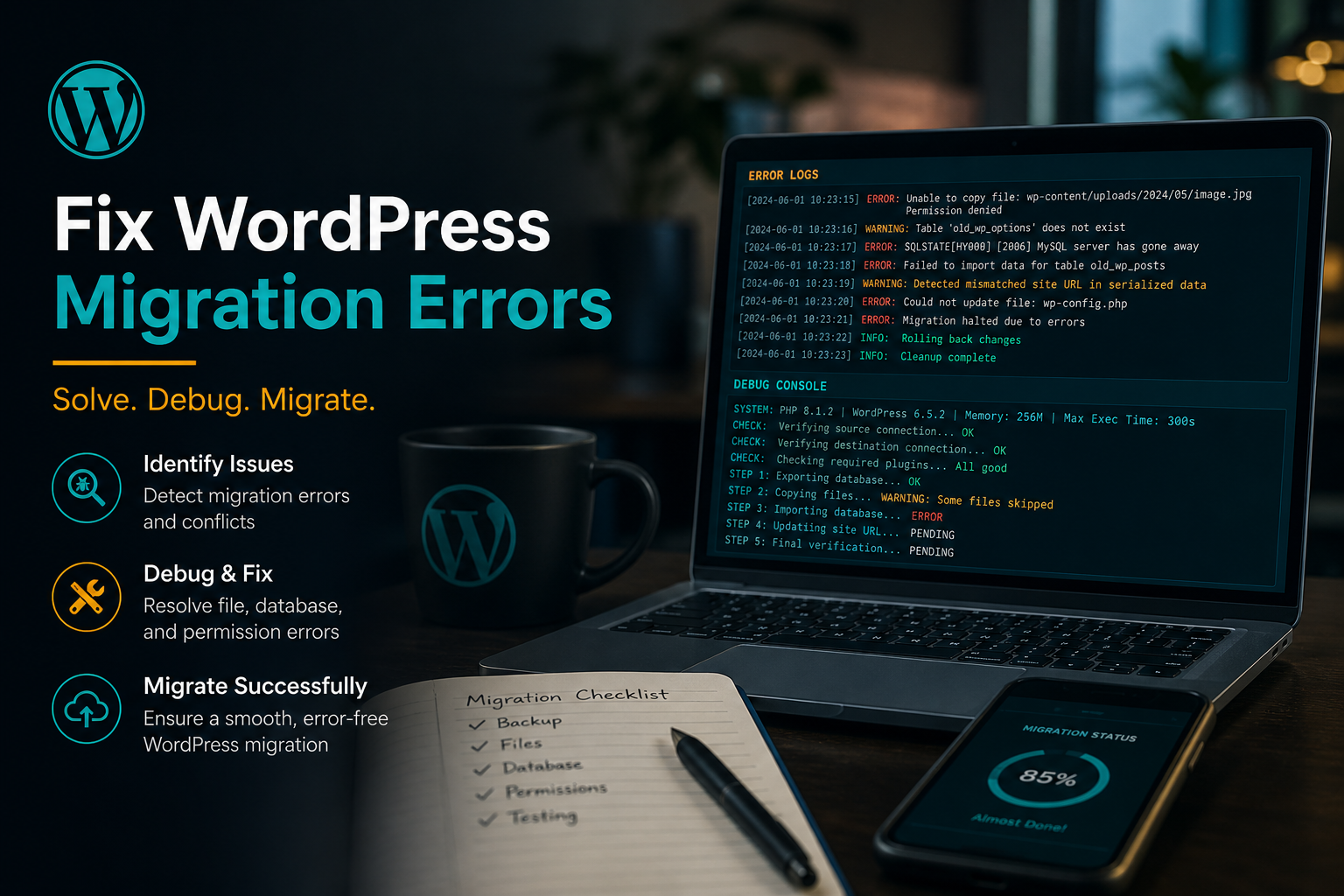
Fix WordPress Migration Errors: Common Failures and Solutions
September 10, 2026