
WordPress Speed Checklist: How to Fix a Slow Site
TL;DR — WordPress speed checklist: Measure with PageSpeed Insights field data first, then fix in order: hosting and PHP version, page caching, image delivery (WebP + correct sizes), remove or delay third-party scripts, clean the database, and audit plugins. Most slow WordPress sites fail on three or four small issues stacked together — not one magic plugin. For Core Web Vitals specifics, see the Core Web Vitals WordPress guide.
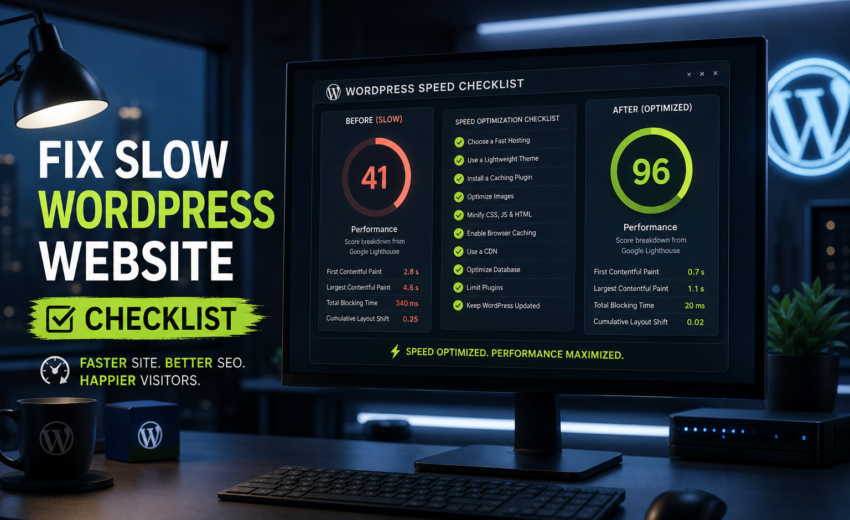
Almost nobody needs to fix a slow WordPress website for one reason. Sites are slow for five or six small reasons stacked together: a hero image exported at 2400px and 1.8MB, a page builder loading 400KB of CSS for a page that uses 12KB of it, a chat widget and two tracking pixels fighting over the main thread, a caching plugin installed but never configured, and shared hosting that takes 800 milliseconds to return the first byte.
Fix one and you get a rounding error. Fix all of them and the site feels different.
This is the checklist I run internally, in the order I run it. It’s ordered deliberately: measure before you touch anything, fix the server layer before the front end, and fix the things that block rendering before the things that merely add weight. Working out of order is how people spend a weekend on minification and wonder why nothing changed.
Most of it you can do yourself. The last section covers where DIY stops being worth it.
Step 0: Measure first, and measure the right thing
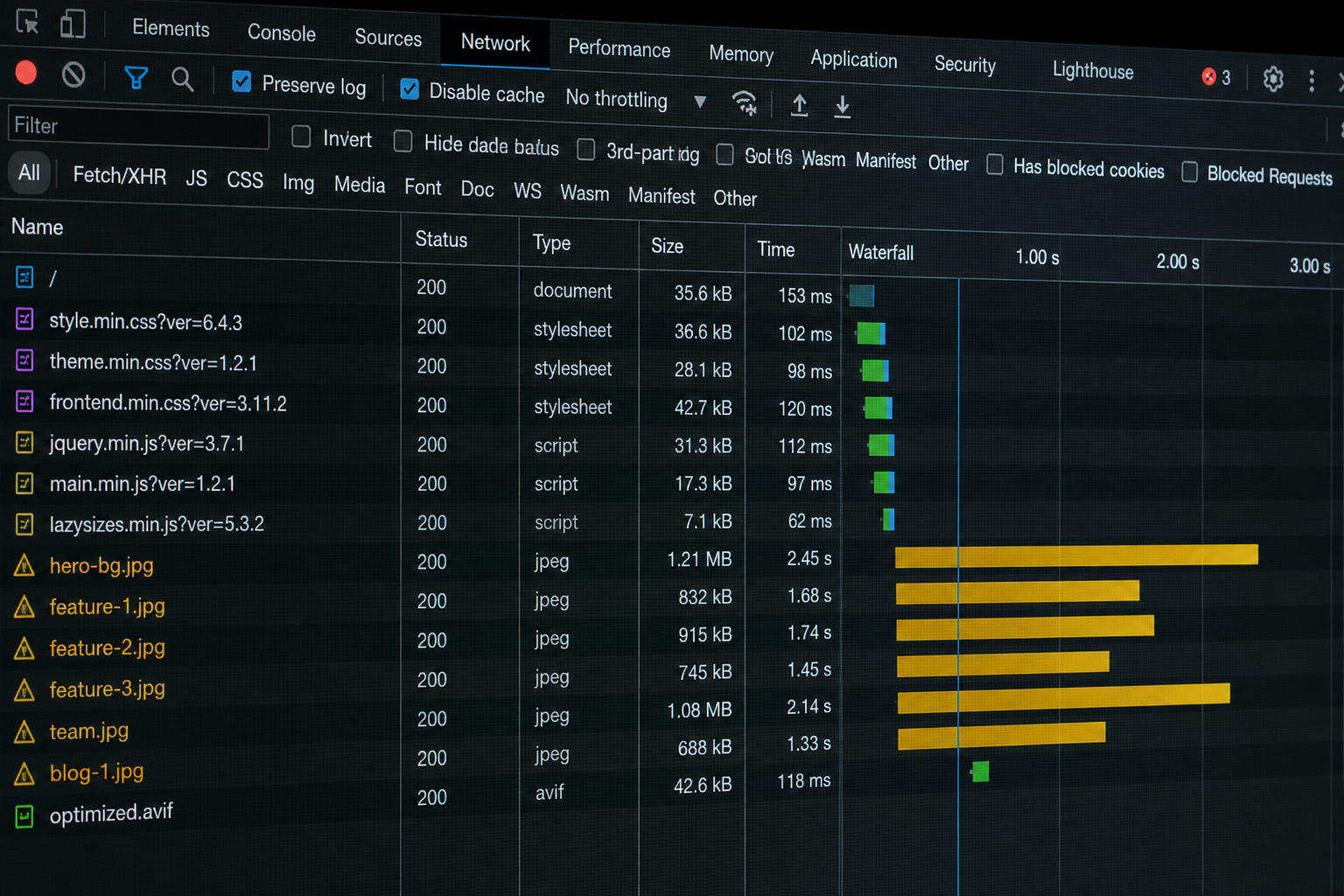
Do not change anything until you have a baseline. Without one you can’t tell whether a change helped, hurt, or did nothing.
Take these numbers before you start:
- Chrome UX Report field data via PageSpeed Insights — this is real data from real Chrome users on your site, split by mobile and desktop.
- A Lighthouse run on your three most important templates: home, a service page, and a blog post. Templates behave differently; testing only the homepage is a common blind spot.
- A WebPageTest run from a location near your actual audience, on a mobile profile.
- Time to First Byte (TTFB) from the same test. This is your server’s contribution and it sets a floor on everything else.
The three metrics that matter are Google’s Core Web Vitals, measured at the 75th percentile of real visits:
| Metric | Measures | Good |
|---|---|---|
| LCP — Largest Contentful Paint | Time until the main content element renders | ≤ 2.5s |
| INP — Interaction to Next Paint | How quickly the page responds to taps and clicks | ≤ 200ms |
| CLS — Cumulative Layout Shift | How much the layout jumps while loading | ≤ 0.1 |
Two things people get wrong. Field data beats lab data: you can score 95 in Lighthouse on office fiber and still fail in Chrome’s field data, because a quarter of your visitors are on a mid-range Android over cellular. And field data lags by about 28 days, so don’t judge your fixes on day three.
If you want the metric-by-metric diagnostic detail, the Core Web Vitals WordPress fixes guide goes deeper on what causes each failure.
Step 1: Hosting and the server layer
Server response time is the ceiling on everything else. If your host returns HTML in 900ms, no amount of image compression saves you.
- Check TTFB. Under 200ms is good, 200–500ms is acceptable, over 600ms means the server is your bottleneck and you should fix that before anything else.
- Upgrade PHP. Run PHP 8.2 or newer. Old PHP versions are meaningfully slower and stop receiving security patches. Check under Tools → Site Health.
- Verify OPcache is enabled. Most decent hosts enable it; some budget hosts don’t. Site Health will tell you.
- Confirm HTTP/2 or HTTP/3 is active. Both allow parallel asset loading over one connection.
- Confirm Brotli or gzip compression is on for text assets. This alone often cuts HTML, CSS, and JS transfer size by 60–80%.
- Check your PHP worker count if you’re on managed hosting and traffic is spiky. Exhausted workers cause queuing that looks like random slowness.
- Consider moving off cheap shared hosting. A $4/month plan puts you on a machine with hundreds of other sites. Managed WordPress hosting typically runs $20–$50/month and frequently produces a larger improvement than every front-end tweak combined.
Hosting is the one item on this list where spending money is often the correct fix rather than a lazy one.
Step 2: Caching, configured properly
The plugin matters far less than the configuration. A well-tuned free plugin beats a badly configured premium one every time.
- Enable page caching. WP Rocket, FlyingPress, LiteSpeed Cache, W3 Total Cache, or your host’s built-in layer.
- Do not stack caching plugins. If your host caches at the server level (Kinsta, WP Engine, SiteGround, Cloudways, LiteSpeed hosts), a second full-page cache usually makes things worse.
- Enable object caching — Redis or Memcached — if your host offers it. This matters most on WooCommerce and query-heavy sites.
- Set browser cache headers so returning visitors don’t re-download static assets.
- Set cache exclusions correctly. Cart, checkout, my-account, and logged-in sessions must be excluded. A speed fix that breaks checkout isn’t a speed fix.
- Test in a private window while logged out. A logged-in admin bypasses the cache, so your own experience isn’t representative.
- Verify the cache is being hit via the cache header in the network tab. Plenty of sites run a caching plugin that quietly caches nothing.
Step 3: Images
Oversized images remain the single most common cause of a poor LCP score on WordPress, and they’re the cheapest thing on this list to fix.
- Resize before uploading. Nothing on a normal site needs to be wider than about 2000px. A 4000px camera export is pure waste.
- Serve WebP or AVIF with fallbacks — typically 25–50% smaller than JPEG at equivalent quality.
- Compress everything. ShortPixel, Imagify, EWWW, or Squoosh for one-offs. Quality 75–85 is visually indistinguishable for photographs.
- Check
srcsetandsizesare correct so phones download phone-sized images. WordPress generates these; page builders sometimes break them. - Set explicit width and height on every image. The number one cause of layout shift, and a one-line fix.
- Lazy-load below-the-fold images, and make sure your hero image is *not* lazy-loaded. Lazy-loading the LCP element makes the score worse — a common self-inflicted wound.
- Preload the LCP image so the browser fetches it immediately instead of waiting to discover it.
- Replace decorative images with CSS. Gradients, shapes, and dividers don’t need to be files.
- Use a facade for video. A YouTube embed pulls hundreds of kilobytes before anyone presses play; a thumbnail that loads the player on click doesn’t.
Step 4: CSS and JavaScript
Page builders and plugins load their assets globally by default. Your contact form plugin loads its CSS and JS on every page, including the 40 pages with no form.
- Audit what loads where. Chrome DevTools → Coverage shows unused CSS and JS per page. It’s usually a sobering number.
- Conditionally dequeue plugin assets on pages that don’t need them. Asset Cleanup or Perfmatters do this without code;
wp_dequeue_styleandwp_dequeue_scriptdo it with code. - Remove unused CSS via your optimization plugin, carefully — over-aggressive removal breaks layouts, so test every template afterward.
- Generate critical CSS so the browser can paint before the full stylesheet arrives.
- Defer non-critical JavaScript. Anything not needed for first render should not block it.
- Delay JS until user interaction for chat widgets and heatmaps. This is frequently the largest single INP win available.
- Minify CSS, JS, and HTML. Small, easy, safe.
- Reconsider file combining. Under HTTP/2 it’s often unnecessary. Test rather than assume.
- Self-host fonts instead of calling Google Fonts. Fewer connections, one less third-party dependency.
- Cut your font files down. Two families, two or three weights, subset to the characters you use.
- Set
font-display: swapso text renders in a fallback immediately instead of staying invisible. - Disable WordPress emoji scripts and other legacy defaults you don’t use.
Step 5: Plugins and themes
- Deactivate and delete anything unused. Deactivated plugins still sit in the filesystem as a security surface.
- Find overlap. Two SEO plugins, two caching plugins, three form plugins. Consolidate.
- Measure individual plugin cost with Query Monitor. Occasionally one plugin accounts for most of your server time.
- Replace heavy plugins with light ones. Sliders, portfolio grids, and mega menu plugins are frequent offenders.
- Reduce page builder bloat. In Elementor, enable Optimized DOM Output, Improved Asset Loading, Improved CSS Loading, Inline Font Icons, and Font Display Swap, then disable unused widgets and experiments. Divi and WPBakery have equivalents, off by default.
- Check your theme’s baseline weight. Multipurpose themes bundling five sliders and an icon library start you in a hole.
- Audit page-builder addon packs. Often the single heaviest thing on a site, usually installed for two widgets.
Step 6: Database
- Delete post revisions. Limit them going forward with
define('WP_POST_REVISIONS', 5);inwp-config.php. - Clear expired transients, which accumulate silently for years.
- Empty trash and spam comments.
- Check autoloaded options size. Over ~800KB is a problem, usually caused by plugins storing large blobs that load on every request.
- Remove orphaned metadata left by deleted posts and uninstalled plugins.
- Drop leftover tables from plugins removed years ago. Verify first.
- Optimize tables periodically.
- Look for slow queries with Query Monitor. On a site with many custom fields, one badly written meta query can dominate page generation time.
Always take a full database backup before any of this.
Step 7: Third-party scripts
Chat widgets, heatmaps, ad pixels, review embeds, and A/B testing tools are frequently the largest drag on INP, and they’re the easiest to overlook because they don’t feel like “the site.”
- List every third-party script the site loads. Most people find two or three they’d forgotten about.
- Measure what each one costs in main-thread time, using the DevTools Performance panel or Lighthouse’s third-party summary.
- Remove anything unused. The tracking pixel for a campaign that ended in 2023 is still costing you.
- Delay loading until interaction for chat, heatmaps, and survey tools.
- Load tags through one container rather than pasting six snippets into the header.
- Self-host where licensing permits. Fewer DNS lookups and connections.
- Get sign-off before removing marketing tools. Speed matters, but not more than your team’s ability to measure campaigns.
Step 8: Verify, then hold the gains
- Re-run the full baseline suite and compare like for like: same tools, same templates, same locations.
- Test the site as a real user. Submit a form. Complete a checkout. Open the mobile menu. Log in. Speed work breaks things quietly.
- Check every template, not just the homepage.
- Wait 28 days for field data to catch up before judging the outcome.
- Write down what you changed. Future you will need this in four months.
- Set a monthly check. Sites drift as plugins update and content gets added.
That last point is the one people skip. Speed optimization is a point-in-time fix; new plugins, new scripts, and unoptimized uploads pull a site back within six to twelve months without oversight. That’s the practical case for WordPress maintenance, or for a recurring reminder in your own calendar. DIY vs a care plan covers where that line sits.
When to stop DIYing and hire someone
Most of this checklist is doable if you’re comfortable in the WordPress admin. Some of it isn’t. Here’s where I’d draw the line.
Hire someone when:
- You’ve worked the checklist and LCP is still above 4 seconds. Something structural is wrong and it needs profiling, not another plugin setting.
- The site is WooCommerce or has a members area. Cache exclusions need care, and the cost of breaking checkout is immediate.
- The slowness is intermittent. That points at server resources, a cron job, or a query problem, and it needs someone who can read logs.
- An optimization plugin broke your layout and you can’t work out which setting did it.
- You’d need 20+ hours, and those hours are worth more spent on your actual business.
- The site runs on an abandoned theme or a structure that fights every optimization. At that point a website redesign is the cheaper long-term answer.
Don’t hire someone when you haven’t tried the free wins yet. Compressing images, enabling caching, and deleting unused plugins cost nothing and often resolve a meaningful chunk of the problem.
For reference, WordPress speed optimization services typically run $250–$1,500, with a standard small business site landing around $450–$800.
Frequently asked questions
Why is my WordPress site slow all of a sudden?
Sudden slowdowns usually have a specific cause: a plugin or theme update, a newly added third-party script, a traffic spike exhausting server resources, or a caching layer that quietly stopped working. Check what changed in the last week first. If nothing changed on your side, test TTFB — a slow server response points at the host.
What’s a good page load time?
Aim for LCP under 2.5 seconds on mobile at the 75th percentile of real users. Total load time is less useful, because it counts assets that load after the page is already usable.
Do I need WP Rocket?
No. It’s good and its defaults are sensible, which is why I use it often, but a properly configured free plugin or a host-level cache reaches the same place. If your host already caches at the server level, adding WP Rocket on top usually causes more problems than it solves.
Will a CDN fix my slow site?
It helps with static asset delivery, especially for a geographically spread audience, and Cloudflare’s free tier is worth having. It won’t fix a slow server response, oversized images, or heavy JavaScript. A CDN is a multiplier on a well-optimized site, not a substitute for one.
Is my page builder the problem?
Partly, sometimes. Builders add DOM nodes and CSS weight, and Elementor ships a lot of both. But most page-builder sites are slow because of images, third-party scripts, and hosting, with the builder as one contributing factor. Turn on its performance settings and work the rest of the checklist before concluding you need a rebuild.
Does site speed affect SEO?
Yes, though less than people assume. Core Web Vitals are a modest ranking signal; relevance and content quality matter far more. The stronger argument is commercial — slow pages get abandoned before they render, which costs conversions regardless of where you rank.
Book a free 15-minute site audit
If you’ve worked through this checklist and the numbers still aren’t where you need them, send me your URL. I’ll run the baseline tests before we talk and tell you on the call what’s slowing the site down, what it would take to fix, and whether it’s worth paying for — including when the honest answer is that your money is better spent elsewhere.
Book a free 15-minute site audit — no pitch, no obligation, and you keep the findings either way.
August 14, 2026
What Is Headless WordPress?
August 14, 2026