
WordPress file permissions control who on the server can read, write, and execute your site's files. Wrong permissions — especially world-writable `777` — let any process on a shared host modify your code. Correct permissions limit damage when one account or plugin is compromised.
This is unglamorous infrastructure work. It takes fifteen minutes and closes real holes.
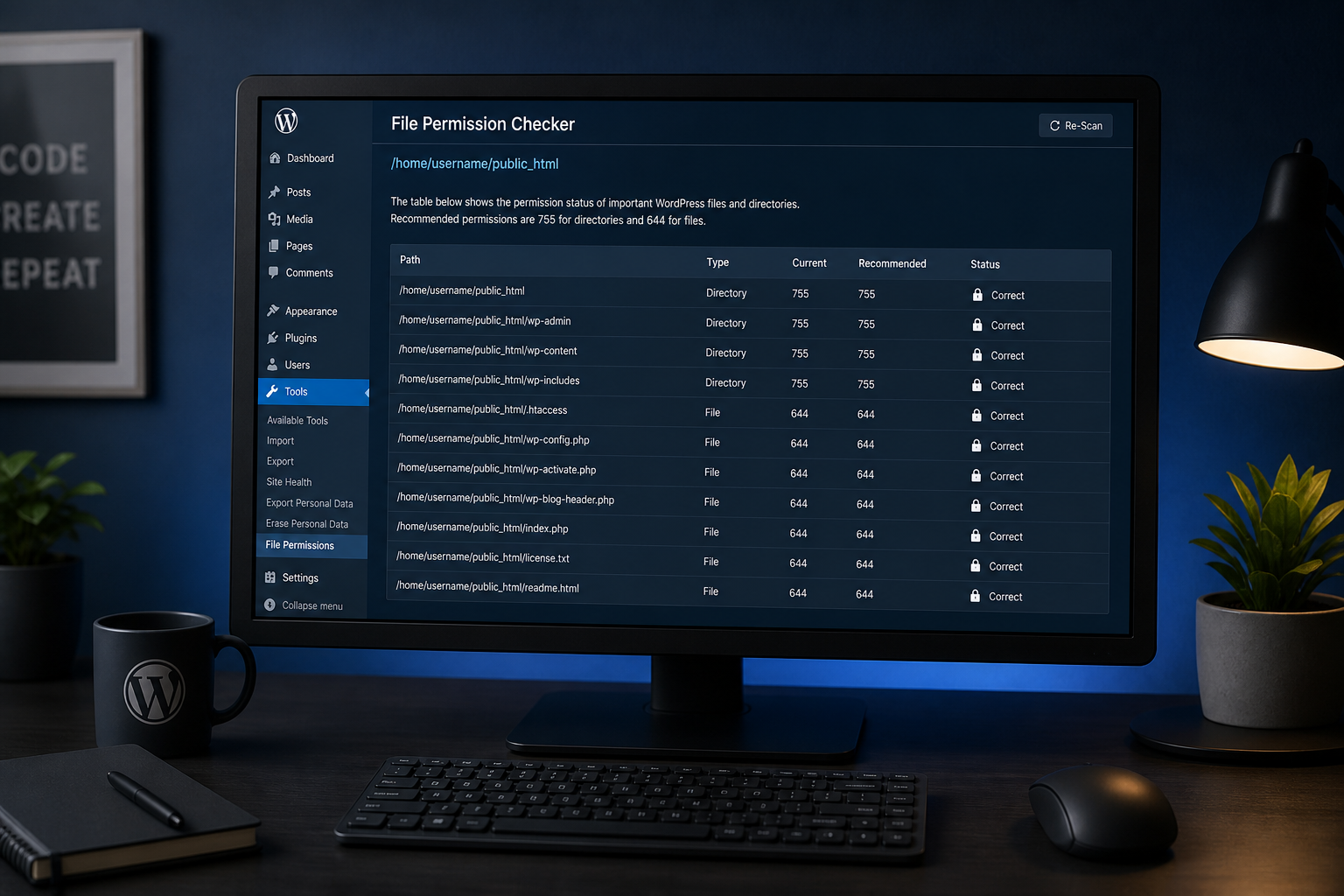
Recommended WordPress file permissions
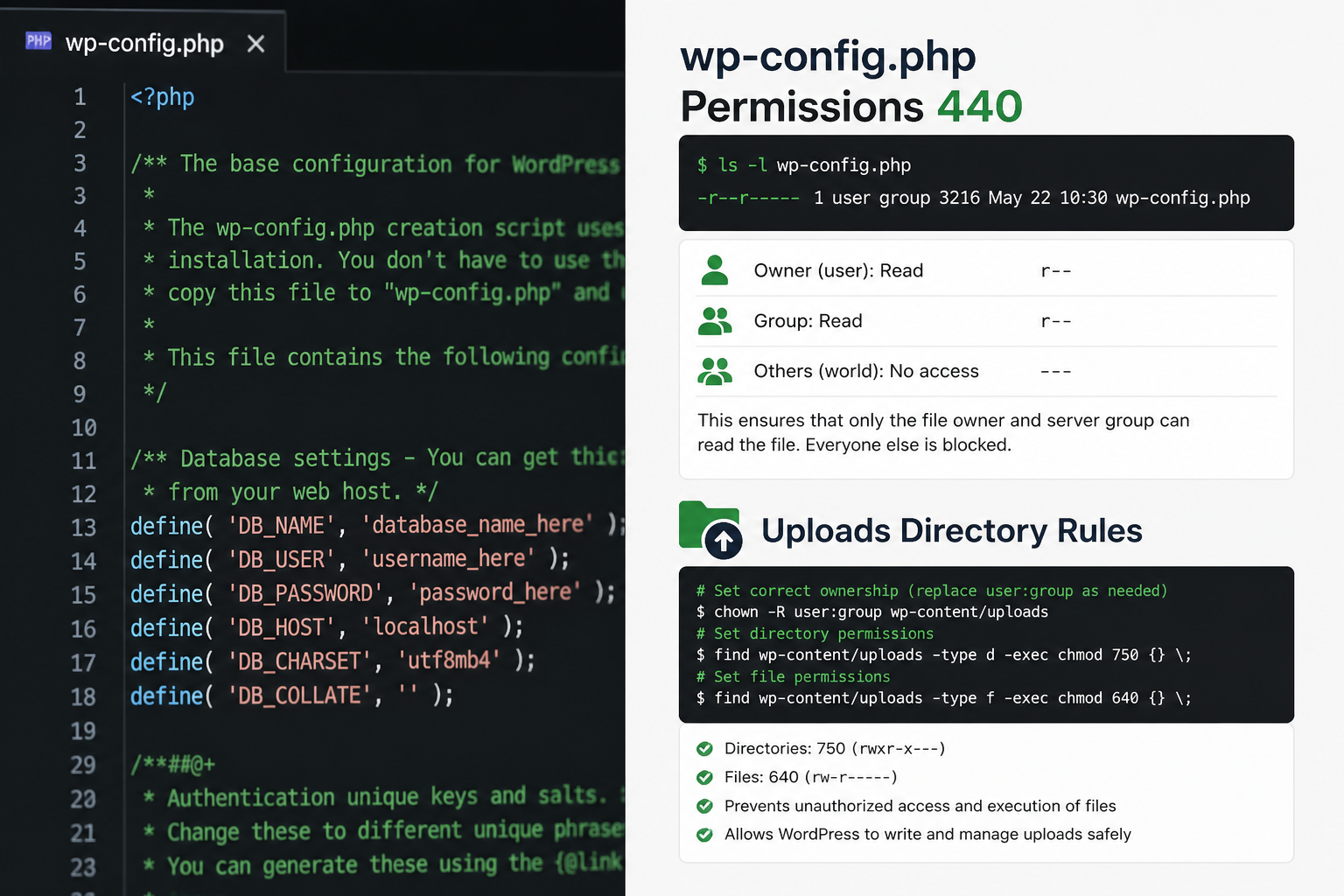
| Item | Permission | Octal | Why |
|---|---|---|---|
| Directories | Read + execute for owner; read + execute for group/others | 755 | Directories need execute to be entered |
| Files (PHP, HTML, CSS, JS) | Read/write for owner; read for group/others | 644 | Owner can update; others can read (web server needs read) |
| `wp-config.php` | Read/write for owner only | 600 or 640 | Contains database credentials and security keys |
| `wp-content/uploads/` | Directories 755, files 644 | 755 / 644 | Writable for uploads; not executable |
| `.htaccess` | Read/write for owner; read for others | 644 | Web server needs read access |
Never use 777. World-writable means any user or process on the server can modify the file. Tutorial sites sometimes recommend it when a plugin cannot write to a directory. Fix the ownership issue instead.
Why permissions matter
On shared hosting, multiple sites share the same server. If your files are world-writable and another account on the server is compromised, that attacker can modify your WordPress files too.
Even on dedicated or managed hosting, loose permissions mean:
- A compromised plugin can overwrite core files
- An attacker who gains FTP access can drop a web shell anywhere writable
- Backup plugins writing loose permissions can propagate `777` across directories
Correct permissions follow the principle of least privilege: the web server can read and serve files, WordPress can write where it needs to (uploads, cache), and nothing else is writable.
Check current permissions
Via SSH:
“`bash
Check wp-config.php
ls -la wp-config.php
Check directory permissions recursively (sample)
find . -type d -exec ls -ld {} ; | head -20
find . -type f -exec ls -la {} ; | head -20
Find world-writable files (should return nothing)
find . -type f -perm 0777
find . -type d -perm 0777
“`
Via FTP/SFTP client: FileZilla and similar clients show numeric permissions in file properties. Look for anything ending in 7 for "others."
Via security plugin: Wordfence and Solid Security include file permission checks in their scan reports.
Fix permissions via SSH
Run from your WordPress root directory:
“`bash
Set directory permissions
find . -type d -exec chmod 755 {} ;
Set file permissions
find . -type f -exec chmod 644 {} ;
Lock down wp-config.php
chmod 600 wp-config.php
“`
Important: Run this on staging first. Some hosting environments use group-writable permissions (`775`/`664`) with specific ownership models. Kinsta, WP Engine, and similar managed hosts often document their expected permission model — check before changing.
Fix ownership issues
Permission problems often stem from ownership, not the numeric values. If WordPress cannot write to uploads after tightening permissions, the web server user may not own the files.
“`bash
Check current owner
ls -la wp-content/uploads/
Typical fix (user/group vary by host)
chown -R www-data:www-data wp-content/uploads/
“`
On managed hosts, you usually cannot change ownership via SSH. Use the host's file manager or support ticket instead.
Secure wp-config.php
`wp-config.php` contains your database name, username, password, and security keys. It is the most sensitive file in your installation.
Permissions: `600` (owner read/write only) or `640` (owner read/write, group read) depending on your host's web server user setup.
Location: WordPress supports moving `wp-config.php` one directory above the web root. This removes it from publicly accessible paths entirely. Only do this on fresh setups or with careful testing — some hosts and plugins assume the default location.
Contents to verify:
“`php
define('DISALLOW_FILE_EDIT', true);
define('FORCE_SSL_ADMIN', true);
“`
Regenerate security keys if they look short, repeated, or like placeholders. Use the official WordPress secret-key service. Regenerating keys logs everyone out — useful after a suspected compromise.
Block PHP execution in uploads
The uploads directory should never execute PHP. A common attack uploads a `.php` file disguised as an image, then requests it directly to run arbitrary code.
Apache (.htaccess in wp-content/uploads/):
“`apache
<Files *.php>
Order Deny,Allow
Deny from all
</Files>
“`
Nginx (in server block):
“`nginx
location ~* /wp-content/uploads/.*.php$ {
deny all;
return 403;
}
“`
Many managed hosts apply this rule by default. Check before adding duplicate rules.
File permissions checklist
| Check | Target | Done? |
|---|---|---|
| No files or directories at 777 | None found | ☐ |
| Directories at 755 | All directories | ☐ |
| Files at 644 | All files | ☐ |
| wp-config.php at 600 or 640 | wp-config.php | ☐ |
| PHP execution blocked in uploads | .htaccess or server rule | ☐ |
| DISALLOW_FILE_EDIT enabled | wp-config.php | ☐ |
| Security keys are unique | wp-config.php | ☐ |
Full context: WordPress security hardening checklist.
Signs of permission-related compromise
Wrong permissions do not cause hacks directly, but they enable broader damage:
- New PHP files appearing in uploads or themes directories
- Core WordPress files modified at times nobody was working
- Files owned by a user other than your web server account
If you see these signs, see how to tell if WordPress site is hacked before changing permissions — you may need to preserve evidence.
Frequently asked questions
My host uses 775 for directories. Is that wrong?
Not necessarily. Some hosts run the web server under a group that requires group-write access. Follow your host's documentation. The rule against 777 is universal; 775 on managed hosting is often intentional.
Will fixing permissions break plugin updates?
If ownership is correct, tightening from 777 to 755/644 should not break updates. If updates fail after fixing, the issue is ownership — the web server user needs write access to directories it must update, typically via group membership.
Should I chmod wp-content to 755 or leave it writable?
`wp-content` and its subdirectories should be 755 for directories. WordPress writes to specific subdirectories (uploads, cache, upgrade) — those directories need the web server user to have write access via ownership, not via 777 permissions.
Can I check permissions without SSH?
Yes. FTP clients show permissions in file properties. Security plugins report permission issues in scan results. Some managed hosts display permissions in their file manager.
Does fixing permissions replace a security plugin?
No. Correct permissions are one layer. You still need updates, 2FA, firewall rules, and backups. Permissions limit blast radius; they do not prevent initial compromise.
Get a free 15-minute security check
Send your URL. I cannot read file permissions remotely, but I can check for exposed endpoints, SSL issues, and other public-facing signals — and tell you what to verify on the server.
File permission hardening is standard in WordPress security hardening projects — typically $300–$1,200 depending on site complexity.
August 31, 2026
WordPress Backup Strategy for Security
August 31, 2026