
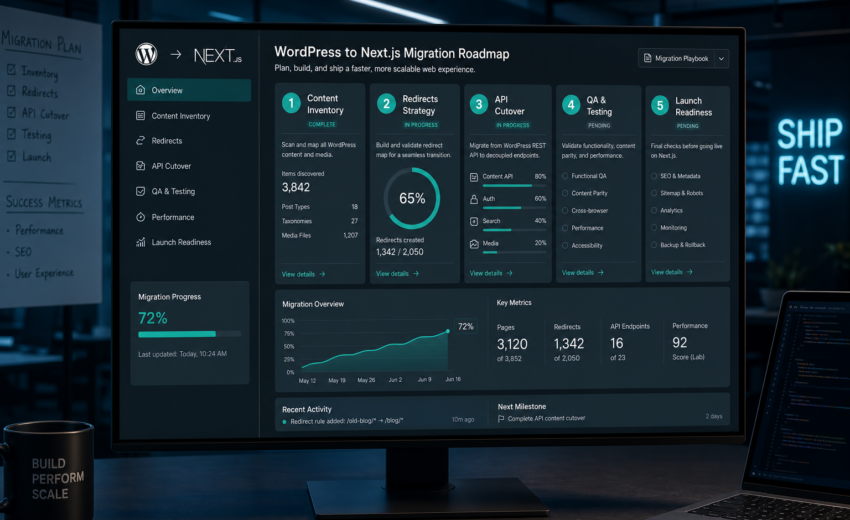
How to Migrate WordPress to Next.js Without Losing Rankings
Most projects that migrate WordPress to Next.js don’t fail on the code. They fail on the 340 URLs nobody inventoried, the metadata that silently stopped rendering, and the preview button that broke on launch day so the content team quietly went back to publishing on the old site.
The engineering part — fetching posts over an API and rendering them in React — is the easy half. The hard half is making sure Google, your editors, and your existing traffic survive the transition. This guide covers the process in the order I run it, including the steps people skip and regret.
First decision: headless, or all the way? Headless keeps WordPress as the CMS and swaps the theme for a Next.js front end. Full migration moves content to a different source entirely — Markdown, Sanity, Payload, a database. Headless is usually the more sensible choice, because your editors keep the tool they know. If you’re still deciding, read what headless WordPress actually means and Next.js vs WordPress first. Everything below assumes headless, though the SEO steps apply either way.
Step 1: Audit before you plan anything
You cannot plan a migration from a sitemap. You need a real inventory, and building it takes two to five days on a typical site.
Crawl the current site. Screaming Frog or Sitebulb, full crawl, no limits. Export every URL with its status code, title, meta description, canonical, H1, and inbound internal link count.
Then add the URLs the crawl won’t find. Search Console’s Pages report and 16-month Performance export surface indexed URLs you don’t link to. GA4 surfaces every landing page with a session in the last year. Ahrefs, Semrush, or the Search Console links report surface pages with backlinks — 40 referring domains and no traffic is still link equity worth redirecting.
Inventory the WordPress side. This is the part people skip:
- Every registered post type and how many published items each has
- Every taxonomy and term, including the empty ones
- Every ACF or Meta Box field group, which post types it attaches to, and which fields are actually populated
- Every active plugin, split into two lists: *manages data* and *renders front-end output*
- Every template file in the theme, and which URLs use it
- Every form, and where submissions currently go
- Any shortcodes used in content, because those render as literal text in React unless you handle them
That last one catches people. If your posts contain [contact-form-7 id="42"] or a page builder’s shortcode soup, your content isn’t portable until you deal with it.
The plugin split matters most. Plugins that store and expose data — ACF, Yoast, WPML, custom post type registrars — survive a headless migration fine. Plugins that render their own front end — sliders, popups, page builders, most form plugins, membership and booking systems — do not, because there’s no theme to render into. Each is either a replacement you build or a feature you drop. Decide that now, not in week six.
The output of this step is a written document: content model, URL inventory, plugin disposition, risks.
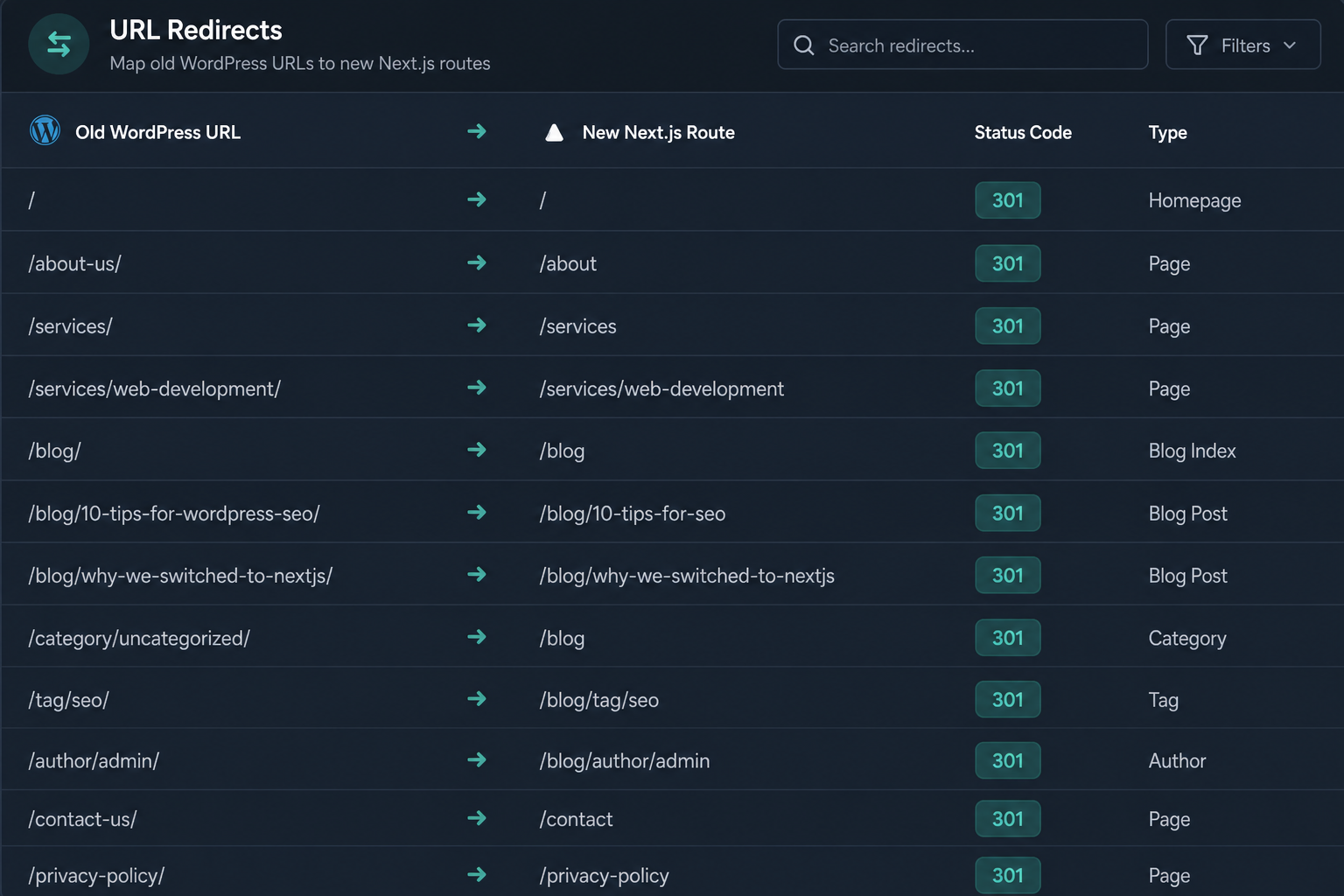
Step 2: Build the URL map and redirect plan
This is the highest-stakes artifact in the project. Most post-migration traffic losses trace directly back to it.
Take your consolidated URL list — crawl plus Search Console plus analytics plus backlinks, deduplicated — and give every row a destination:
| Old URL | New URL | Action |
|---|---|---|
/blog/2019/05/old-post/ |
/blog/old-post/ |
301 |
/services/wordpress/ |
/services/wordpress-development/ |
301 |
/category/news/page/2/ |
/blog/?page=2 |
301 or preserve |
/thin-page-nobody-reads/ |
/services/ |
301 to nearest parent |
/tag/misc/ |
— | 410, deliberately removed |
Rules I hold to:
Keep URLs identical wherever possible. The best redirect is the one you don’t need. If your current structure is sane, replicate it exactly. Changing /blog/post-name/ to /posts/post-name/ for aesthetic reasons buys nothing and costs crawl budget and a small ranking dip.
301, never 302. Temporary redirects don’t pass signals the same way. Use 302 only for genuinely temporary states.
No redirect chains. If the old site already has /a/ → /b/, and /b/ becomes /c/, write both /a/ → /c/ and /b/ → /c/. Chains lose signal and slow crawling.
Redirect to the closest equivalent, not the homepage. Mass-redirecting removed pages to / gets treated as a soft 404. If there’s no equivalent, a 410 is more honest and cleaner.
Handle the trailing slash consistently. Pick one convention, enforce it in next.config.js with trailingSlash, and redirect the other form. Serving both is a duplicate content problem.
Don’t forget non-page URLs. Feeds, author archives, date archives, paginated category pages, attachment pages, and /wp-content/uploads/ paths for images other sites hot-link. If you move the media library, every image URL in every indexed page changes.
Implement redirects in Next.js middleware or next.config.js. For maps over a few hundred entries, keep them in a JSON or CSV file loaded at build time rather than hand-maintaining a config array. If your host has an edge redirect layer, use it — it’s faster than a middleware round trip.
Then test the map before launch, not after. Run the entire old URL list against staging and assert that every response is a 200 or an intentional 301 to a 200. That’s a script, not a spot check.
Step 3: Model the content properly
Migration is the only cheap opportunity you’ll get to fix your content model. Take it.
In classic WordPress, structure often lives in the theme — a “Team Member” is a page with a specific template and some conventions about heading order. In headless, structure has to live in the data, because React components consume fields, not formatted HTML blobs.
Post types and fields. Consolidate near-duplicates and split anything overloaded — one “Resource” type covering case studies, whitepapers, and webinars produces a template full of conditionals. Drop field groups nobody has populated in three years.
Blocks. If your editors compose pages with Gutenberg blocks, you need a renderer mapping each block type to a React component. Budget real time — often 20–30% of front-end effort — and audit which block types actually appear in your content before building renderers for all of them.
Expose everything to the API. ACF fields need show_in_graphql or REST registration. Fields stranded in postmeta are invisible to the front end. Verify by querying the API, not by trusting the config.
Generate types from the schema. With WPGraphQL, use codegen so a field rename in WordPress becomes a TypeScript build error instead of a blank section in production. This habit alone catches a large share of migration bugs.
Deal with shortcodes now. Convert them to blocks in the content rather than writing front-end parsers. It cleans the data permanently.
Step 4: Preserve every SEO element
Go element by element. Each is a separate implementation task in Next.js, and each is silently missing by default.
- Title and meta description. Pull Yoast or RankMath values through the API into the Next.js Metadata API. Don’t regenerate them from post titles — you’ll overwrite years of manual optimization.
- Canonical URLs. Explicit and absolute on every page. Missing canonicals plus a trailing-slash inconsistency is a classic post-migration duplicate content problem.
- Open Graph and Twitter cards, including image dimensions.
- Structured data. Article, BreadcrumbList, Organization, Product, FAQPage as appropriate. Yoast emits a full
@graphblock; drop it and you lose rich results. - XML sitemaps, generated from actual published content, with lastmod. Submit after launch.
robots.txtand per-page robots directives. Make certain your stagingnoindexdoesn’t ship to production — this is the most common catastrophic migration error, and it’s usually caught weeks later.- Hreflang, if multilingual.
- Internal links. Update in-content links to the new URLs. Relying on redirects for internal navigation is sloppy and slow.
- Images. Alt text carried through,
next/imagesizing correct, and a decision on whether media URLs stay on the WordPress domain. Staying is simpler and preserves image search rankings.
Step 5: Get preview and revalidation working
If your editors can’t preview drafts and see published changes appear quickly, the migration has failed no matter how fast the site is. I’ve seen teams keep the old site alive for months over this.
Draft preview. An editor clicks Preview in WordPress and sees the unpublished post rendered by the real Next.js front end. That means a preview URL from WordPress hitting a Next.js route that authenticates the request, enables draft mode, and fetches the draft revision. Build it early and have an actual editor test it, not a developer.
On-publish revalidation. When content is published or updated, WordPress fires a webhook to a Next.js revalidation endpoint that invalidates the affected paths and tags, so changes appear within seconds. Revalidate the *dependent* pages too — publishing a post should refresh the post, the blog index, the relevant category and tag pages, the sitemap, and probably the homepage. Cache tags make this manageable. The alternative, waiting for a scheduled rebuild, is how you get editors publishing three times to “make it work.”
Step 6: Pre-launch verification
Run this against staging before you touch DNS:
- Every old URL tested against the redirect map, programmatically
- Crawl staging with Screaming Frog and diff against the production crawl: page count, titles, meta descriptions, H1s, canonicals
-
robots.txtcorrect; no straynoindexanywhere in production config - Sitemaps generate and contain what you expect
- Structured data validated with Google’s Rich Results Test on each template type
- Core Web Vitals measured in Lighthouse on home, a service page, and a post
- Forms submit and deliver to the right place, with spam protection active
- Search works, 404 page works, pagination works
- Analytics and tag manager firing; conversion events verified
- Preview and revalidation tested by an actual editor
- Rollback plan written down: what you change, who does it, how long it takes
The crawl diff is the highest-value item on that list. It catches missing metadata, unintended noindex, broken canonicals, and templates you forgot existed, in one pass.
Step 7: Cutover
Cut over during a low-traffic window, early in the week rather than Friday, so someone’s around when something surfaces. Lower your DNS TTL to 300 seconds 24–48 hours ahead so propagation is quick and reversible, and keep the old WordPress front end reachable on a subdomain in case you need to roll back.
Immediately after cutover:
- Spot-check 20–30 redirects against live production
- Verify
robots.txtand check a few pages’ rendered source for metadata - Submit the new sitemap in Search Console, then run URL Inspection on your five most valuable pages
- Confirm analytics is recording
- Watch server and edge logs for 404 spikes
Step 8: Monitor Search Console for 30–60 days
The SEO effects of a migration appear after launch, not during it. Plan for a monitoring period rather than declaring victory on day one.
Week 1: Coverage and Pages reports daily. Watch for a rise in “Not found (404)” — every one is a URL your map missed. Fix them within days.
Weeks 2–4: Compare impressions and clicks against the equivalent pre-launch period, not against last week. Some fluctuation is normal while Google re-crawls. A 10–20% dip that recovers over three to four weeks is typical. A 50% drop that keeps falling is a problem, usually redirects, canonicals, or an accidental noindex.
Weeks 4–8: Core Web Vitals field data starts appearing. Chrome UX Report data uses a 28-day rolling window, so real-user numbers take about a month.
Keep a 404 log running permanently. Referring sites link to URLs you never knew existed, and they surface for months.
What this costs
USD estimates, not quotes. Actual numbers follow an audit.
A headless WordPress and Next.js build with content migration typically runs $5,000–$20,000+. The cost drivers are the number of distinct templates, content model complexity, how many front-end-rendering plugins need replacing, and whether content needs restructuring rather than copying. A standalone technical audit and migration plan usually runs $900–$2,000 and is worth buying separately even if you build with someone else. If the content source turns out to be simpler than WordPress, a straight Next.js development services engagement may cost less.
Timeline: 5–7 weeks for a small build on a clean backend, 8–12 weeks for a standard migration with 100–500 posts. Content *variety* drives the timeline more than volume — five hundred posts of one type is straightforward; forty pages across eleven post types with inconsistent fields is not.
FAQs
Will I lose rankings when I migrate WordPress to Next.js? A short-term fluctuation is normal — usually a modest dip that recovers over three to six weeks as Google re-crawls. Lasting losses come from specific, preventable mistakes: missed redirects, dropped metadata, broken canonicals, or an accidental noindex. Migrations done with a complete URL map and a pre-launch crawl diff typically come out flat or better, because the performance improvement helps.
How long does a WordPress to Next.js migration take? Five to seven weeks for a small site on an already-clean WordPress backend. Eight to twelve weeks for a typical business site with content migration. Longer if the content model needs restructuring or several front-end plugins need replacing. The audit phase is one week and worth doing before you commit to the rest.
Do I have to move my content out of WordPress? No, and usually you shouldn’t. Headless keeps WordPress as the CMS and replaces only the theme layer. Your editors keep the admin they know, your content stays where it is, and you skip an entire class of migration risk.
What happens to my forms? Depends on the plugin. Gravity Forms has a usable API for headless setups. Contact Form 7 and similar generally need replacing with a headless-friendly service or a custom Next.js route posting to your CRM or email provider. Test delivery end to end before launch and keep the old endpoint alive briefly in case something misroutes.
Can I migrate in phases instead of all at once? Yes, and it’s often the lower-risk path. Run Next.js on a subset of routes — the blog, or one section — behind a proxy or path-based routing while WordPress serves the rest. You validate the architecture on real traffic before committing. It costs more in total engineering time but shrinks the size of the failure if something’s wrong.
Do I still need to update WordPress after going headless? Yes. WordPress is still running, still exposed at the admin and API layer, and still needs core and plugin updates. Lock the admin down by IP or authentication, disable unused REST routes, and keep patching. Headless reduces your public attack surface; it doesn’t remove it.
Planning a migration?
Send me your current site URL, roughly how many posts and pages you have, which plugins you depend on, and what’s driving the change. I’ll tell you whether a headless migration is justified, what the redirect exposure looks like, and what I’d realistically budget. If the audit says migration isn’t worth it, you’ve spent a week’s fee to avoid a five-figure mistake.
Scope, process, and pricing are on the headless WordPress and Next.js builds page.

August 14, 2026
How to Build SEO-Friendly Next.js Sites

August 14, 2026