
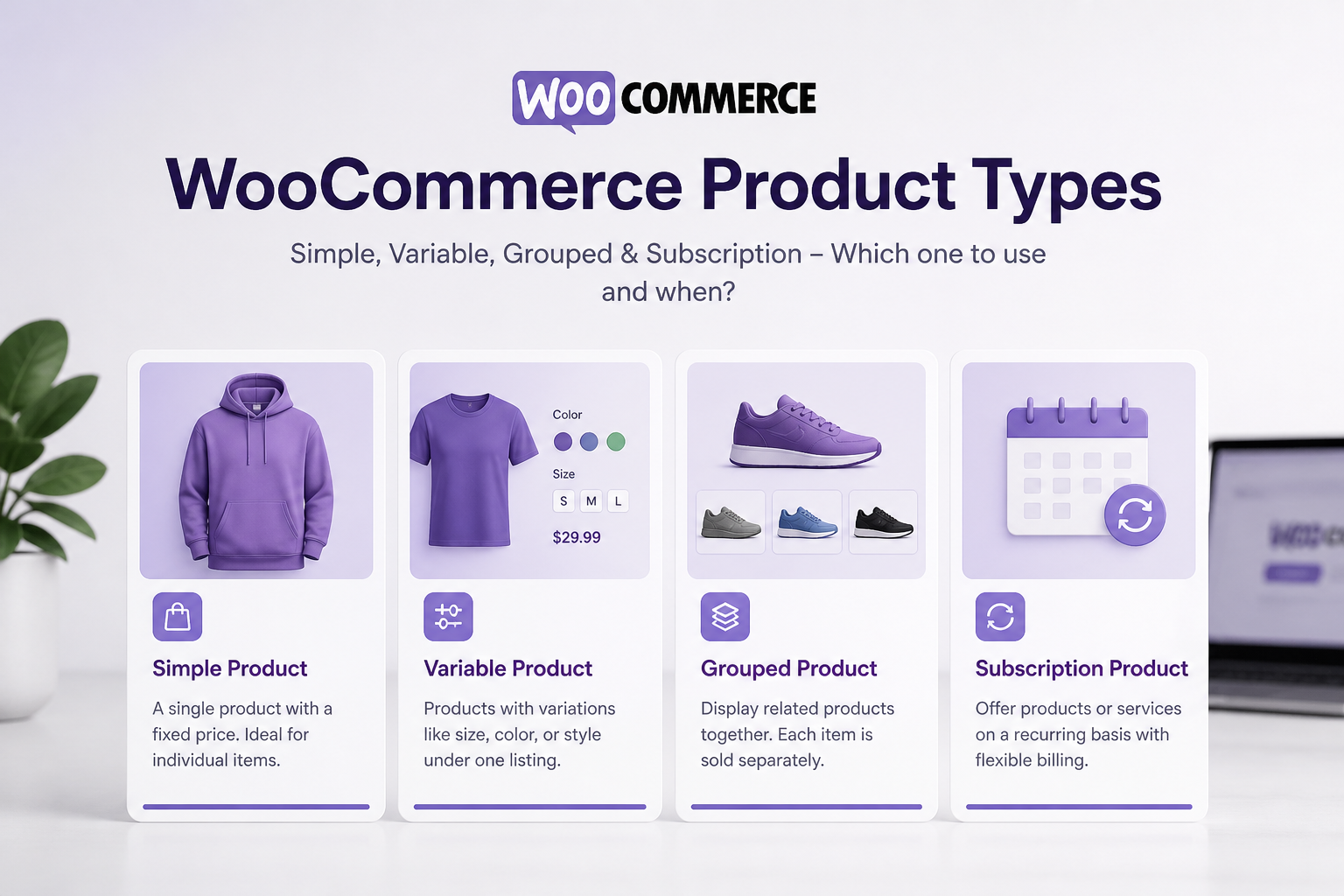
WooCommerce has six core product types — simple, variable, grouped, external/affiliate, virtual, and downloadable — plus extensions that add subscription, bundle, and composite types. Choosing the wrong type at catalog setup creates checkout bugs, inventory mismatches, and shipping calculation errors that are expensive to fix later.
Product type selection is a setup decision, not a marketing one. A t-shirt with size and color options is a variable product, not six separate simple products. A course with downloadable PDFs is virtual and downloadable, not a simple product with a shipping weight. Getting this right at the start saves weeks of catalog cleanup.
The six core product types
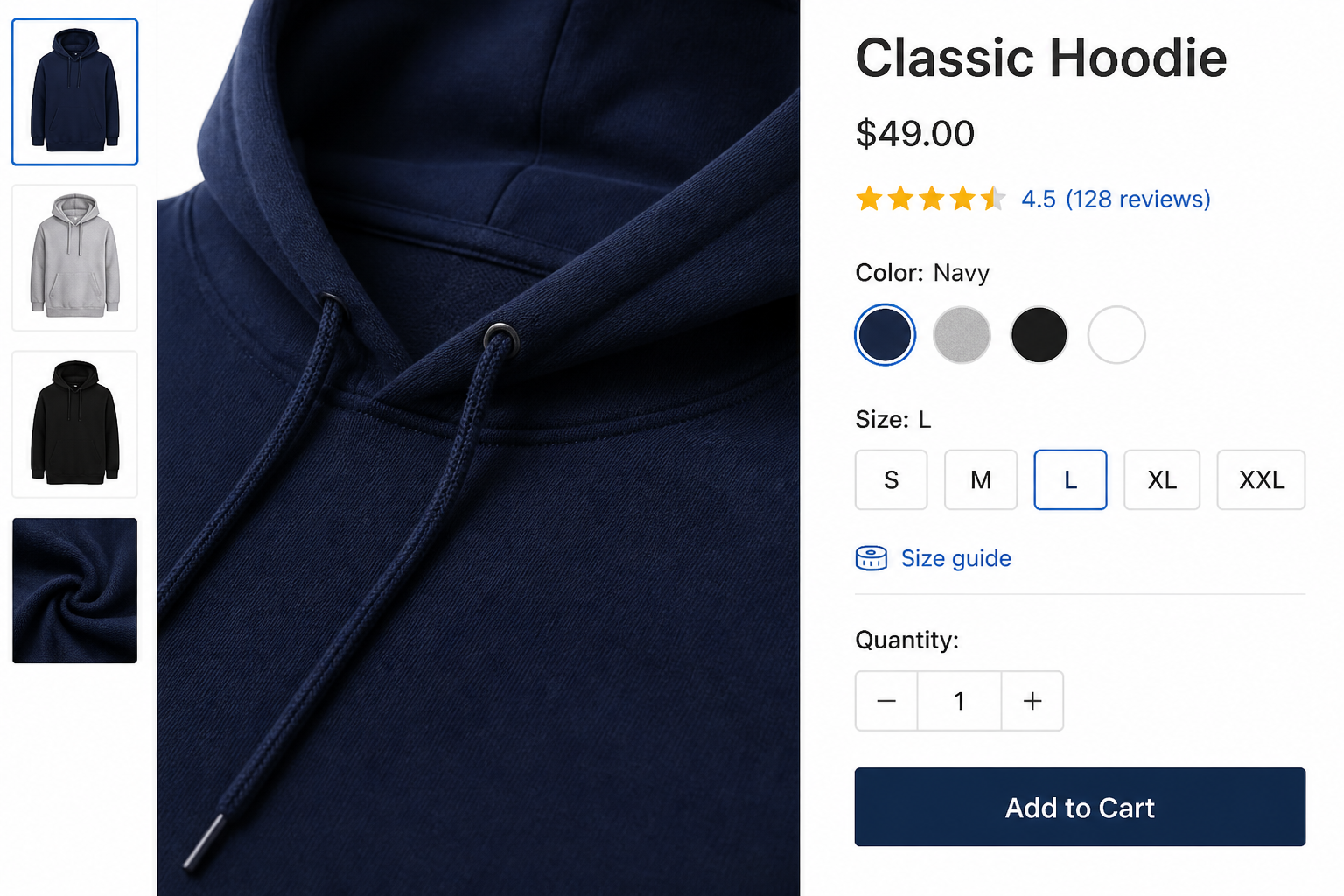
Simple product
One SKU, one price, one stock count. No variations.
Use for: Single-item products with no options — a book, a mug, a digital preset, a service fee.
Setup:
- Products → Add New
- Product data dropdown: Simple product
- Set regular price, SKU, stock management
- Add product image and description
- Assign categories and tags
Common mistake: Creating separate simple products for each size/color instead of using a variable product. This fragments inventory tracking and confuses category pages.
Variable product
One product listing with multiple variations (size, color, material), each with its own SKU, price, and stock level.
Use for: Apparel, furniture with fabric options, any product with selectable attributes.
Setup:
- Create global attributes first (Products → Attributes): e.g., Size (S, M, L, XL), Color (Red, Blue, Black)
- Add New Product → Variable product
- In the Attributes tab, add your attributes and check "Used for variations"
- In the Variations tab, generate variations from attributes
- Set price, SKU, and stock for each variation individually (or use bulk edit)
Common mistake: Forgetting to set a price on individual variations. The parent product price does not inherit — each variation needs its own.
Performance note: Products with 50+ variations slow down the admin and front-end. For very large attribute combinations, consider a product configurator plugin or custom development.
Grouped product
A collection of linked simple products displayed on one page. Each child product is added to cart individually.
Use for: Camera body + lens kit displayed together, a set of books sold separately but browsed as a collection, office furniture components.
Setup:
- Create each child as a simple product first
- Add New Product → Grouped product
- In the Linked Products tab, add child products
- The grouped product page shows each child with its own add-to-cart button
Common mistake: Expecting grouped products to add all items to cart with one click. That is a bundle (plugin), not a grouped product.
External / affiliate product
A product listed on your store that links to an external URL for purchase. No cart, no checkout on your site.
Use for: Affiliate marketing, products sold on another platform, marketplace listings.
Setup:
- Add New Product → External/Affiliate product
- Set the product URL and button text ("Buy on Amazon")
- No price required on your store (optional display price)
Virtual product
A product that does not require shipping. Can be combined with downloadable.
Use for: Services, memberships, consulting hours, warranty extensions, gift cards.
Setup:
- Add New Product → Simple product (or variable)
- Check "Virtual" in the product data panel
- No shipping fields appear; shipping calculations skip this product
Downloadable product
A product with files the customer receives after purchase. Usually also virtual.
Use for: Ebooks, software, music, templates, course materials, digital art.
Setup:
- Add New Product → Simple product
- Check "Virtual" and "Downloadable"
- In the Downloadable files section, upload files or enter file URLs
- Set download limit and expiry (optional)
Security note: Download files should not be stored in a publicly accessible directory. WooCommerce serves downloads through authenticated URLs. For large files, use external storage (S3, Dropbox) with a download redirect plugin.
Product type comparison
| Type | Shipping | Inventory | Variations | Cart on your site |
|---|---|---|---|---|
| Simple | Yes | Per product | No | Yes |
| Variable | Yes | Per variation | Yes | Yes |
| Grouped | Per child | Per child | No | Per child |
| External | No | No | No | No (redirect) |
| Virtual | No | Optional | Optional | Yes |
| Downloadable | No | Optional | Optional | Yes |
Extended product types (plugins)
These are not native WooCommerce but commonly used:
Subscription product (WooCommerce Subscriptions)
Recurring billing on a schedule — weekly, monthly, yearly. See the WooCommerce subscriptions setup guide for configuration details.
Bundle product (WooCommerce Product Bundles)
Multiple products sold as one package, added to cart as a single item. Different from grouped — one click, one cart line item.
Composite product (WooCommerce Composite Products)
Build-your-own products where the customer selects components (custom PC, gift box, meal kit). Each component affects price and inventory.
Wholesale / B2B pricing
Not a product type but a pricing layer. Same product, different prices for different customer roles. See WooCommerce B2B wholesale setup.
Choosing the right type: decision flow
- Does the customer buy it on your site? No → External/Affiliate
- Does it need shipping? No → Virtual (and Downloadable if files are included)
- Does it have options (size, color)? Yes → Variable
- Is it a set of separate items browsed together? Yes → Grouped
- Does the customer pick components? Yes → Composite (plugin)
- Is it recurring billing? Yes → Subscription (plugin)
- Everything else → Simple
Catalog architecture tips
- Use categories for navigation, tags for filtering. Do not create a category for every product type.
- Set up global attributes before adding variable products. Changing attribute structure after 200 products exist is painful.
- Use consistent SKU naming — `TSHIRT-RED-M`, not random strings.
- Set default form values for variable products so the product page shows a price immediately (not "From $0.00").
- Configure product image sizes (WooCommerce → Settings → Products → Display) before uploading images. Regenerating thumbnails on 500 products takes hours.
Common catalog mistakes
| Mistake | Impact | Fix |
|---|---|---|
| Simple products instead of variations | Inventory chaos, duplicate listings | Consolidate into variable products |
| Missing variation prices | "$0.00" displayed, cannot purchase | Set price on each variation |
| No SKU on any product | Cannot track inventory or fulfill orders | Add SKUs during setup, not after launch |
| Digital files in public uploads folder | Files accessible without purchase | Use WooCommerce download handler |
| 500 products with no categories | Unbrowsable store, bad SEO | Build category taxonomy first |
| Variable product with one attribute value | Unnecessary complexity | Use simple product instead |
FAQs
Can a product be both virtual and downloadable?
Yes. Most digital products are both — no shipping required, files delivered after purchase. Check both boxes in the product data panel.
What is the difference between grouped and bundled products?
Grouped products display linked simple products on one page; each is added to cart separately. Bundled products (requires plugin) add all components to cart as one item with a single price. Use grouped for "shop the look" displays; use bundles for fixed kits.
How many variations can a variable product have?
WooCommerce handles hundreds of variations, but admin performance degrades above 50–100. For products with large attribute combinations (custom engraving × size × color × material), use a product configurator plugin or external system.
Do external/affiliate products affect SEO?
They can — product pages with thin content and external links provide less value than purchasable products. Use external products sparingly and write unique descriptions for each.
Should I use WooCommerce product types or a custom post type?
Stick with WooCommerce product types unless you have a non-standard catalog (real estate listings, job boards, event tickets with unique data models). Custom post types require custom cart integration and break standard WooCommerce plugins.
Next step
If your catalog has product type issues causing checkout or inventory problems, a quick audit identifies what needs restructuring.
Book a free 15-minute WooCommerce audit →
For full WooCommerce development including catalog architecture and B2B wholesale setup, see the related guides.
September 6, 2026
WooCommerce Payment Gateway Integration Guide

September 6, 2026