
WooCommerce payment gateway integration connects your store to a payment processor — Stripe, PayPal, Square, or others — so customers can pay at checkout and you receive funds in your merchant account. The integration is not just installing a plugin. It requires webhook configuration, test-mode verification, and production testing across every payment method your customers will use.
Payment failures are the most expensive bugs in ecommerce. A misconfigured webhook means orders show "pending" while the customer was charged. A caching plugin breaking the payment callback page means checkout succeeds on the customer's screen but no order is created. These are not edge cases — they are the first things I check on every WooCommerce audit.
Supported payment gateways
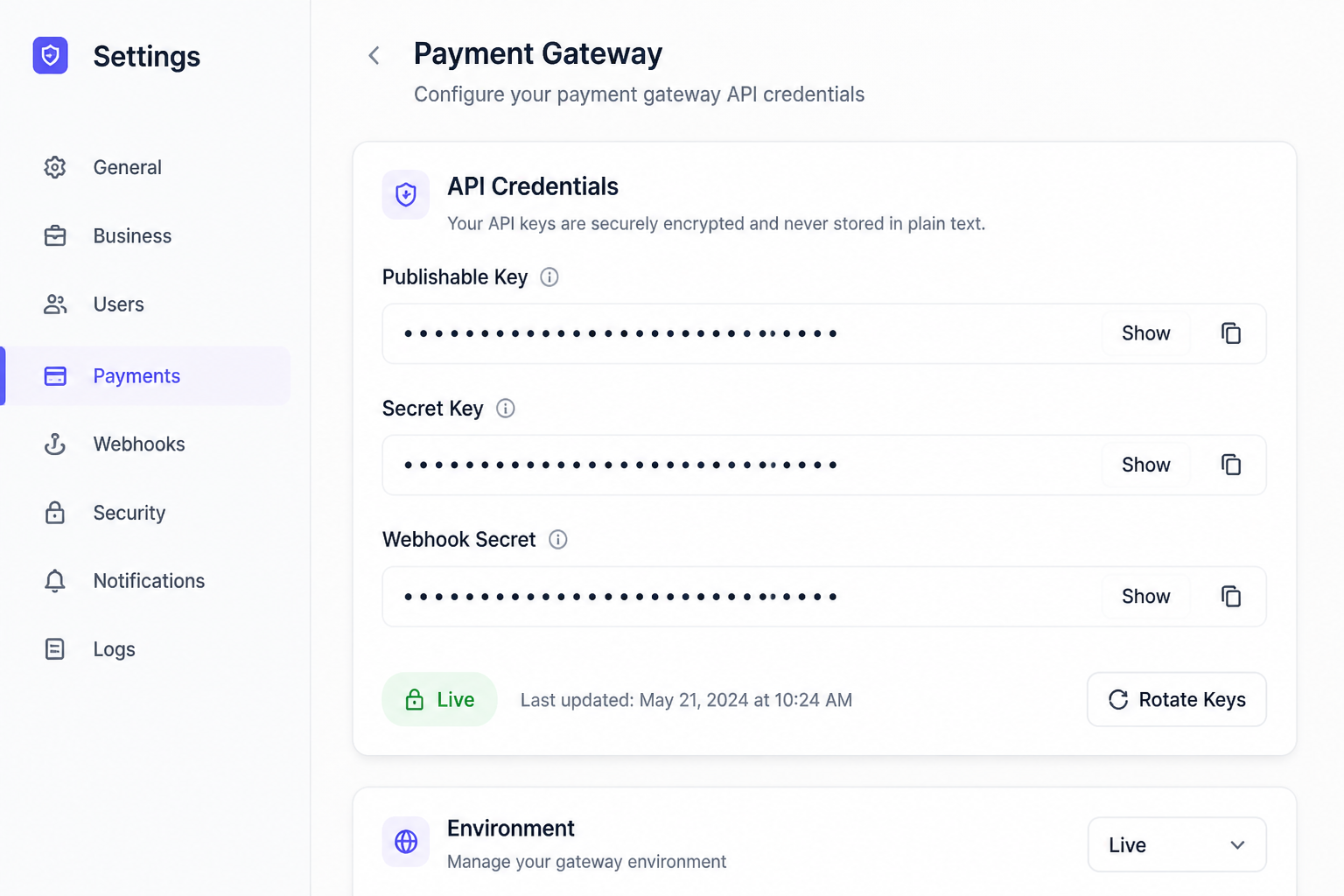
WooCommerce supports 100+ gateways via official and third-party plugins. The ones I configure most often:
| Gateway | Best for | Recurring/subscriptions | Transaction fee |
|---|---|---|---|
| Stripe | Most stores, US/EU/UK | Yes (tokenization) | 2.9% + $0.30 |
| PayPal | Buyer trust, international | Limited | 2.99% + $0.49 |
| Square | Retail + online (US) | Yes | 2.9% + $0.30 |
| Authorize.net | Established US merchants | Yes | 2.9% + $0.30 + gateway fee |
| WooPayments | All-in-one (Automattic) | Yes | 2.9% + $0.30 (varies by country) |
For most new WooCommerce stores, Stripe is the default recommendation. It supports credit/debit cards, Apple Pay, Google Pay, ACH bank transfers, and saved payment methods for subscriptions.
Gateway fees are a real line item on every order. Before you pick a processor — or change prices to “cover” fees — run the numbers in the free WooCommerce profit margin calculator (COGS, shipping, hosting, plugins, and gateway % in one place).
Stripe integration step by step
1. Create a Stripe account
Sign up at stripe.com. Complete business verification before going live — this can take 1–3 business days.
2. Install the plugin
Install WooCommerce Stripe Payment Gateway (official, free) from the WordPress plugin directory.
3. Connect and configure
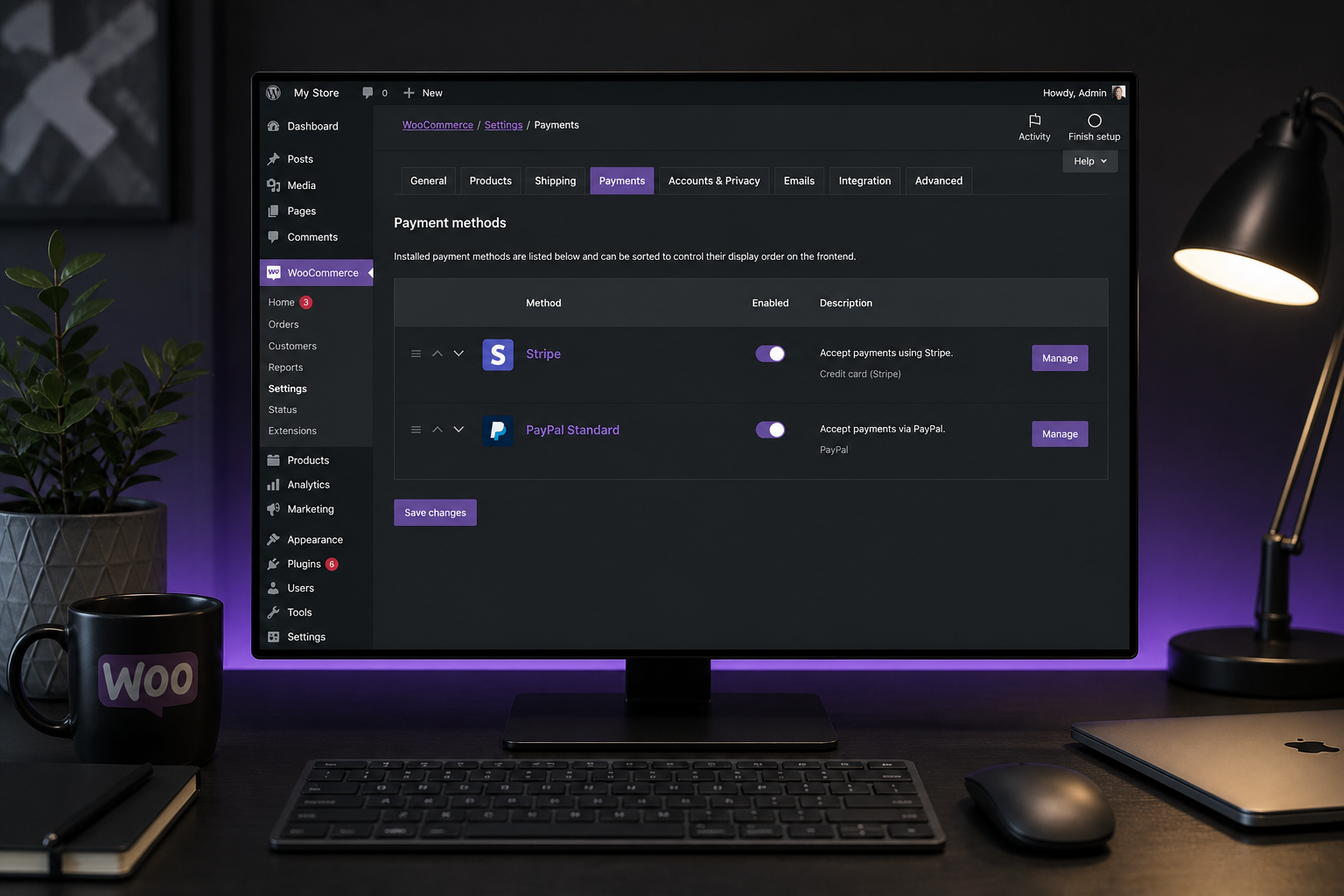
- WooCommerce → Settings → Payments → Stripe
- Click "Create or connect a Stripe account"
- Enable test mode for initial setup
- Configure:
– Payment methods: Credit/debit card (required), Apple Pay/Google Pay (recommended), Link (optional)
– Statement descriptor: What appears on customer bank statements (max 22 characters)
– Saved cards: Enable for subscription stores
– Capture: Charge immediately (default) vs authorize and capture later
4. Configure webhooks
Webhooks are how Stripe tells WooCommerce that a payment succeeded, failed, or was refunded. Without webhooks, order statuses do not update automatically.
- In Stripe Dashboard → Developers → Webhooks
- Add endpoint: `https://yourstore.com/wc-api/wc_stripe`
- Select events: `payment_intent.succeeded`, `payment_intent.payment_failed`, `charge.refunded`, `customer.subscription.updated` (if using subscriptions)
- Copy the webhook signing secret to WooCommerce Stripe settings
Test webhooks using Stripe CLI or the "Send test webhook" button in the Stripe dashboard.
5. Test in test mode
Use Stripe test cards:
| Scenario | Test card |
|---|---|
| Successful payment | 4242 4242 4242 4242 |
| Declined payment | 4000 0000 0000 0002 |
| Requires 3D Secure | 4000 0025 0000 3155 |
| Insufficient funds | 4000 0000 0000 9995 |
Complete a full checkout for each scenario. Verify:
- Order status updates to "Processing" on success
- Order status stays "Failed" or "Pending" on decline
- Customer receives order confirmation email
- Payment appears in Stripe dashboard
6. Go live
- Disable test mode in WooCommerce Stripe settings
- Verify live webhook endpoint is configured in Stripe (separate from test webhook)
- Process one real order with a real card for a small amount
- Refund the test order
- Confirm order flow, email, and Stripe dashboard all match
PayPal integration
PayPal remains popular for buyer trust, especially internationally.
- Install WooCommerce PayPal Payments (official plugin — not the deprecated PayPal Standard)
- Connect PayPal Business account
- Enable PayPal Checkout, Pay Later, and/or Venmo as needed
- Configure webhook URL in PayPal Developer Dashboard
- Test with PayPal Sandbox accounts before going live
PayPal limitations for WooCommerce:
- Subscription support is limited compared to Stripe
- Checkout redirects to PayPal (extra step, some abandonment)
- Dispute/chargeback process favors buyers heavily
Use PayPal as a secondary option alongside Stripe, not as the only payment method.
Multiple payment gateways
WooCommerce supports multiple active gateways at checkout. Common combinations:
- Stripe (cards) + PayPal — covers most buyers
- Stripe + Bank transfer (B2B) — for wholesale accounts paying by invoice
- Stripe + Check (manual) — for large orders requiring approval
Conditional gateway display (show bank transfer only for wholesale roles) requires custom development via the `woocommerce_available_payment_gateways` filter. See custom checkout development for details.
Payment gateway and caching
Payment callback URLs must never be cached. Add these to your caching plugin exclusion list:
- `/wc-api/*` (all WooCommerce API endpoints)
- `/checkout/`
- `/cart/`
- `/?wc-api=*` (legacy callback format)
A cached payment callback is the number one cause of "customer was charged but order shows pending" bugs.
Payment gateway and SSL
All payment pages must load over HTTPS. Mixed content (HTTP assets on HTTPS pages) breaks payment form rendering in modern browsers. Verify:
- SSL certificate is valid and not expired
- WordPress site URL and home URL both use `https://`
- No hardcoded `http://` URLs in theme or plugin settings
- Stripe/PayPal require HTTPS for live mode — test mode works without it, which creates false confidence during staging
Custom and niche gateway integration
For gateways without an official WooCommerce plugin:
- Check WooCommerce.com marketplace for third-party plugins
- Evaluate plugin maintenance (last updated, reviews, support responsiveness)
- If no plugin exists, custom gateway development uses the WooCommerce Payment Gateway API — typically $2,000–$5,000 depending on gateway documentation quality
Custom gateway development requires: payment processing, refund handling, webhook verification, and admin settings page. Not a weekend project.
Payment integration testing checklist
Before accepting live payments:
- [ ] Successful card payment completes and order status updates
- [ ] Declined card shows clear error message (not a generic "error")
- [ ] 3D Secure / SCA authentication flow works (required in EU/UK)
- [ ] Refund processes from WooCommerce admin and reflects in gateway dashboard
- [ ] Webhook delivery confirmed in gateway dashboard (no failed deliveries)
- [ ] Order confirmation email sends on successful payment
- [ ] Failed payment email sends on decline (if configured)
- [ ] Apple Pay / Google Pay work on supported devices
- [ ] Payment works with caching plugin active on production
- [ ] Subscription renewal charges process (if applicable)
- [ ] Partial refund and full refund both work
- [ ] Test on mobile device (not just desktop browser)
What payment integration costs
| Scope | Estimate (USD) |
|---|---|
| Single gateway setup (Stripe or PayPal) | $300–$800 |
| Dual gateway (Stripe + PayPal) with webhooks | $500–$1,200 |
| Conditional payment methods (B2B logic) | $1,000–$2,500 |
| Custom gateway integration | $2,000–$5,000 |
| Subscriptions + payment gateway + dunning | $2,500–$5,000 |
Gateway setup is usually part of a broader store build ($3,000–$12,000+) rather than a standalone engagement.
FAQs
Should I use WooPayments or Stripe directly?
WooPayments (by Automattic) keeps everything in the WooCommerce admin and avoids a separate Stripe dashboard. Stripe direct gives you more control, better reporting, and access to Stripe's full feature set. For most stores, direct Stripe integration is more flexible long-term.
Do I need PCI compliance certification?
Using Stripe or PayPal's hosted payment fields means card data never touches your server. This qualifies you for SAQ-A (the simplest PCI compliance level). You still need SSL and should not store card numbers in order meta or custom fields.
Can I accept cryptocurrency in WooCommerce?
Via third-party plugins (CoinGate, NOWPayments, etc.). Crypto payment integration is niche — setup is similar to any custom gateway but with additional volatility and tax reporting considerations.
Why does my order show "Pending" after successful payment?
Almost always a webhook failure. Check: webhook URL configured in gateway dashboard, SSL valid, caching plugin not caching `/wc-api/` endpoints, and no security plugin blocking incoming webhook POST requests.
How do I handle multi-currency payments?
WooCommerce Multi-Currency (WPML or standalone plugin) displays prices in local currency. The payment gateway must support multi-currency settlement or auto-conversion. Stripe supports 135+ currencies; configure in WooCommerce → Settings → General → Currency options.
Next step
If payment failures or pending orders are costing you revenue, a 15-minute audit usually identifies the webhook or caching misconfiguration causing it.
Book a free 15-minute WooCommerce audit →
For custom checkout logic and subscription payment setup, see the related guides.
September 6, 2026
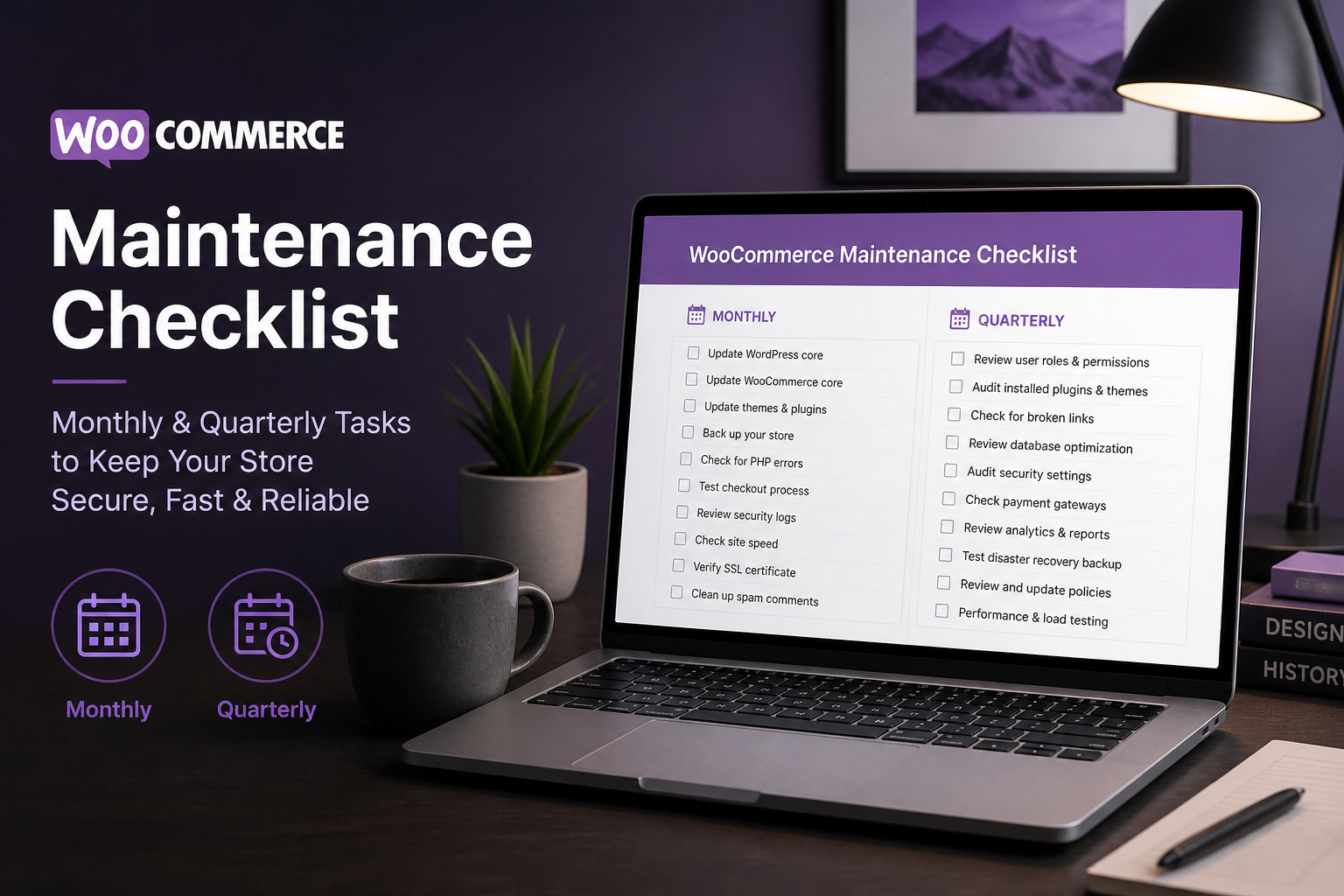
WooCommerce Store Maintenance Checklist (Monthly + Quarterly)

September 6, 2026