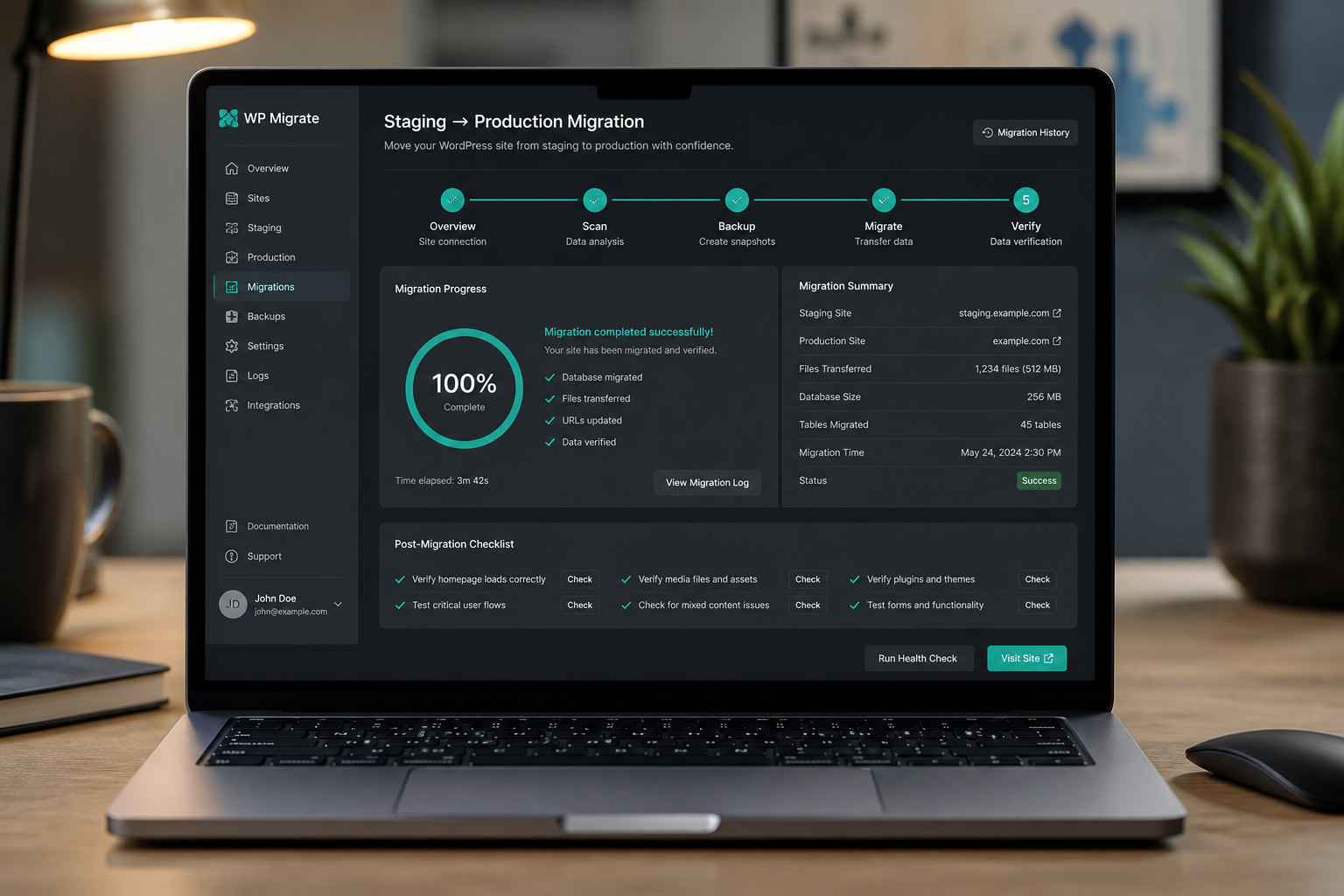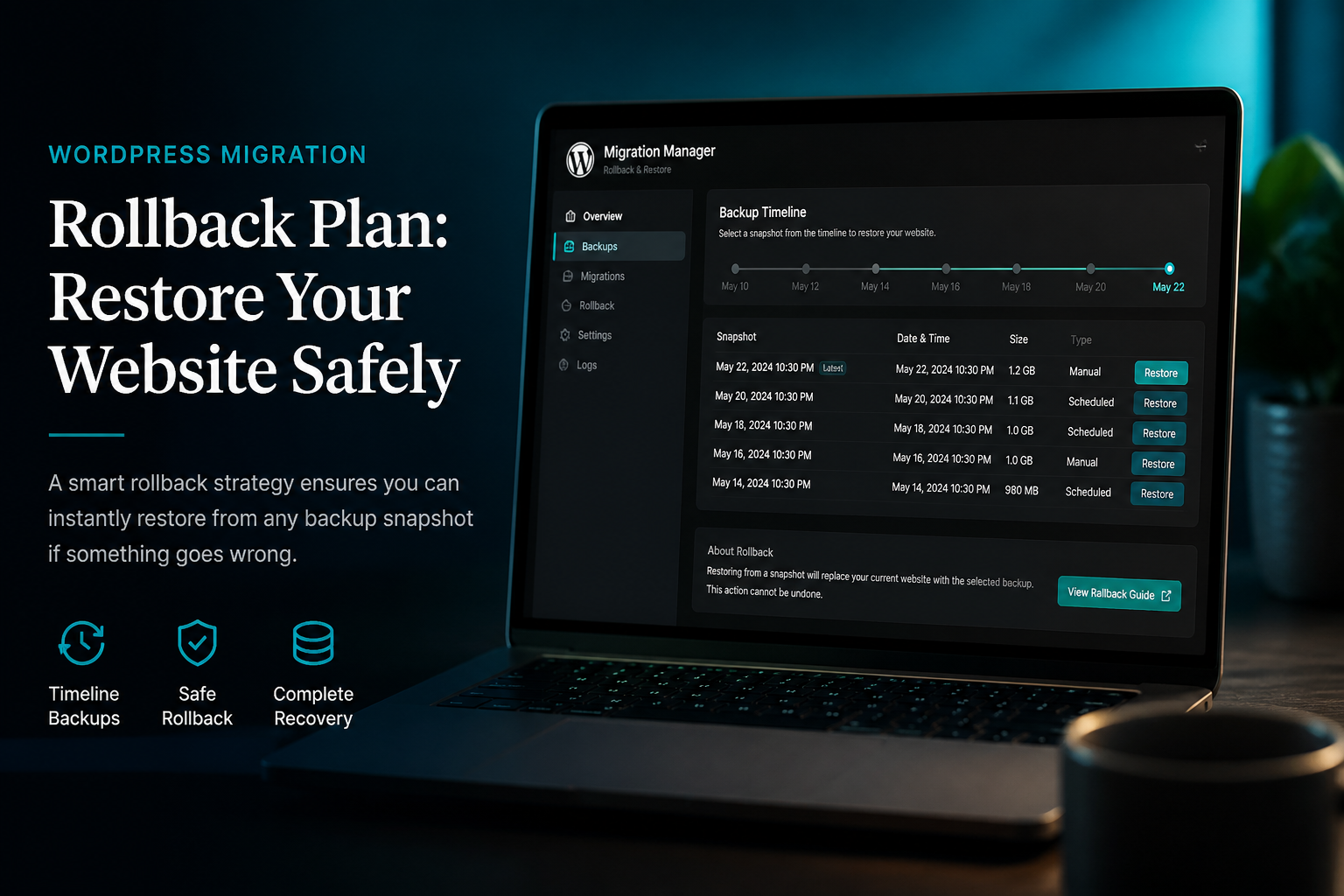

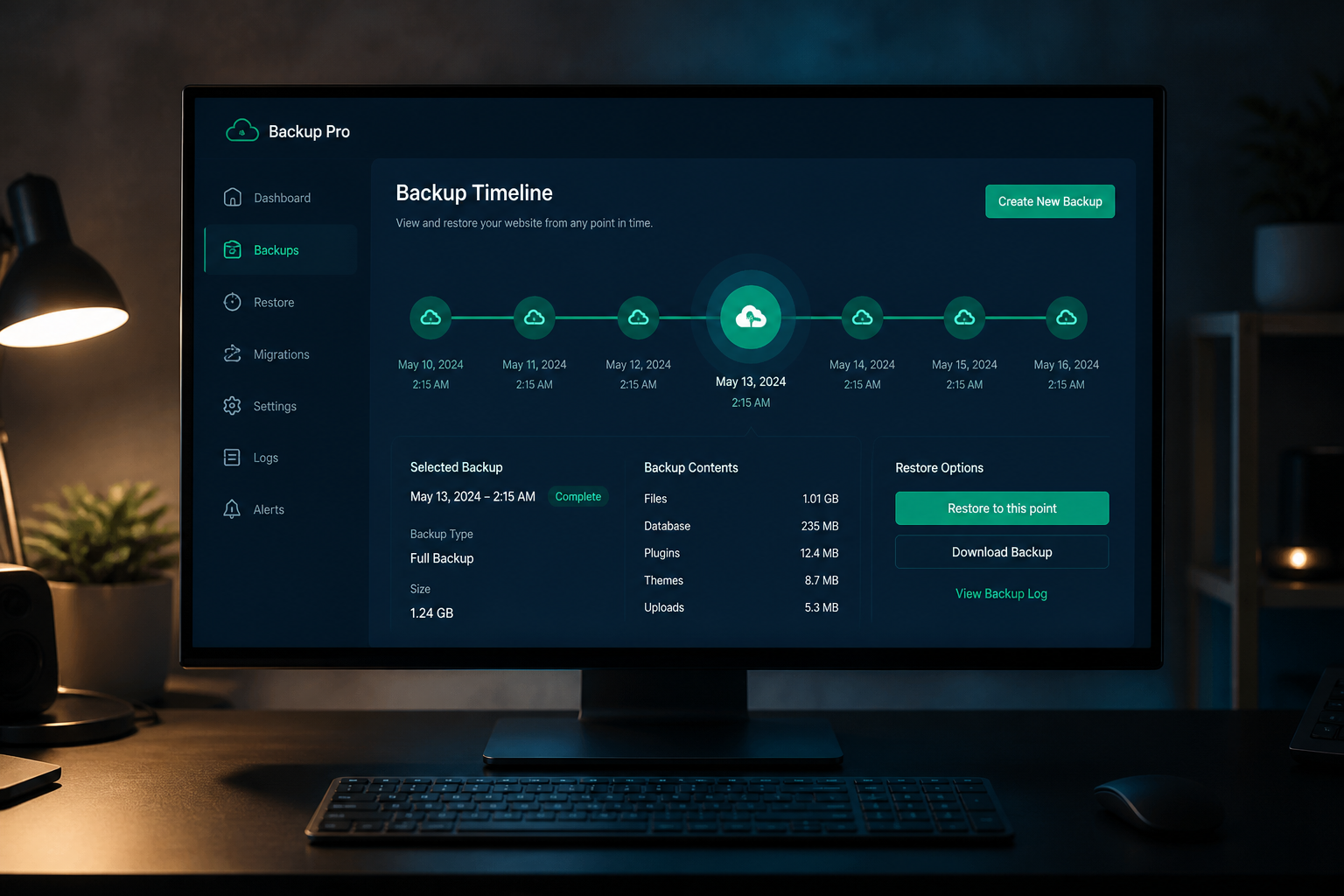
A backup is not a security measure until you have restored from it successfully. Untested backups fail silently — incomplete database dumps, missing uploads folders, jobs that stopped running months ago without alerting anyone.
For security specifically, backups serve two purposes: recovery after compromise and forensic reference during cleanup. Both require backups stored off-site, retained long enough to predate the infection, and verified through actual restore tests.
Why backups matter for security
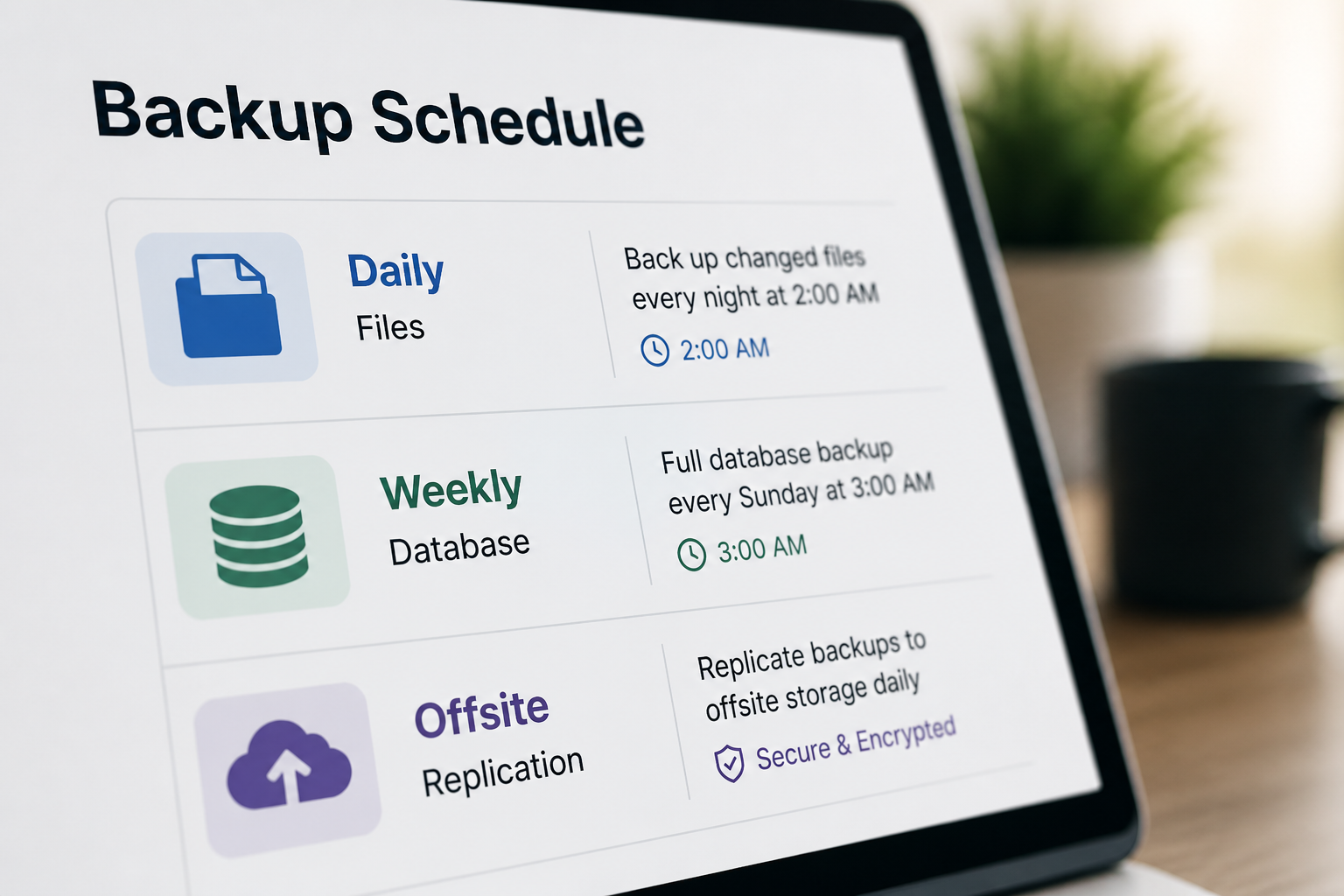
When a WordPress site is compromised, your options are:
- Clean restore from a backup predating the infection — fastest, most reliable
- Manual malware removal — slower, risk of missed backdoors
- Rebuild from scratch — last resort, loses content and configuration
Option 1 only works if you have a clean backup. Most sites that struggle with cleanup do not.
Additionally, a backup of the compromised state (taken before cleanup) helps forensic analysis — understanding when the breach started and what was modified.
The four requirements
1. Off-site storage
A backup on the same server as the site is useless when the server is compromised, corrupted, or suspended by the host.
Store backups in at least one location the web server cannot access:
| Destination | Pros | Cons |
|---|---|---|
| Amazon S3 | Reliable, cheap, versioning | Requires configuration |
| Google Drive / Dropbox | Easy setup, familiar | Storage limits on free tiers |
| Host separate backup service | Integrated, managed | Tied to host; verify it's truly separate |
| Backblaze B2 | Cost-effective for large sites | Less common in WP plugins |
Most backup plugins (UpdraftPlus, BlogVault, WPvivid) support remote storage natively. Configure at least one remote destination before relying on the backup.
2. Sufficient frequency
Match backup frequency to how much data you can afford to lose.
| Site type | Minimum frequency | Rationale |
|---|---|---|
| Brochure / blog | Daily | Losing a day of content is annoying, not catastrophic |
| Business site with leads | Daily | Form submissions are business data |
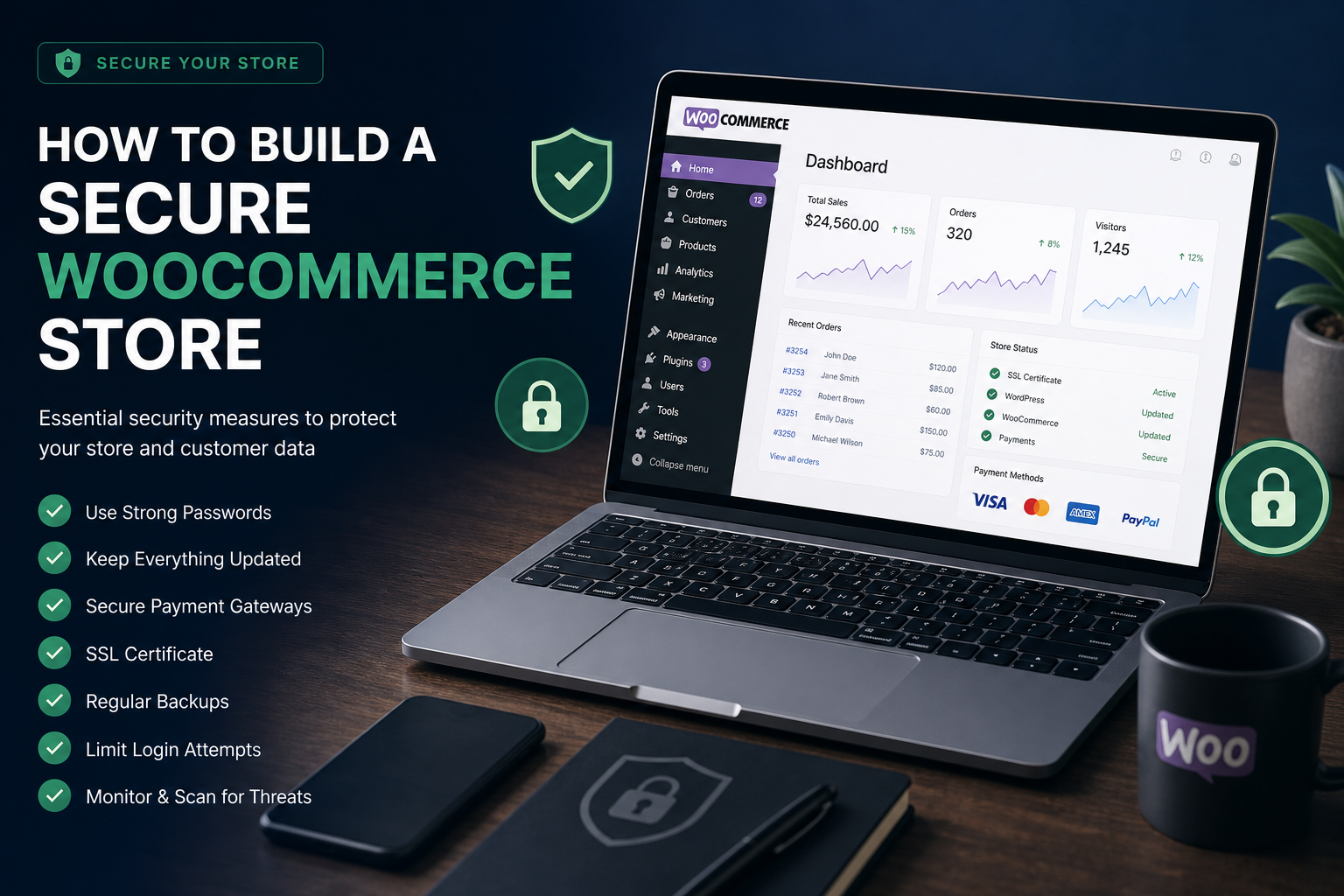
| WooCommerce store | Hourly or real-time | Orders, customer data, inventory changes |
| Membership site | Hourly | User registrations, payment records |
Daily is the floor for any site taking business seriously. "Weekly" means accepting up to seven days of lost work — including content, orders, and form submissions created during that window.
3. Adequate retention
Compromises often go unnoticed for weeks. If your retention is seven days, every backup you have may already contain the malicious code.
Minimum retention: 30 days. Longer (60–90 days) for business-critical sites.
Some backup plugins overwrite old backups automatically. Verify your retention setting explicitly — "keep last 5 backups" at daily frequency gives you five days, not thirty.
4. Tested restores
This is the step most sites skip, and it is the step that determines whether backups are real or theoretical.
Quarterly restore test:
- Create a staging environment (or local dev instance)
- Restore the most recent backup to staging
- Verify the site loads, admin login works, and critical content is present
- For stores: verify products, orders, and checkout function
- Document the restore time — this is your recovery time objective (RTO)
If the restore fails or data is missing, fix the backup configuration before you need it in an emergency.
What to back up
A complete WordPress backup includes:
| Component | Location | Often missed? |
|---|---|---|
| Database | MySQL/MariaDB | Rarely |
| Uploads | `/wp-content/uploads/` | Sometimes (large sites skip due to size) |
| Themes | `/wp-content/themes/` | If customized |
| Plugins | `/wp-content/plugins/` | If customized or premium |
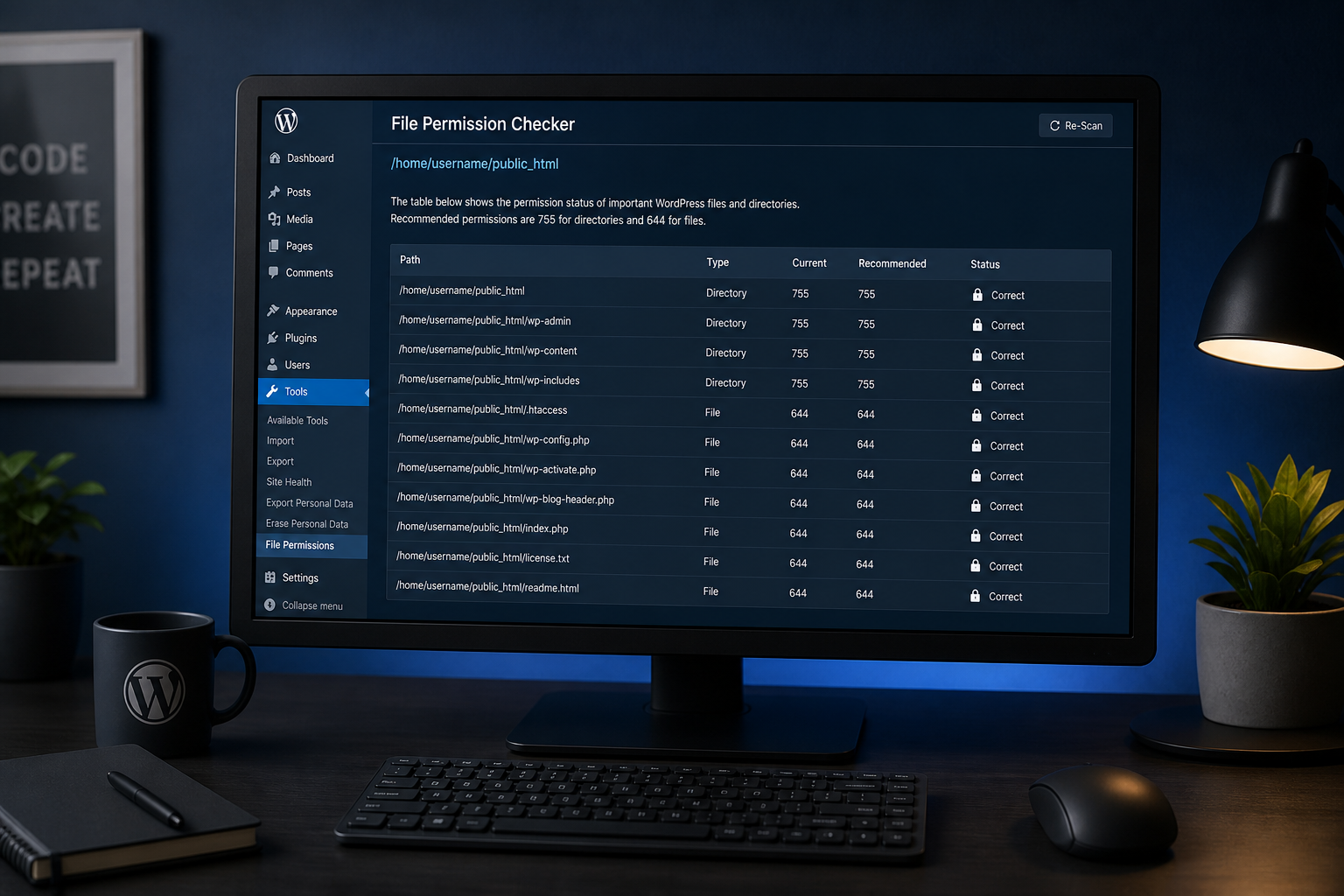
| wp-config.php | Root directory | Yes — contains credentials and custom config |
| .htaccess | Root directory | Yes — contains rewrite rules |
| Must-use plugins | `/wp-content/mu-plugins/` | Yes — often forgotten |
Most backup plugins handle database and wp-content by default. Verify wp-config.php and .htaccess are included — especially if you have custom hardening rules.
Backup plugin options
| Plugin | Remote storage | Real-time | Staging restore | Cost |
|---|---|---|---|---|
| UpdraftPlus | S3, Drive, Dropbox, +more | No (scheduled) | Manual | Free / $70 yr premium |
| BlogVault | Own cloud | Yes | One-click staging | $89+/yr |
| WPvivid | S3, Drive, FTP, +more | No (scheduled) | Yes (premium) | Free / $49 yr premium |
| Jetpack Backup | WordPress.com cloud | Real-time | Manual | $119+/yr |
| Host backup | Varies | Varies | Varies | Included on many managed hosts |
Managed hosts (Kinsta, WP Engine) include daily backups with 14–30 day retention. Treat host backups as one layer, not your only layer — verify you can download and restore independently.
Backup strategy by scenario
Before hardening
Take a full manual backup before any security configuration changes. If a firewall rule or permission change breaks the site, you need a rollback point.
After compromise
- Backup the infected state first — before changing anything. Forensics need this.
- Identify the earliest clean backup predating the infection
- Restore to staging and verify it is actually clean (scan it)
- Restore to production
- Patch the entry point that caused the breach
- Then harden
See WordPress malware removal vs hardening for the full sequence.
Ongoing maintenance
Backups are part of the recurring security program, not a one-time setup. See WordPress security maintenance plan for the ongoing cadence.
Backup security checklist
| Requirement | Target | Done? |
|---|---|---|
| Backups stored off-site | At least one remote destination | ☐ |
| Daily minimum frequency | Daily or more frequent | ☐ |
| 30+ days retention | 30 days minimum | ☐ |
| Restore tested quarterly | Last test date: _______ | ☐ |
| wp-config.php included | Verified in backup contents | ☐ |
| Backup job monitoring | Alert if job fails | ☐ |
| Pre-change backup procedure | Documented | ☐ |
| Infected-state backup protocol | Documented for incident response | ☐ |
Frequently asked questions
Are host backups enough?
As one layer, yes. As your only backup, no. Host backups may not be downloadable, may not include everything, and are inaccessible if the host suspends your account. Maintain an independent off-site backup you control.
How do I know if my backup contains malware?
If the compromise went undetected for weeks, recent backups likely contain malicious code. You need a backup from before the infection date — which is why 30+ day retention matters. Scan restored backups on staging before deploying to production.
Should I back up before every plugin update?
For critical sites, yes. For simple sites with daily automated backups, the daily backup serves this purpose. Before major updates (WordPress core major version, WooCommerce major version), take a manual backup regardless.
What is the difference between backup and staging?
A backup is a point-in-time copy for recovery. Staging is a live copy of the site for testing changes. Some tools (BlogVault, WP Engine) blur this line. You need both capabilities — backups for recovery, staging for safe testing.
How long does a restore take?
Depends on site size and method. A small site from UpdraftPlus: 15–30 minutes manual. A large WooCommerce store from BlogVault: potentially hours. Know your RTO before an incident, not during one.
Get a free 15-minute security check
Send your URL. I will check whether your site has visible backup indicators, whether the plugin stack includes backup tooling, and what gaps remain in your recovery capability.
Backup verification is part of every WordPress security hardening project — typically $300–$1,200.
August 31, 2026
Secure WooCommerce Store Checklist (2026)
August 31, 2026