
WordPress Security Hardening: A Practical Checklist
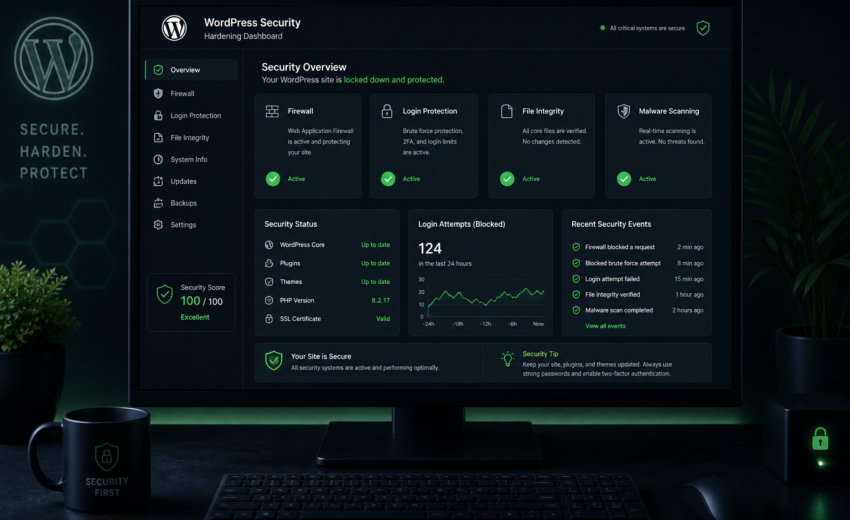
TL;DR — WordPress security hardening: Keep core, plugins, and themes updated on a schedule, use least-privilege user roles, enable two-factor authentication, maintain off-site backups you have actually restored, and put a firewall in front of the site. Those five steps handle the majority of real-world compromises. Renaming the login URL or hiding the WordPress version number is near the bottom of the list.
WordPress security hardening checklist (priority order)
| Priority | Action | Why it matters |
|---|---|---|
| 1 | Update core, plugins, themes | Known plugin vulnerabilities are the top hack vector |
| 2 | Least-privilege users | Every admin account is a full attack surface |
| 3 | Two-factor authentication | Stops password-based attacks |
| 4 | Tested off-site backups | Recovery when something breaks |
| 5 | Web application firewall | Filters exploits before WordPress |
| 6 | File permissions + disable file editor | Closes code-execution paths |
| 7 | Reduce attack surface (XML-RPC, REST users) | Removes well-known entry points |
Most WordPress sites don’t get hacked because someone targeted them. They get hacked because an automated scanner found a plugin running a version with a publicly documented vulnerability, and a patch had been available for weeks.
That’s the shape of the problem, and it’s why security hardening is mostly unglamorous. The measures that actually protect a site are updates, restrained permissions, decent authentication, and backups you’ve tested. The measures people spend the most time on — renaming the login URL, hiding the WordPress version number, moving wp-config.php — are near the bottom of the list.
This is what I do on client sites, ordered by how much protection it buys per hour spent. Work down it. If you stop after the first four sections, you’ll have handled the large majority of real risk.
1. Update everything, on a schedule
Known vulnerabilities in outdated plugins are the leading cause of compromised WordPress sites. Not zero-days. Not sophisticated attacks. Published vulnerabilities in code that had a fix available.
Enable automatic updates for core minor releases. These are security and maintenance patches. They’re low-risk by design and should never be sitting unapplied. This is on by default in modern WordPress — verify it hasn’t been disabled.
Update plugins and themes at least monthly, more often for security releases. For a site where downtime costs money, update on staging first, click through your critical paths — contact form, checkout, login, search — then push to production. For a simple brochure site with good backups, updating production directly is a defensible risk.
Delete anything inactive. An inactive plugin is still code on your server, and some vulnerabilities are exploitable without activation. Same for unused themes: keep the active one and one default theme as a fallback, delete the rest.
Audit plugins quarterly. Check when each was last updated and whether it still has an active maintainer. A plugin abandoned two years ago is a vulnerability waiting to be catalogued. Replacing it before that happens is much cheaper than after. When no maintained equivalent exists, a small piece of custom WordPress development is usually safer and cheaper over five years than leaving unmaintained code on the server.
Watch your PHP version. Unsupported PHP stops receiving security patches entirely. Most managed hosts make upgrading a one-click operation — do it on staging first, because some older plugins will break.
If nothing else on this page gets done, do this section. It’s the single highest-value security work available, and it’s the one most commonly skipped.
2. Least privilege for users
Every account is a way in. The more accounts, and the more powerful each one is, the larger the target.
Give people the lowest role that lets them do their job. Administrator can install plugins and edit files — that’s effectively server access. Most people writing content need Author or Editor. A surprising number of sites have six administrators and one person who actually administers anything.
Remove accounts when people leave. Reassign their content to another user rather than deleting it. Contractors and former agencies are a particularly common source of stale admin accounts.
Don’t use admin as a username, and don’t use your public display name either. Use a distinct login name, and set the display name separately so authorship doesn’t leak it.
Audit user accounts quarterly. Look for accounts you don’t recognize — attackers who gain access often create a second administrator so they can return after the original hole is patched. Also check for administrators who should be editors by now.
Use unique, generated passwords. Every account, stored in a password manager. Credential stuffing works because people reuse passwords, and a breach on an unrelated service becomes a breach on your site.
3. Two-factor authentication
If you do one thing beyond updates, do this. Two-factor authentication defeats the entire category of password-based attacks — brute force, credential stuffing, leaked passwords — in a way nothing else does.
Enable it for every account with publishing rights or higher, not just administrators. An editor account is enough to inject a malicious script into your site’s content.
App-based codes (TOTP) through an authenticator app are the practical standard. Several well-maintained free plugins provide this. Prefer TOTP over SMS, which is vulnerable to SIM-swapping, though SMS is still better than nothing if that’s what your team will actually use.
Save the backup codes somewhere real. The most common failure here is someone getting a new phone and locking themselves out.
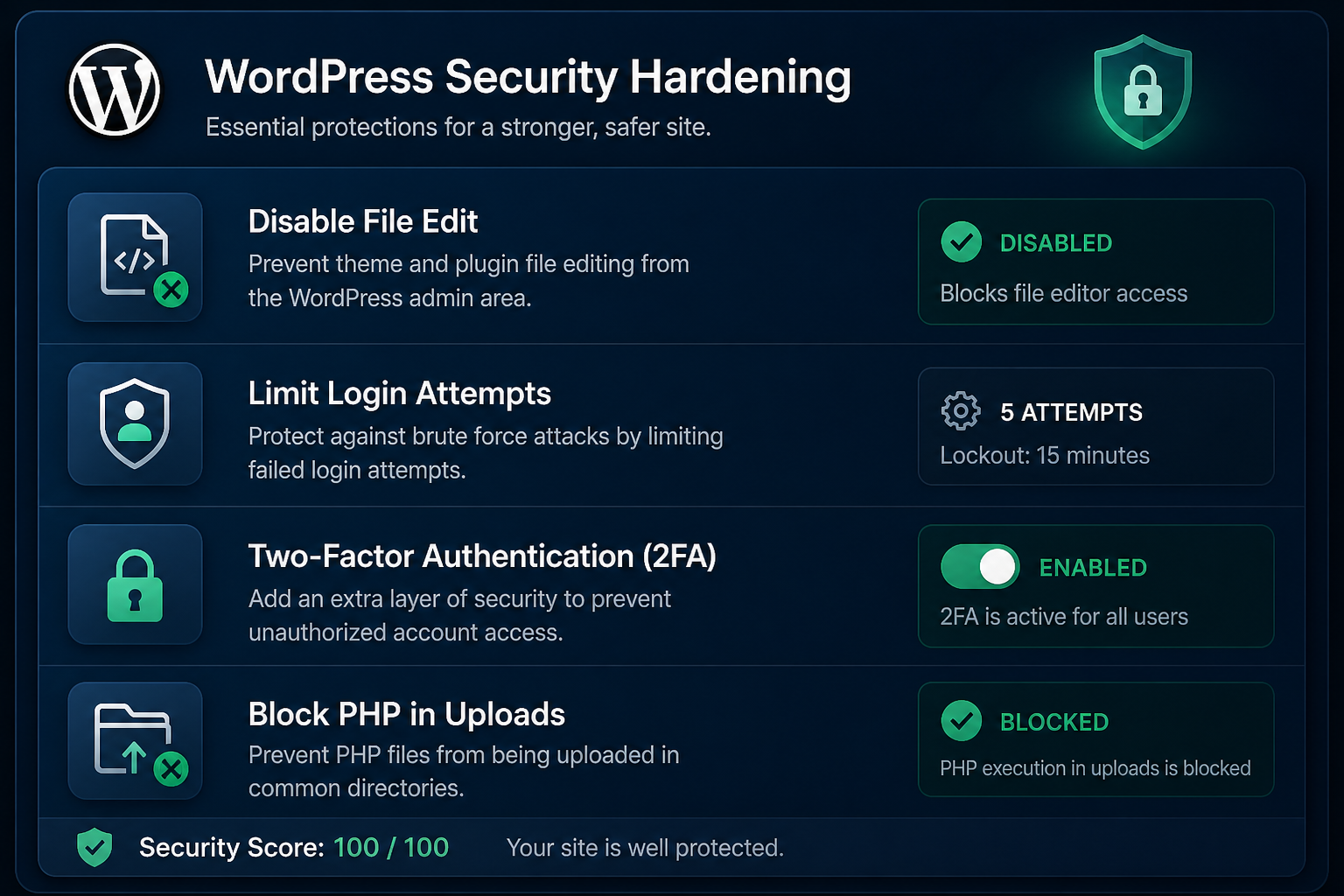
Alongside this, limit login attempts. Unlimited login attempts is what makes brute forcing viable in the first place. Most security plugins and firewalls include rate limiting; some hosts do it at the server level. A modest limit with a temporary lockout is enough — this is about making automated attacks uneconomical, not stopping a determined human.
4. Backups you have actually restored
A backup isn’t a security measure until you’ve tested it. It’s the difference between a compromised site being a bad afternoon and being a genuine business problem.
Store backups off the server. A backup on the same server as the site is useless when the server is the thing that failed or got compromised. S3, Google Drive, Dropbox, or your host’s separate backup infrastructure — somewhere an attacker with your site’s credentials can’t reach.
Match frequency to how much you’d tolerate losing. Daily is fine for a brochure site. A store taking orders needs hourly or real-time, because a day of lost orders is a day of customers you can’t fulfill.
Keep at least 30 days of history. Compromises often go unnoticed for weeks. If your retention is seven days, every backup you have may already contain the malicious code.
Test a restore quarterly. Restore to a staging environment and confirm the site works. Backup jobs fail silently more often than anyone expects — incomplete database dumps, missing uploads folders, jobs that stopped running months ago. An untested backup is a guess.
5. A firewall in front of the site
A web application firewall filters malicious requests before they reach WordPress. It’s the layer that buys you time between a vulnerability being published and your patch being applied — which, realistically, is the window most sites get hit in.
Two options. A cloud firewall (Cloudflare and similar) filters at DNS level, so bad traffic never reaches your server at all; it also handles DDoS mitigation and CDN caching. A plugin firewall runs inside WordPress, which means the request has already reached your server, but it has more context about what WordPress is doing.
Cloud-level is the stronger position if you’re choosing one. Many sites run both, and that’s fine.
Either way, it’s a supplement, not a substitute. A firewall protecting an unpatched site is a delaying tactic.
6. File permissions and configuration
Less glamorous, and it closes real holes.
Set permissions correctly. Directories 755, files 644, and wp-config.php at 640 or 600. Never 777 on anything — that’s world-writable, and it’s the setting a stuck tutorial talks people into when a plugin won’t upload.
Disable the file editor. By default, an administrator can edit theme and plugin PHP directly in the admin. That turns a single compromised admin account into arbitrary code execution. Add to wp-config.php:
define('DISALLOW_FILE_EDIT', true);
Use unique security keys. The salts in wp-config.php should be genuinely random. If yours look short, repeated, or like placeholder text, regenerate them from the official WordPress secret-key service. Doing so logs everyone out, which is also a useful thing after a suspected compromise.
Block PHP execution in the uploads directory. A common attack path is uploading a PHP file disguised as an image, then requesting it directly. Denying PHP execution under /wp-content/uploads/ closes that route. Some managed hosts do this already — check before adding rules.
Force HTTPS everywhere. Certificates are free and every host supports them. Without it, login credentials cross the network in plain text.
Turn off debug display in production. WP_DEBUG_DISPLAY set to true leaks file paths and stack traces to anyone who triggers an error. Log to a file instead if you need it.
7. Reduce the attack surface
Disable XML-RPC if you don’t use it. This is a legacy API used for the WordPress mobile app, Jetpack, and some pingback functionality. It’s also a well-known target, because it allows many authentication attempts in a single request — which makes brute forcing far more efficient than it would be against the normal login form.
The caveat: some plugins genuinely depend on it. Check before disabling. If you don’t use the mobile app or Jetpack, you almost certainly don’t need it, and blocking it at the server or firewall level is cleaner than doing it in PHP.
Disable REST API user enumeration. By default, /wp-json/wp/v2/users will list your usernames to anyone who asks — half of every credential attack, handed over for free. Restrict that endpoint to authenticated requests.
Turn off pingbacks and trackbacks unless you use them. They’re mostly a spam and amplification vector now.
Disable directory browsing so a misconfigured server doesn’t expose file listings.
What to skip
Some popular advice costs time and buys close to nothing.
Hiding the WordPress version. Trivially detectable from asset URLs and markup regardless. Attackers usually just try the exploit rather than checking first.
Renaming the login URL. Marginal at best. It reduces noise in your logs from automated bots, which is a real quality-of-life improvement, but it isn’t protection — 2FA and rate limiting are what actually stop those attempts.
Changing the database table prefix on an existing site. Meaningful for a fresh install where it’s free. On a live site it’s a risky migration for a small benefit, and it breaks plugins that hardcoded the prefix.
Running multiple security plugins. They conflict, duplicate scans, and slow the site down. One, configured properly, is better than three fighting each other. The performance cost is real — heavy security plugins are a regular finding in WordPress speed optimization work.
Frequently asked questions
Do I need a security plugin?
It helps, but it’s not the foundation. A good one gives you file-integrity monitoring, malware scanning, rate limiting, and alerts — genuinely useful. What it can’t do is patch an outdated plugin or create a backup you’ve tested. Sites with a security plugin and no update routine get compromised regularly.
How do I know if my site has been hacked?
Common signs: unexpected admin accounts, files modified at times nobody was working, spam pages in search results for your domain, redirects that only happen for mobile or search-referred visitors, browser warnings, or a sudden reputation drop with your email provider. File-integrity monitoring catches most of this earlier than you’d notice manually.
My host says they handle security. Is that enough?
Partly. Good managed hosts do server-level patching, network firewalling, and often malware scanning — real value. What they don’t do is manage your plugins, your user accounts, or your application-level configuration, and that’s where most compromises originate. Host security and site security are different jobs.
How often should I actually be doing this?
Updates monthly at minimum. User audit and plugin health review quarterly. Backup restore test quarterly. Everything else in sections 6 and 7 is one-time configuration you set and leave. The recurring work is small; it just has to actually recur, which is the part that’s harder than it sounds — care plan vs DIY maintenance covers that trade-off honestly.
What do I do first if I’m already hacked?
Take a backup of the compromised state before changing anything, since you’ll need it to understand what happened. Then: change all passwords, regenerate the security keys in wp-config.php to force everyone out, remove unrecognized user accounts, and get a clean restore in place from before the compromise. Then find the entry point — restoring without patching the hole means being reinfected within days.
Does hardening slow the site down?
Configuration changes don’t. Heavyweight security plugins can, especially ones running live traffic scanning on every request. A cloud firewall is usually the better trade, since it filters before the request reaches your server and often speeds the site up through caching.
Get a free security check
Send me your URL and I’ll look at what’s publicly visible: update status, exposed endpoints, obvious misconfigurations, plugin health, and whether anything looks already compromised. You’ll get the findings whether or not we work together.
If you’d rather this ran on a schedule than sat on your list, that’s what WordPress maintenance services cover — updates tested before they go live, off-site backups with verified restores, monitoring, and someone to call when something does go wrong.
August 14, 2026
WordPress Website Care Plan vs DIY Maintenance
August 14, 2026