
WordPress Crash After Plugin Update: Recovery Checklist
TL;DR — WordPress crash after plugin update: Do not click update again. Put the site in recovery mode or rename wp-content/plugins via FTP, restore from a pre-update backup if needed, then re-enable plugins one at a time to find the culprit. Most crashes are a single incompatible plugin or PHP version mismatch — not a hacked site.
A white screen, 500 error, or “briefly unavailable for scheduled maintenance” message right after updating plugins is one of the most common WordPress emergencies. It is also one of the most recoverable — if you have a backup and you do not panic-click more updates.
This is the exact sequence I use on client sites. Work top to bottom. Stop when the site is back.
Step 1: Confirm it was the plugin update
Check timing: did the crash start within minutes of clicking Update on one or more plugins? Check your email — some hosts send error notifications. If the site shows a maintenance file, WordPress may still be mid-update; wait 10 minutes before intervening.
Step 2: Enable WordPress recovery mode
WordPress 5.2+ sends a recovery-mode link to the admin email when a fatal error occurs. Check inbox and spam for “Your Site is Experiencing a Technical Issue.” That link lets you log in with the broken plugin paused.
No email? Use FTP or hosting file manager:
- Rename
wp-content/pluginstoplugins.old - Reload the site — if it loads, a plugin caused the crash
- Create a fresh empty
pluginsfolder - Move plugins back one at a time, reloading after each, until it breaks again
Step 3: Roll back the offending plugin
Once you identify the plugin, do not re-update immediately. Options:
- Restore the previous plugin version from backup or WordPress.org version history
- Check the plugin changelog for PHP or WordPress version requirements
- Contact the plugin author or find a maintained alternative
Step 4: Restore from backup if needed
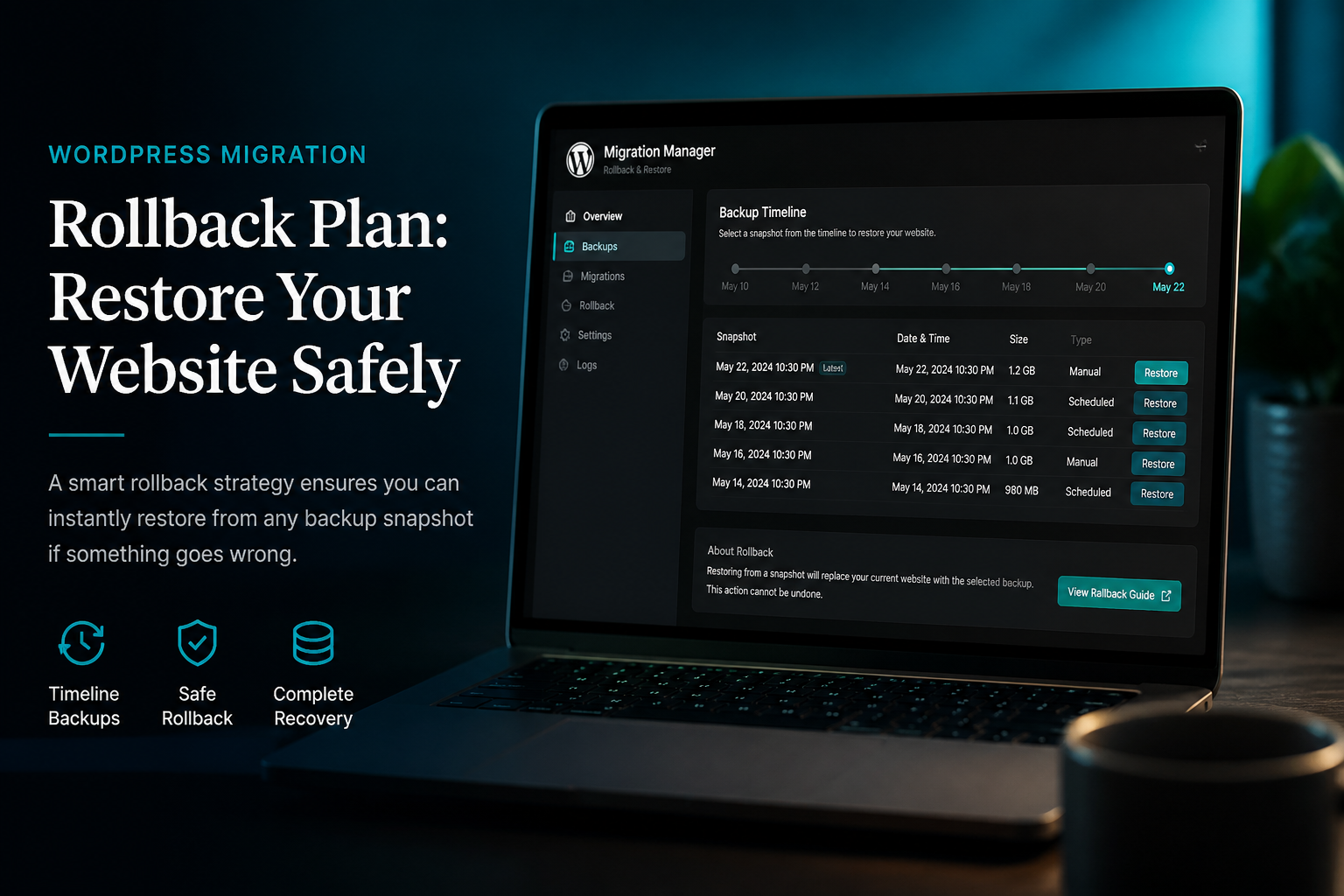
If renaming plugins does not fix it, or the database was affected, restore files and database from the backup taken before the update batch. This is why staged updates matter — you should never bulk-update production without a verified restore point.
See the WordPress security hardening guide for backup best practices.
Step 5: Prevent the next crash
- Update on staging first; test checkout, forms, and key pages
- Update plugins in small batches, not 20 at once
- Keep PHP within WordPress recommended versions
- Remove abandoned plugins before they force a bad update path
If this keeps happening, a WordPress care plan covers staged updates and rollback — so you are not doing this at midnight on a Saturday.
When to hire help
Call someone if: you have no backup, the site is WooCommerce and orders are at risk, you see unfamiliar admin users or redirect malware (that may be a hack, not an update), or you are past 30 minutes and still on a white screen.
WordPress maintenance services include tested updates and emergency response on higher tiers.
Frequently asked questions
Why does WordPress crash after a plugin update?
Usually a PHP fatal error: incompatible code with your PHP version, a conflict with another plugin, or a bug in the new release. Rarely database corruption.
Will deleting the plugin fix it?
Deactivating or removing the broken plugin often restores the site immediately. Keep the folder renamed until you confirm which plugin failed.
Can I undo a WordPress plugin update?
WordPress does not have one-click rollback. Restore the previous plugin files`from backup or download an older version from the developer.
Is my site hacked if it crashed after updating?
Not usually. Hacks more often add admin users or redirects without a clear update trigger. Still scan after recovery if anything looks off.
Get emergency help
Send your URL and what you updated last. I will tell you whether this is a 15-minute rollback or something deeper — no obligation.
August 31, 2026
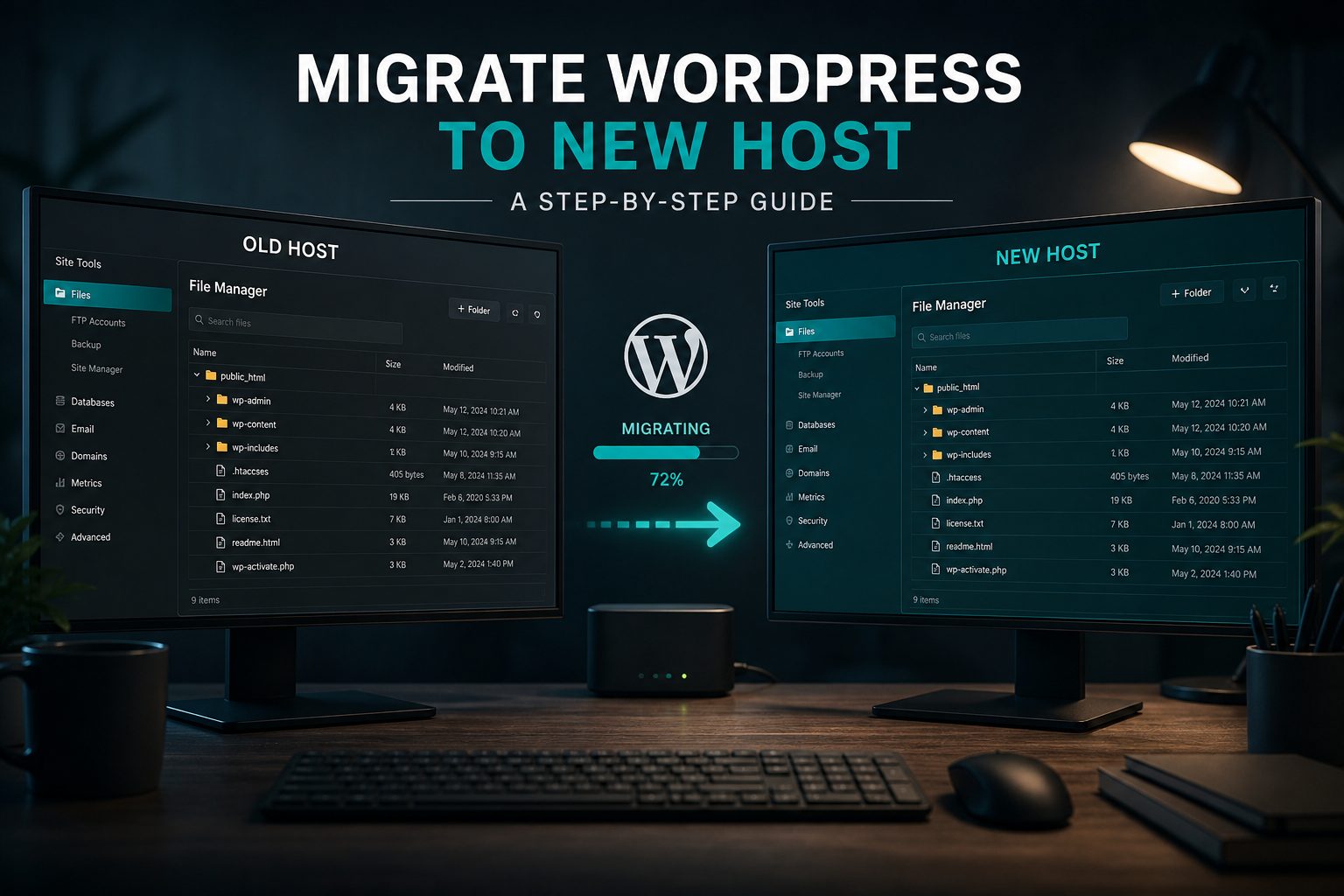
How to Migrate WordPress to a New Host...
August 31, 2026