
WooCommerce shipping rules control what shipping options customers see at checkout based on their location, cart contents, and order total. Shipping zones, methods, and classes form a three-layer system that most store owners configure incorrectly on the first attempt — then wonder why customers in certain states see no shipping options at all.
Shipping misconfiguration is a silent revenue killer. The customer adds products to cart, proceeds to checkout, sees "No shipping methods available," and leaves. No error email to you. No support ticket. Just a lost sale you never knew about.
How WooCommerce shipping works
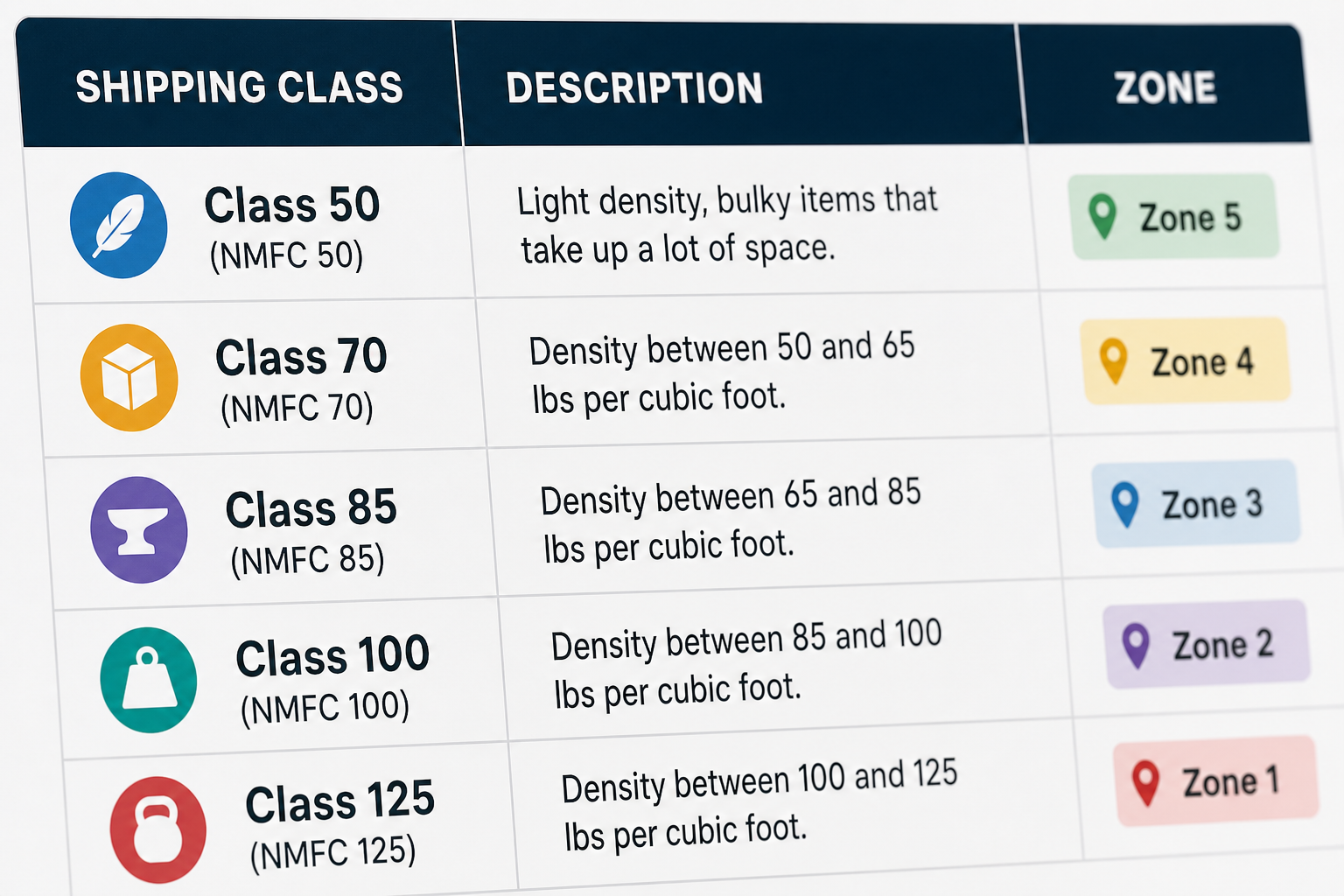
Three concepts, configured in this order:
- Shipping zones — geographic regions (US, Europe, local pickup area)
- Shipping methods — options within each zone (flat rate, free shipping, local pickup, table rate)
- Shipping classes — product-level tags that modify method costs (heavy items, fragile, oversized)
A customer at checkout is matched to a zone based on their shipping address. The methods available in that zone are displayed. Shipping class costs are added to method rates where configured.
Step 1: Configure shipping zones
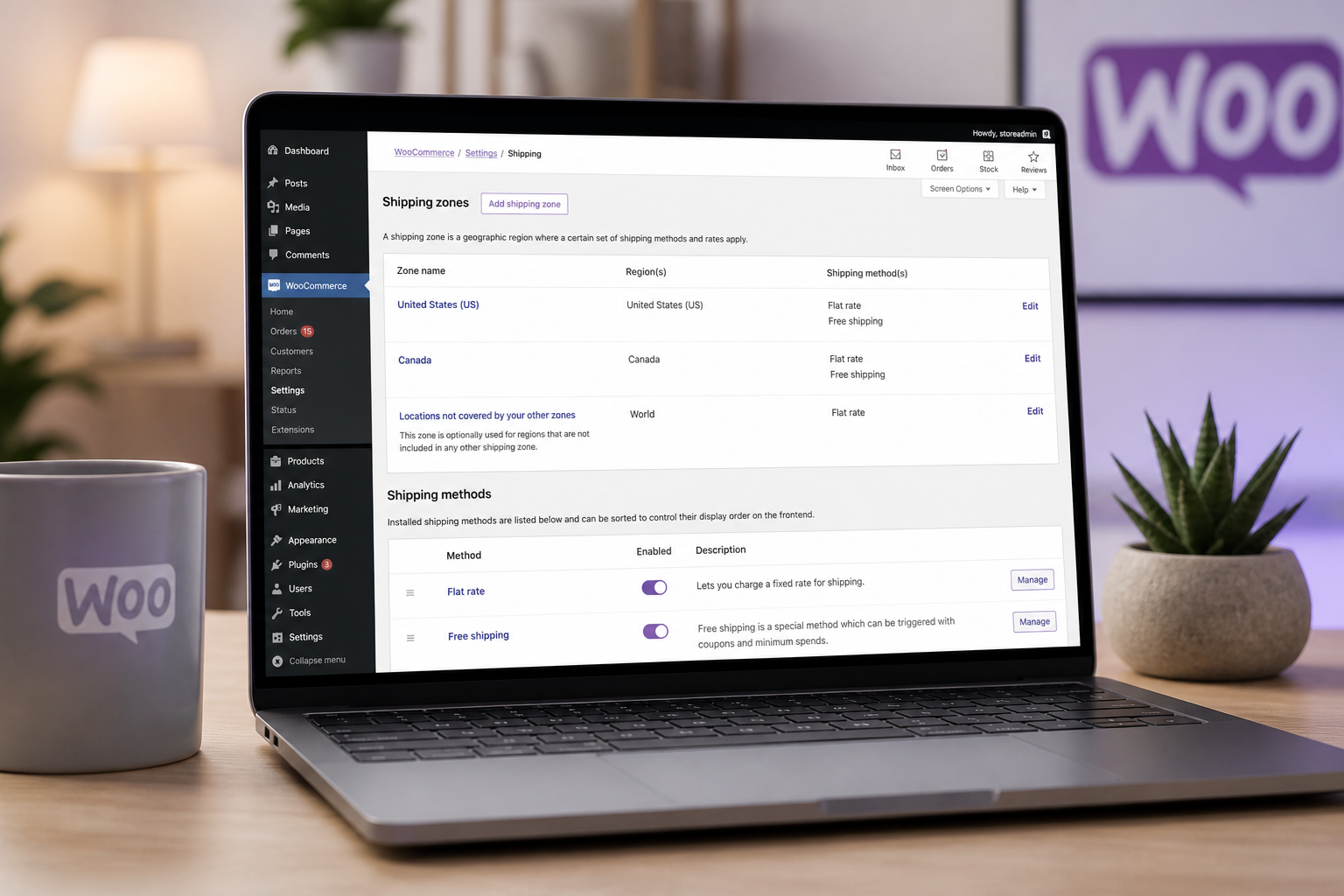
Navigate to WooCommerce → Settings → Shipping → Shipping zones.
Recommended zone structure
| Zone name | Region | Methods |
|---|---|---|
| Local | Your state or metro area | Flat rate ($5), Free shipping (over $75), Local pickup (free) |
| Domestic | Rest of your country | Flat rate ($8), Free shipping (over $100) |
| International | Countries you ship to | Flat rate ($15), or "calculated at checkout" via carrier plugin |
| Rest of world | Catch-all (optional) | Disable or set high flat rate to discourage orders |
Every country you ship to must fall within a zone. Customers outside all zones see "No shipping methods available."
Adding a zone
- Click "Add shipping zone"
- Name the zone
- Add regions (countries, states, or postcodes)
- Add shipping methods to the zone
- Save
Zone order matters. WooCommerce matches the first zone that includes the customer's location. Put specific zones (local, state) above general ones (domestic, international).
Step 2: Configure shipping methods
Flat rate
Fixed cost per order or per shipping class item. The most common method.
Setup:
- Add "Flat rate" to a zone
- Set title ("Standard Shipping")
- Set cost: fixed amount ($8.00) or formula
- Tax status: taxable or none
Formula examples:
- `$8` — flat $8 per order
- `$5 + ($2 * [qty])` — $5 base plus $2 per item
- `$10 + ( [qty] * [cost] )` — uses shipping class costs
Free shipping
Available when conditions are met:
- Minimum order amount — free shipping over $75
- Coupon — free shipping coupon code
- Both — minimum amount OR valid coupon
Setup tip: If you offer free shipping over $75, display a progress bar on the cart page ("Add $12 more for free shipping"). This increases average order value. Plugins like Advanced Free Shipping or custom development handle progress bars.
Local pickup
Customer picks up at your location. No shipping cost.
Setup:
- Add "Local pickup" to your local zone
- Set pickup location address in method settings
- Optional: add pickup instructions in the method title
Table rate shipping
Advanced rules based on weight, item count, order total, or shipping class. Requires the Table Rate Shipping extension ($99/year) or third-party plugins like Flexible Shipping.
Example rules:
- 0–5 lbs: $5
- 5–15 lbs: $10
- 15+ lbs: $15
- Heavy class items: add $8 per item
Step 3: Shipping classes
Shipping classes tag products that cost more to ship.
- WooCommerce → Settings → Shipping → Shipping classes
- Create classes: "Heavy," "Oversized," "Standard"
- Assign classes to products in the product editor → Shipping tab
- Configure class costs in flat rate or table rate method settings
Without shipping classes, a 0.5 lb phone case and a 40 lb furniture item ship at the same rate. You either lose money on heavy items or overcharge on light ones.
Step 4: Shipping origin and dimensions
WooCommerce → Settings → General:
- Set store address (used as shipping origin for carrier calculations)
Per product:
- Weight and dimensions (Products → Edit → Shipping tab)
- Required for carrier-calculated rates (USPS, UPS, FedEx)
- Required for accurate table rate rules
Weigh and measure your products before launch. Estimating leads to shipping cost surprises that eat your margin.
Carrier-calculated shipping
For real-time rates from USPS, UPS, FedEx, or DHL:
| Plugin | Carriers | Cost |
|---|---|---|
| WooCommerce Shipping (USPS) | USPS | Free (official) |
| WooCommerce Shipping & Tax | USPS, DHL | Free (official) |
| ShipStation | Multi-carrier | $9+/month |
| Table Rate + carrier plugins | Varies | $49–$99/year |
Carrier-calculated rates require accurate product weights and dimensions. They also require your store address to be configured correctly as the ship-from location.
Common shipping setup mistakes
| Mistake | Symptom | Fix |
|---|---|---|
| No zone covers customer's state/country | "No shipping methods available" | Add zone or expand region coverage |
| Free shipping threshold not set | Customers pay shipping on every order | Configure free shipping method with minimum |
| No shipping classes | Heavy items ship at same rate as light | Create and assign shipping classes |
| Missing product weights | Carrier rates return $0 or error | Add weight/dimensions to all products |
| Zone order wrong | Local customers get international rates | Reorder zones — specific before general |
| Flat rate too low | You lose money on every shipment | Calculate actual shipping costs + packaging |
| No local pickup option | Nearby customers pay unnecessary shipping | Add local pickup to local zone |
B2B shipping considerations
Wholesale and B2B stores often need different shipping rules:
- Free shipping for wholesale accounts regardless of order total
- Freight/LTL shipping for pallet orders (not handled by standard methods)
- Customer-specific shipping accounts (customer's own UPS/FedEx account)
- Minimum order for shipping (no shipping on orders under $500)
These require role-based shipping logic via plugins (B2BKing, Wholesale Suite) or custom development. See WooCommerce B2B wholesale setup for details.
Shipping and checkout performance
Shipping calculation at checkout queries zones, methods, classes, and (for carrier rates) external APIs. Slow shipping calculation adds seconds to checkout load time.
Optimization tips:
- Limit the number of zones and methods
- Cache carrier rates where possible (some plugins offer rate caching)
- Use flat rate or table rate instead of live carrier API for common destinations
- Do not call carrier APIs on cart page — calculate at checkout only
Testing shipping configuration
Before launch, test every zone and method:
- [ ] Place test order from each shipping zone (use address in that region)
- [ ] Verify correct methods appear for each zone
- [ ] Confirm free shipping activates at threshold amount
- [ ] Test shipping class surcharges on heavy/oversized products
- [ ] Verify local pickup shows only in local zone
- [ ] Test international order (if applicable) with customs/duties note
- [ ] Confirm shipping cost displays correctly in order confirmation email
- [ ] Test on mobile checkout — shipping options must be readable and selectable
- [ ] Verify tax calculation includes or excludes shipping as configured
FAQs
Why does checkout say "No shipping methods available"?
The customer's shipping address does not match any configured zone, or the matching zone has no methods assigned. Check zone regions and method assignments. Also verify the product is not marked "Virtual" (virtual products skip shipping).
Should I offer free shipping?
If your margins support it, free shipping above a threshold increases average order value. Display the threshold prominently on product and cart pages. "$5.99 shipping" converts worse than "Free shipping over $50" even when the customer would have qualified for free shipping anyway.
Free shipping does not remove carrier cost — it moves it onto product margin. Model that with the WooCommerce profit margin calculator (shipping you pay vs shipping charged) before you lock a threshold.
How do I set up shipping for digital-only products?
Mark products as Virtual. They skip shipping calculation entirely. Mixed carts (physical + digital) calculate shipping only for physical items.
Can I hide shipping costs until checkout?
WooCommerce can show shipping on the cart page (enable "Enable the shipping calculator on the cart page" in settings). Hiding shipping until checkout reduces cart abandonment from sticker shock but can increase checkout abandonment. Test both approaches with your audience.
Do I need a shipping plugin or is WooCommerce native enough?
Native flat rate, free shipping, and local pickup cover most small stores. Add table rate or carrier plugins when you have variable product weights, multiple shipping classes, or need real-time carrier rates.
Next step
If customers are abandoning at checkout due to shipping issues — or you are not sure your zones are configured correctly — a quick audit catches the gaps.
Book a free 15-minute WooCommerce audit →
For B2B shipping rules and checkout optimization, see the related guides.
September 7, 2026
WooCommerce SEO Best Practices (That Actually Move Rankings)
September 7, 2026