
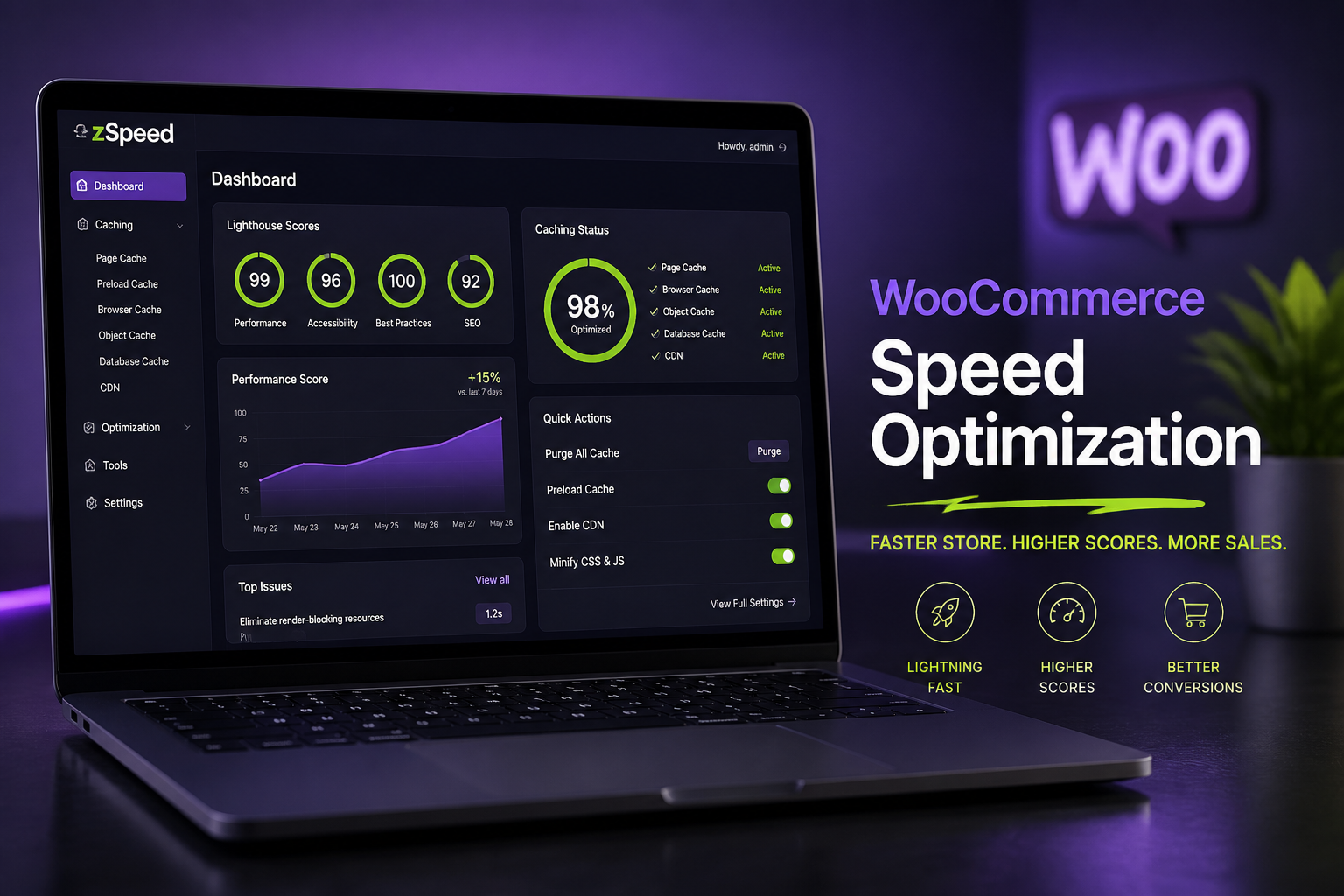
WooCommerce speed optimization means making your store's catalog, cart, and checkout pages load fast on real mobile connections — without breaking order processing, payment gateways, or dynamic cart updates. A slow WooCommerce store does not just fail PageSpeed scores. It loses sales on every product page where a buyer waits more than three seconds and leaves.
WooCommerce stores are inherently heavier than standard WordPress sites. Every page load triggers database queries for cart sessions, product metadata, tax rules, and shipping zones. That is normal. What is not normal is a store loading in six to eight seconds because of fixable configuration problems stacked on top of each other.
Why WooCommerce stores are slow
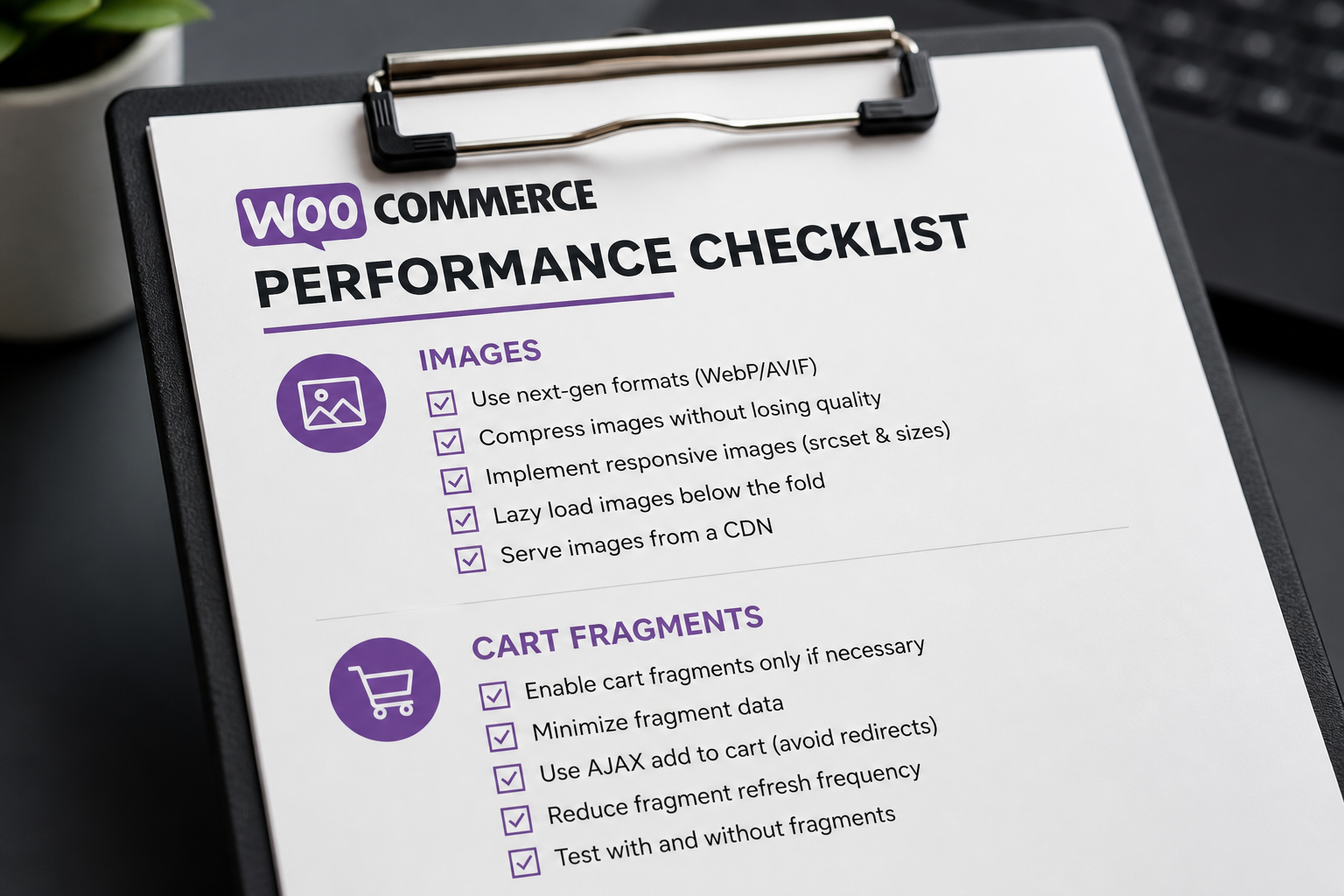
The usual suspects, in order of frequency:
- Oversized product images — 3000px JPEGs displayed at 400px
- Page builder bloat — Elementor, Divi, WPBakery loading 300–500KB of CSS/JS on shop pages
- Too many plugins — 40+ active plugins, half doing overlapping jobs
- No object caching — every request hits the database cold
- Shared hosting — $8/month plans choking on WooCommerce query load
- Cart fragment AJAX — firing on every page even when cart is empty
- Uncached or incorrectly cached pages — either no caching at all, or checkout cached when it should not be
- Render-blocking third-party scripts — chat widgets, heatmaps, multiple analytics tags
Fixing one item gives you a rounding error. Fixing the top three usually cuts load time in half.
Speed targets for WooCommerce
| Page type | Target load time (mobile) | Can be cached? |
|---|---|---|
| Homepage | Under 2.5 seconds | Yes |
| Product category | Under 3 seconds | Yes |
| Single product | Under 3 seconds | Yes (with exclusions for dynamic elements) |
| Cart | Under 2 seconds | Partially |
| Checkout | Under 2 seconds | No (must be dynamic) |
| My Account | Under 2.5 seconds | No (logged-in sessions) |
Core Web Vitals thresholds apply: LCP under 2.5s, INP under 200ms, CLS under 0.1. WooCommerce stores commonly fail LCP on product pages (hero image) and INP on cart pages (JavaScript-heavy interactions).
Step-by-step optimization
1. Hosting and caching foundation
Move to managed WordPress hosting with object caching (Redis or Memcached). Kinsta, WP Engine, Cloudways, and SiteGround's GoGeek+ tier all include this. Shared hosting is the single biggest bottleneck for WooCommerce — no amount of plugin optimization fixes a server that cannot handle concurrent database queries.
Configure page caching with proper exclusions:
- `/cart/`
- `/checkout/`
- `/my-account/`
- `/wc-api/*` (payment gateway callbacks)
- Any URL with `?add-to-cart=`
WP Rocket, FlyingPress, and LiteSpeed Cache all handle this. The configuration matters more than the plugin choice.
Enable object caching via Redis. This caches database query results — product meta, tax rates, shipping zones — so WooCommerce does not rebuild them on every page view.
2. Image optimization
Product images are the number one LCP killer on WooCommerce stores.
- Resize to actual display dimensions (800px wide for product grids, 1200px for single product)
- Convert to WebP or AVIF with JPEG fallback
- Set explicit width and height attributes to prevent CLS
- Lazy load below-the-fold images; preload the hero/LCP image
- Use WooCommerce's built-in thumbnail regeneration after changing image sizes
Plugins like ShortPixel, Imagify, or EWWW handle bulk conversion. Do this once, not on every upload.
3. Plugin audit
List every active plugin. For each one, answer: "What breaks if I deactivate this?"
Common removals on WooCommerce stores:
- Duplicate SEO plugins (keep one)
- Unused social sharing plugins
- Redundant slider/gallery plugins when WooCommerce native gallery works
- "Feature" plugins that add one shortcode you used once
- Query Monitor and debugging plugins left active in production
Target 15–25 active plugins maximum for a standard store. B2B or subscription stores may need more — but each addition should justify its query cost.
4. Cart fragment optimization
WooCommerce fires an AJAX request on every page load to update the cart widget in the header. On stores where most visitors are browsing (not buying), this adds unnecessary server load.
Options:
- Disable cart fragments on non-shop pages
- Replace AJAX cart widget with a static cart icon linking to `/cart/`
- Use a caching plugin's cart fragment optimization feature
Test thoroughly after any cart fragment change — a broken cart widget that shows stale counts erodes buyer confidence.
5. CSS and JavaScript cleanup
- Remove unused page builder CSS from shop pages (Asset CleanUp, Perfmatters, or manual dequeue)
- Defer non-critical JavaScript
- Move analytics and chat widgets to load after page interactive
- Disable WooCommerce scripts on non-shop pages (blocks, cart fragments, add-to-cart JS on blog posts)
6. Database maintenance
WooCommerce generates significant database overhead:
- Order notes, session data, and expired transients accumulate
- Action Scheduler queue can grow to thousands of pending tasks
- Post revision bloat on variable products with many attributes
Monthly maintenance:
- Clean expired sessions and transients
- Clear completed Action Scheduler tasks
- Optimize database tables (wp_options especially — autoloaded options bloat)
- Review and limit post revisions
See the WooCommerce maintenance checklist for the full routine.
7. CDN and asset delivery
Serve static assets (images, CSS, JS, fonts) through a CDN. Cloudflare (free tier works), BunnyCDN, or your host's built-in CDN. Configure cache rules to exclude dynamic WooCommerce endpoints.
What not to do
- Do not cache checkout or cart pages with full-page cache. Payment failures and stale cart data will follow.
- Do not install three caching plugins. They conflict.
- Do not lazy-load above-the-fold product images. This hurts LCP.
- Do not use a page builder for product templates if speed is a priority. Native WooCommerce templates with lightweight theme customization are faster.
- Do not chase a perfect Lighthouse score at the expense of functionality. A store that loads in 2.5 seconds with working checkout beats a 100-score store with broken cart updates.
Speed optimization cost
| Scope | Estimate (USD) |
|---|---|
| Plugin configuration + image optimization | $500–$1,500 |
| Full speed audit + fixes (hosting, caching, scripts) | $1,500–$3,500 |
| Deep optimization with page builder cleanup + database | $3,000–$5,000 |
| Rebuild shop templates without page builder | $4,000–$8,000 |
Speed work is often bundled into WooCommerce development projects rather than scoped separately.
Measuring results correctly
Use multiple tools and prioritize field data over lab scores:
- Google PageSpeed Insights — lab data for diagnosis, field data (CrUX) for real user experience
- Google Search Console → Core Web Vitals — which URL groups fail and why
- WebPageTest — waterfall charts showing what loads when
- Chrome DevTools → Network tab — test on throttled 4G to simulate mobile buyers
Run tests on product category pages and single product pages, not just the homepage. The homepage is usually the fastest page on a WooCommerce store. Product pages are where buyers land from search ads and organic results.
FAQs
Why is my WooCommerce store slow only on mobile?
Mobile PageSpeed tests use throttled CPU and network. Heavy JavaScript (page builders, cart fragments, chat widgets) hurts more on mobile. Desktop scores are often 30–40 points higher. Optimize for mobile first — that is where most ecommerce traffic comes from.
Will a caching plugin break my WooCommerce store?
Only if misconfigured. Every caching plugin needs cart, checkout, my-account, and payment callback URLs excluded from full-page cache. Properly configured caching makes WooCommerce faster, not broken.
How much does hosting affect WooCommerce speed?
More than any plugin. Moving from shared hosting to managed WordPress hosting with object caching typically cuts load times by 40–60% before any other optimization. Hosting is not where you save money on an ecommerce store.
Can I speed up WooCommerce without a developer?
Basic wins — image compression, caching plugin setup, removing unused plugins — are DIY-friendly. Database optimization, cart fragment tuning, page builder asset cleanup, and Core Web Vitals fixes usually need someone who knows WooCommerce architecture.
Does speed optimization affect SEO?
Indirectly, yes. Core Web Vitals are a ranking signal (small but real). More importantly, faster pages convert better and reduce bounce rates — which affects SEO through engagement signals. Speed optimization also pairs with WooCommerce SEO best practices for broader search visibility.
Next step
If your store loads in over four seconds on mobile and you are not sure where to start, a 15-minute audit identifies the top three fixes ranked by impact.
September 7, 2026
WooCommerce Shipping Rules Setup Guide
September 7, 2026